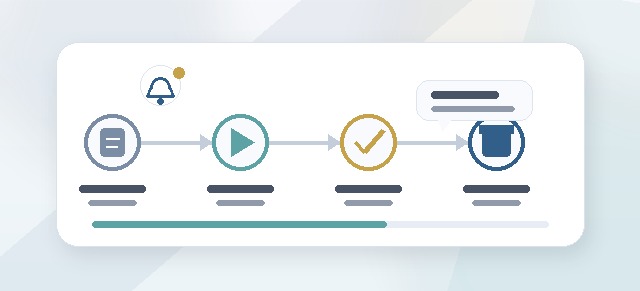
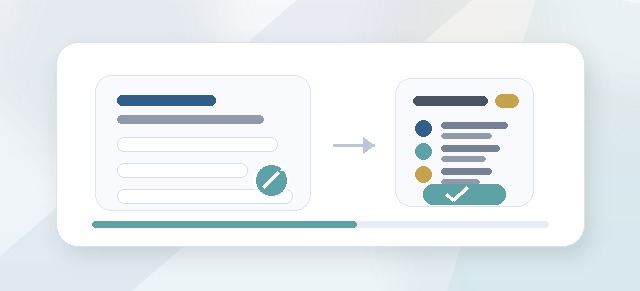
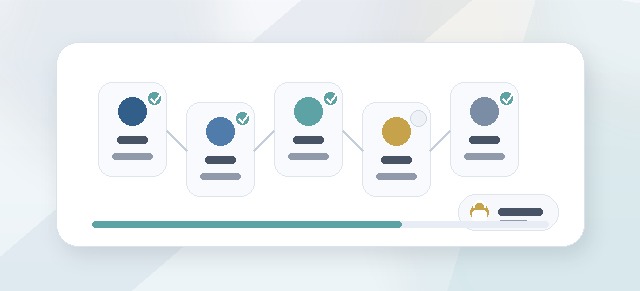
Leadership Compass may use notifications or emails to help participants, Leaders, Facilitators, and Champions know what to do next.
Notifications can support cohort launch, reminders, feedback, check-ins, guide sharing, and other important workflow steps.
Why notifications matter
Leadership Compass includes several steps.
Depending on your role, you may need to:
- start a cohort
- complete a pillar
- review reflection cards
- accept feedback
- generate a guide
- sign a guide
- respond to a message
- review participant progress
- support a check-in
- follow up with a participant
Notifications help users know when action is needed.
What kinds of notifications may be sent?
Depending on your setup, Leadership Compass may send notifications for:
- cohort launch
- participant invitations
- reminders to begin
- reminders to continue
- pillar completion
- reflection card review
- facilitator feedback
- messages
- check-in requests
- guide readiness
- guide sharing invitations
- cohort progress updates
- administrative reminders
The exact notifications depend on how your organization has configured Leadership Compass.
Cohort launch notifications
When a cohort launches, participants may receive an email or notification letting them know Leadership Compass is available.
A launch notification may include:
- what the cohort is
- why the participant is receiving the message
- where to start
- what to expect
- who to contact for help
- timing or deadline information
Champions should confirm that the participant list is correct before launching a cohort.
Participant invitation emails
A participant invitation email may be sent when someone is added to a cohort or when the cohort is launched.
Participants should use the account associated with the invitation.
If a participant logs in with a different account, they may not see the correct cohort.
Reminder notifications
Reminder notifications may be sent to help participants continue progress.
A reminder may be sent when:
- the participant has not started
- a pillar is incomplete
- reflection cards are waiting
- guide generation is available
- guide signing is incomplete
- a deadline is approaching
- a check-in or follow-up is needed
Reminders should support progress without creating unnecessary pressure.
Facilitator notifications
Facilitators may receive notifications when participants need support.
This may include:
- a participant completes a pillar
- reflection cards are ready for review
- a participant sends a message
- a participant requests a check-in
- a guide is ready for feedback
- a participant needs follow-up
Facilitator notifications help support timely coaching and feedback.
Leader notifications
Leaders may receive notifications related to assigned participants.
This may include:
- cohort launch updates
- participant progress summaries
- participants who have not started
- participants who may need encouragement
- guide sharing invitations
- selected participant updates
Leader notifications should focus on support and progress, not private reflection content.
Champion notifications
Champions may receive notifications that help them manage the cohort.
This may include:
- launch readiness
- cohort launch confirmation
- participant progress
- role assignment issues
- completion trends
- access concerns
- reminder opportunities
- post-program transition updates
Champion notifications are meant to help keep the cohort moving.
Guide sharing invitations
If a participant shares a Leadership Compass Guide, the invited person may receive an email or notification.
A guide sharing invitation may include:
- who shared the guide
- how to access it
- what action may be expected
- whether login is required
Only share a guide or selected guide content intentionally.
Message and check-in notifications
If messaging or check-ins are enabled, notifications may be sent when:
- a participant sends a message
- a Facilitator replies
- a check-in is requested
- a check-in request is updated
- support follow-up is needed
Participants should include clear context when sending a message or check-in request so the recipient knows how to help.
What if I did not receive an email?
If you expected an email but did not receive one, check:
- spam or junk folders
- quarantine or security filters
- the email address tied to your account
- whether you are using the correct login
- whether the cohort has launched
- whether notifications were enabled
- whether your organization blocks automated emails
Your Champion or Admin can confirm whether the notification was expected.
What if I received the wrong notification?
If a notification looks incorrect, check whether:
- you are assigned to the correct cohort
- you have the correct role
- your email is tied to the correct account
- you have a duplicate account
- the notification was meant for another role
- the cohort setup changed recently
Contact your Champion or Admin if the message still seems wrong.
What if someone else did not receive an invitation?
Ask the person to check spam or junk folders first.
Then ask a Champion or Admin to confirm:
- the person was added to the cohort
- the email address is correct
- the cohort has launched
- notifications were enabled
- the user is not listed under a duplicate account
- the organization’s email filters are not blocking messages
Do not add the same person repeatedly without checking for duplicate accounts.
Why notifications may vary by role
Participants, Leaders, Facilitators, and Champions do different things inside Leadership Compass.
Because of that, they may receive different notifications.
For example:
- a Participant may receive a reminder to complete a pillar
- a Facilitator may receive a prompt to review reflection cards
- a Leader may receive a progress summary
- a Champion may receive a launch or cohort progress update
Different notifications do not always mean something is wrong.
Notifications and privacy
Notifications should not include unnecessary private reflection content.
A notification may reference:
- progress
- next steps
- guide sharing
- a message or request
- cohort status
But sensitive reflection content should be handled carefully.
Do not forward notifications that include personal or private information unless it is appropriate.
Email deliverability
Sometimes email systems block or filter automated messages.
If notifications are not being received, your organization may need to check:
- spam filtering
- quarantine tools
- allowed sender settings
- email security policies
- blocked domains
- link scanning tools
- user mailbox rules
A Champion or Admin may need to involve IT if multiple users are not receiving emails.
Using notifications well
Notifications are helpful, but they should not be the only way a cohort is supported.
Champions and Leaders may also need to:
- explain the purpose of the cohort
- tell participants what to expect
- protect time for completion
- follow up with people who are stuck
- coordinate with Facilitators
- clarify deadlines
- answer access questions
Good communication around the program makes notifications more effective.
Best practices for Champions
Before launching a cohort:
- confirm participant emails
- check Leader assignments
- check Facilitator assignments
- confirm enabled pillars
- confirm timing
- tell participants what to expect
- identify the support contact
- communicate any deadlines
After launch:
- monitor early activity
- follow up with anyone who has not started
- check for access issues
- coordinate with Facilitators
- send reminders thoughtfully
Best practices for participants
Participants should:
- use the account tied to the invitation
- check spam or junk if an email is missing
- start from the dashboard when unsure
- complete enabled pillars in order
- review notification instructions carefully
- contact the Champion or Facilitator if stuck
Best practices for Leaders and Facilitators
Leaders and Facilitators should:
- watch for assigned follow-up notifications
- respond to messages or check-ins when appropriate
- avoid asking for private content unnecessarily
- use notifications to support progress
- coordinate with Champions if assignment issues appear
Common questions
Will every user receive the same notifications?
No. Notifications may vary by role, assignment, cohort status, and enabled features.
Are notifications required to complete Leadership Compass?
Not always. You can often access your next step from the Leadership Compass dashboard even if an email is missing.
Why did I receive a reminder after completing work?
The system may not have updated yet, or a required step may still be incomplete. Check whether reflection cards, guide generation, or signing still need attention.
Why did I not receive a launch email?
The cohort may not have launched, notifications may not be enabled, or the email may have been filtered.
Can a Champion resend an invitation?
This depends on the setup. A Champion or Admin may be able to resend or trigger communication.
Can I unsubscribe from Leadership Compass emails?
This depends on your organization’s setup and the type of notification. Some program-related notifications may be part of the cohort workflow.
Troubleshooting
I did not receive an expected email.
Check spam, junk, quarantine, email address, login account, and cohort launch status.
A participant cannot find their invitation.
Confirm the email address, cohort assignment, and whether the participant is using the correct account.
Multiple participants did not receive emails.
Ask IT or an Admin to check filtering, allowed sender rules, and organization-level mail security.
I received a notification for the wrong cohort.
Ask a Champion or Admin to review cohort assignments and duplicate accounts.
I received a reminder after finishing.
Refresh your dashboard and check whether any required step remains incomplete.
A link in the email does not work.
Try logging in directly and opening Leadership Compass from the dashboard. If the issue continues, contact your Champion or support contact.
Summary
Leadership Compass notifications help users know when to start, continue, review, share, or support the work.
If a notification is missing or confusing, start by checking the user’s account, cohort assignment, role, email address, and cohort status.