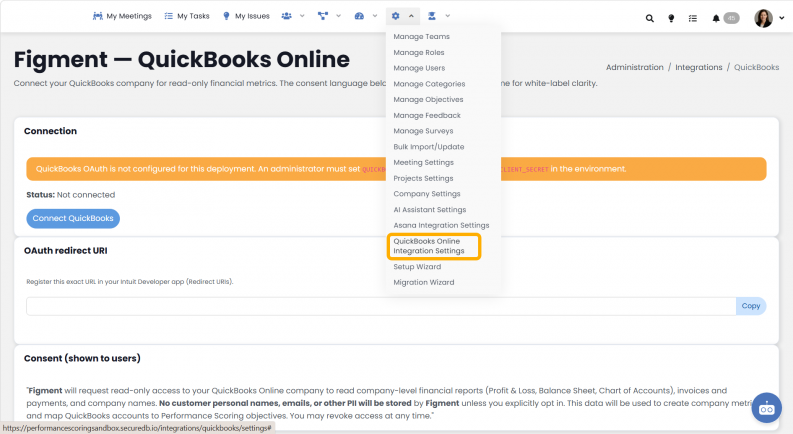
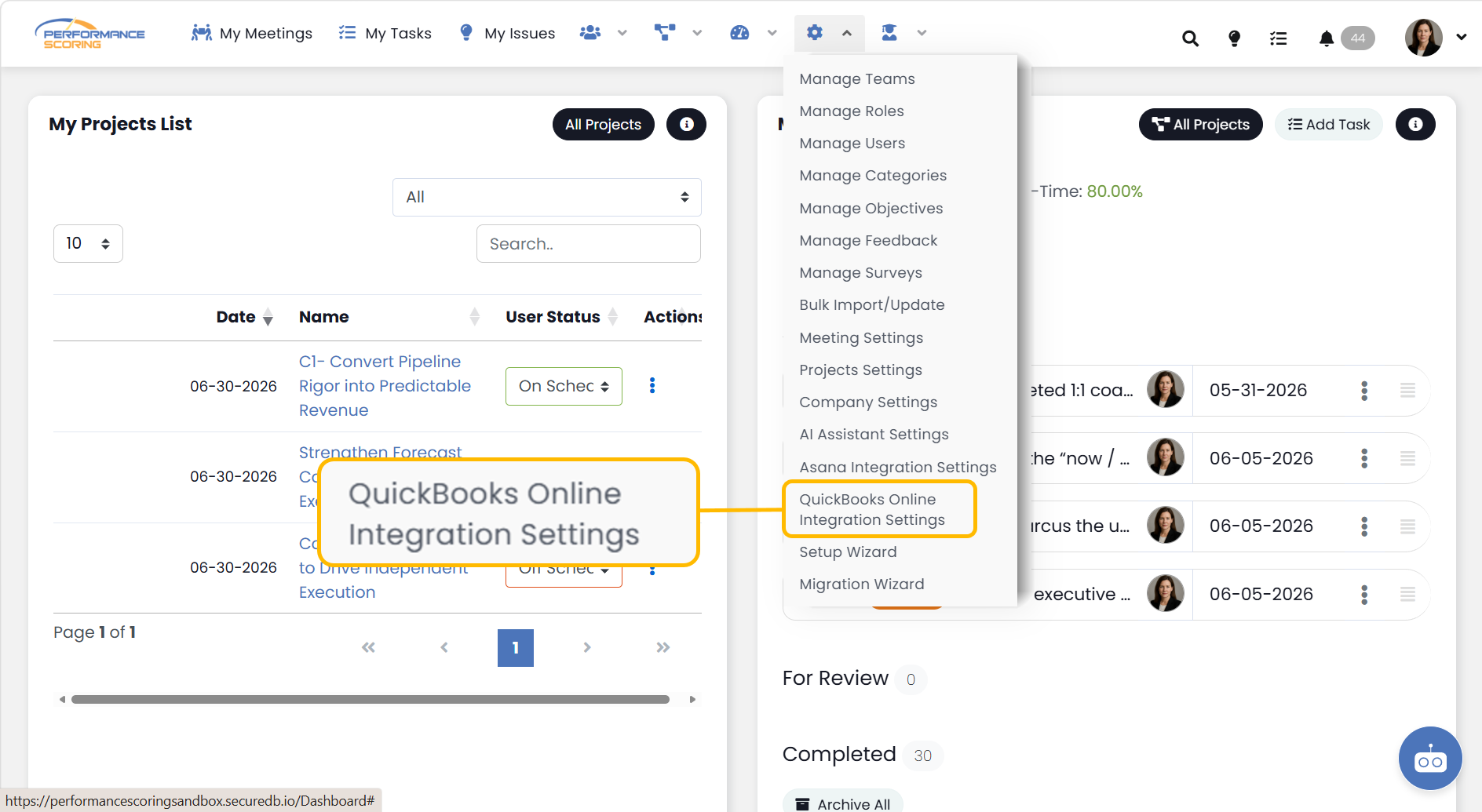
Access QuickBooks Connection Setup by navigating to the Administration Tab > QuickBooks Online Integration Settings.
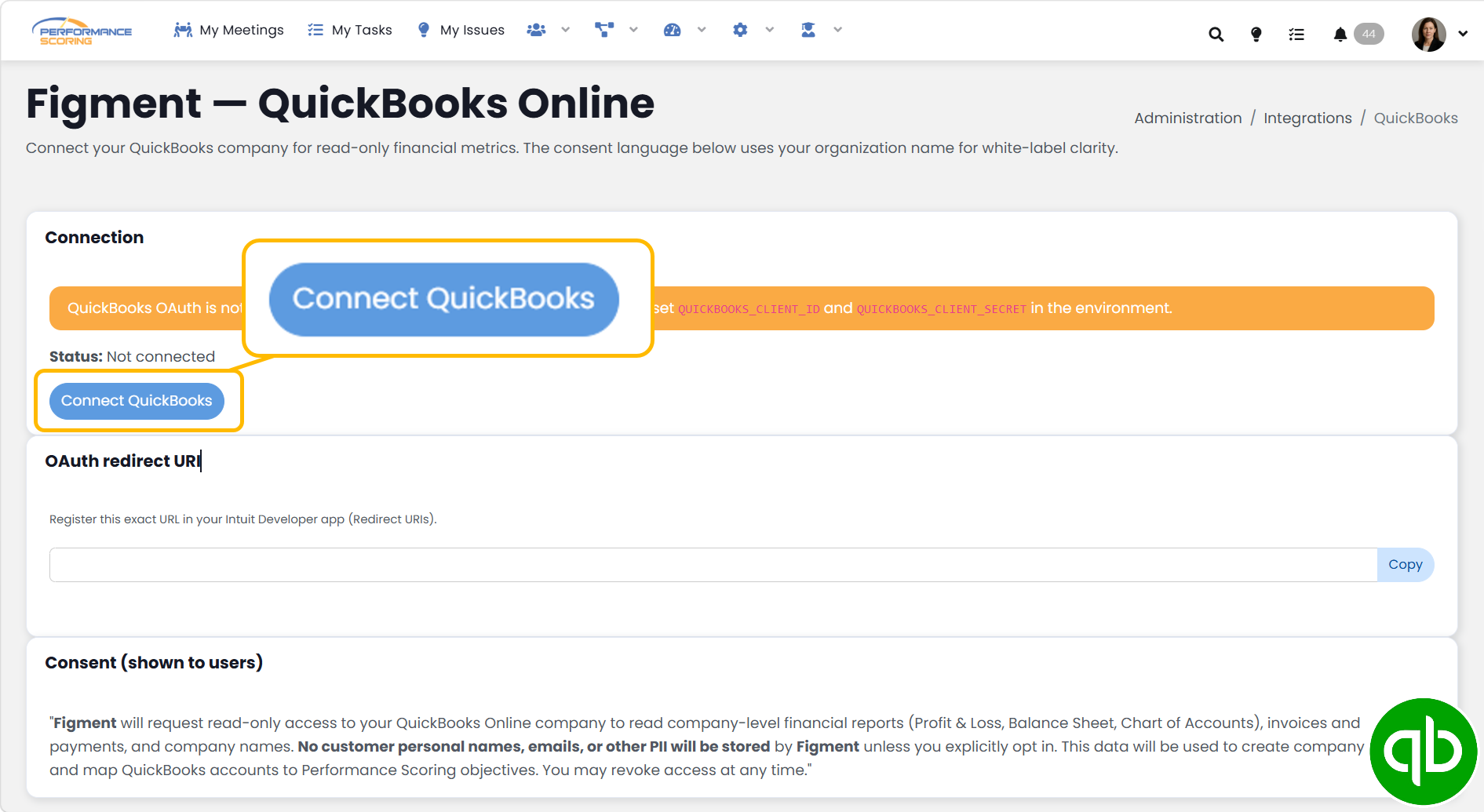
Connect QuickBooks Online
- Open QuickBooks Online Integration Settings from the administration navigation dropdown.
- On the next page, select Connect QuickBooks. The integration supports one QuickBooks Online company per organization.
- You will be redirected to Intuit. Sign in using a QuickBooks account that has permission to authorize third-party applications.
- Select the QuickBooks company you want connected.
- Review the requested permissions and select Connect or Authorize.
The application requests read-only access to company-level financial information, including financial reports, the Chart of Accounts, invoices, payments, and the QuickBooks company name. The issue specifies that customer names, emails, and other personal information should not be stored.
- After authorization, Intuit redirects you back to the application. You should see the confirmation: QuickBooks Online connected successfully. The connected QuickBooks company name and connection status should then appear on the integration page.
- Allow the initial synchronization to complete. Connecting automatically initiates a full import/backfill, designed to retrieve approximately 12 months of available data.
- Once connected, use Preview Data to review the imported Chart of Accounts and financial-report data. The application also supports running another full synchronization from the QuickBooks integration page.
After connecting
When creating or editing an Objective:
- Set the Objective’s Source to QuickBooks.
- Choose a Dataset, such as Profit and Loss or Balance Sheet.
- Select the applicable Line Item/Account.
- Choose the Update Frequency.
- Save the Objective.
The selected QuickBooks account value will then be used to update the Objective’s progress after synchronization. The issue comments explain that the dataset determines which QuickBooks line items become available and that update frequency controls both metric tracking and data retrieval frequency.
Important limitation
This integration is specifically for QuickBooks Online. QuickBooks Desktop is not supported, and only one QuickBooks company can currently be connected to each organization.