In Pinnacle, your Initiatives, Rocks, and Action Items can be inserted into any Meeting in order to make them a separate item on the Meeting Agenda. You can easily add any of these in Meeting Settings on the meetings page or from Edit Meeting within the meeting preview. Rocks and Action Items can also be added to Meetings as you are creating them as well.
Initiatives
Initiatives are long-term strategic plans that can consist of multiple Rocks and are created within Initiatives. To add an Initiative to a Meeting, simply select it from the “Initiative” field under “Rocks & Action Items” in meeting settings and save the meeting settings.
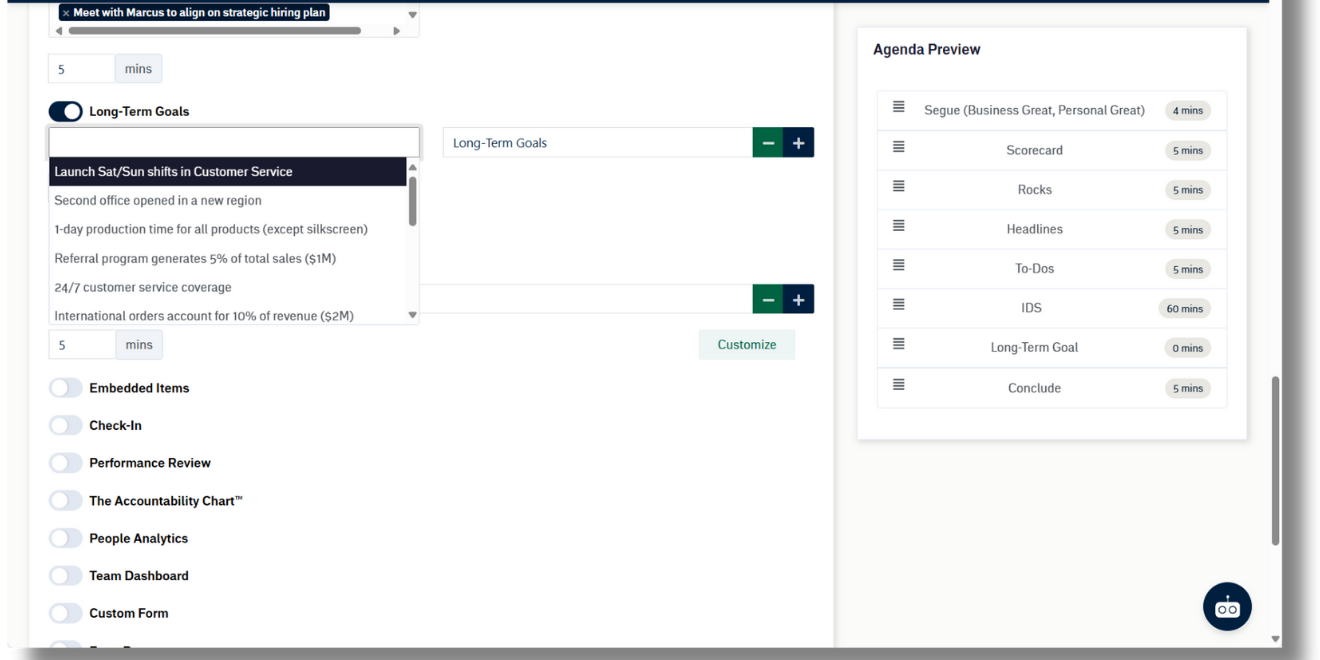
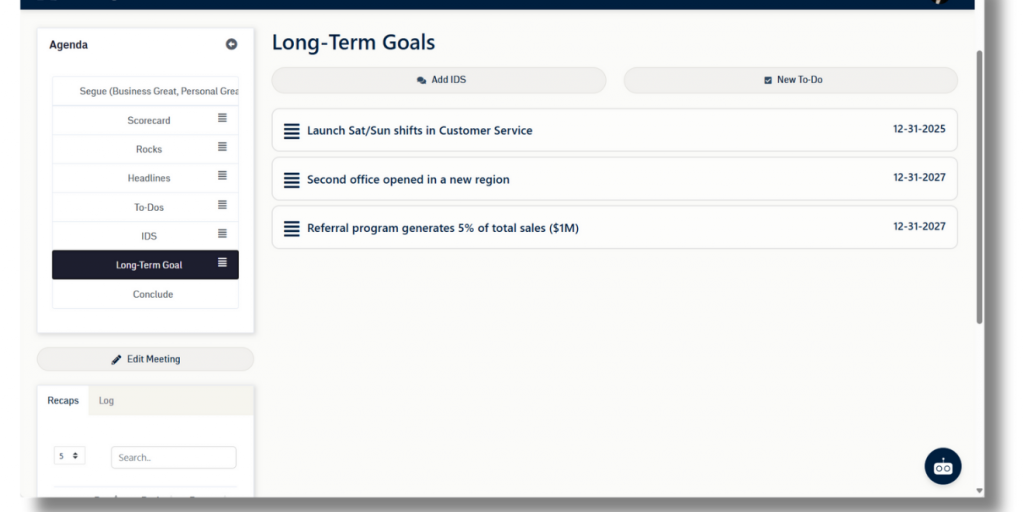
The Initiatives section will now be present in the Agenda. Selecting an Initiative in a Meeting will reveal all of the Rocks contained within and allow you to view or update any details associated with each Rock.
Rocks
In relation to Initiatives, Rocks are shorter-term buckets of Action Items that typically last 30-90 days. Rocks can be pieces of Initiatives as discussed earlier, or they can be stand-alone Goals consisting of multiple Action Items. Selecting the title of a Rock in a meeting will reveal the percentage of milestone Action Items complete and options to add a Topic, view details (which produces a slide-out of the Rock, edit (also produces a slide-out), remove the Rock from the meeting, and mark complete.
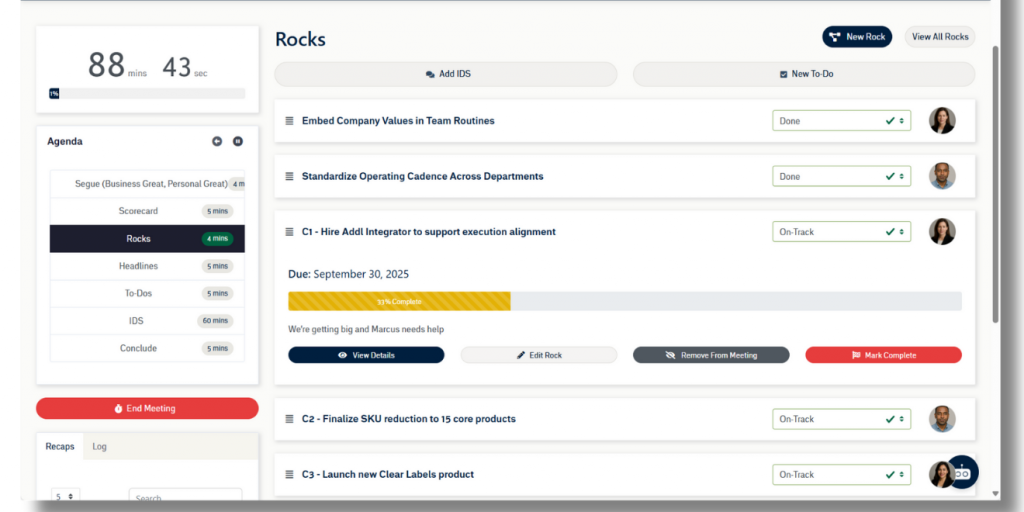
There are two ways to add a Rock to a meeting: adding an existing Rock and creating a Rock from scratch within a meeting.
Adding an Existing Rock
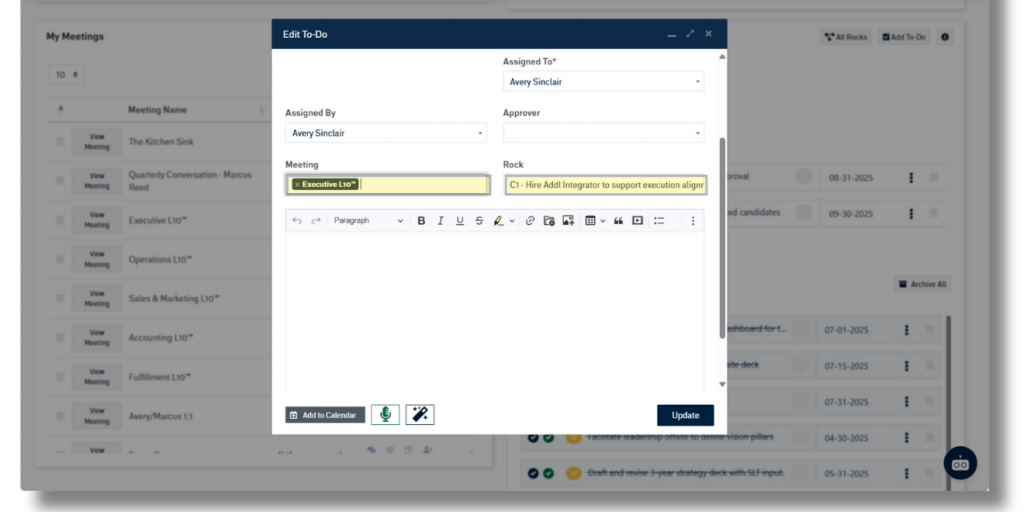
Existing Rocks can be added to Meetings in the same manner as Initiatives and are accessible from the Agenda in their own separate section. Simply select one or more Rocks from the “Rocks” field in meeting settings and save the settings.
Creating a Rock Within a Meeting
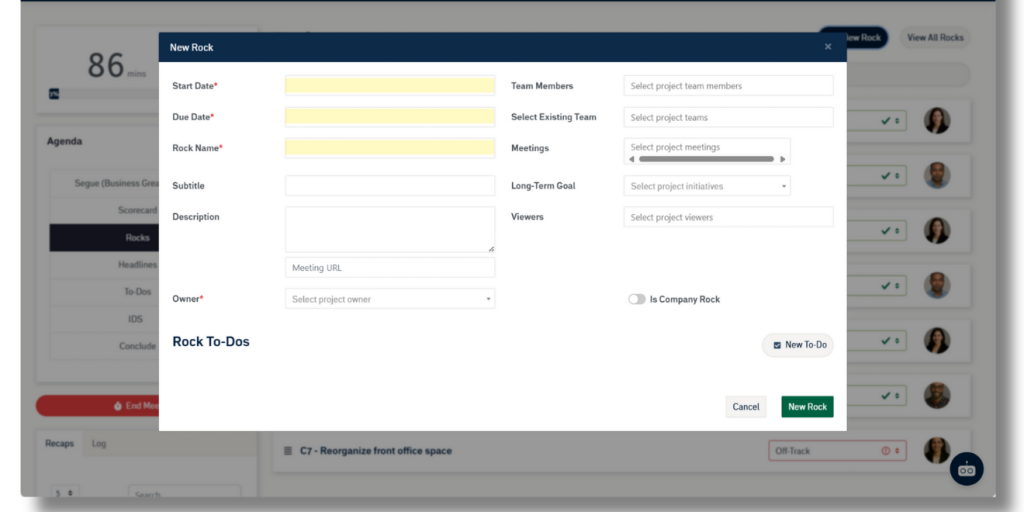
Rocks can be created from scratch from within the meeting preview or during an active meeting. To do this, select “New Rock” from either the Action Items or Rocks section of the meeting. Once selected, a modal will open with Rock options and the ability to add Action Items to the Rock on the spot.
Action Items
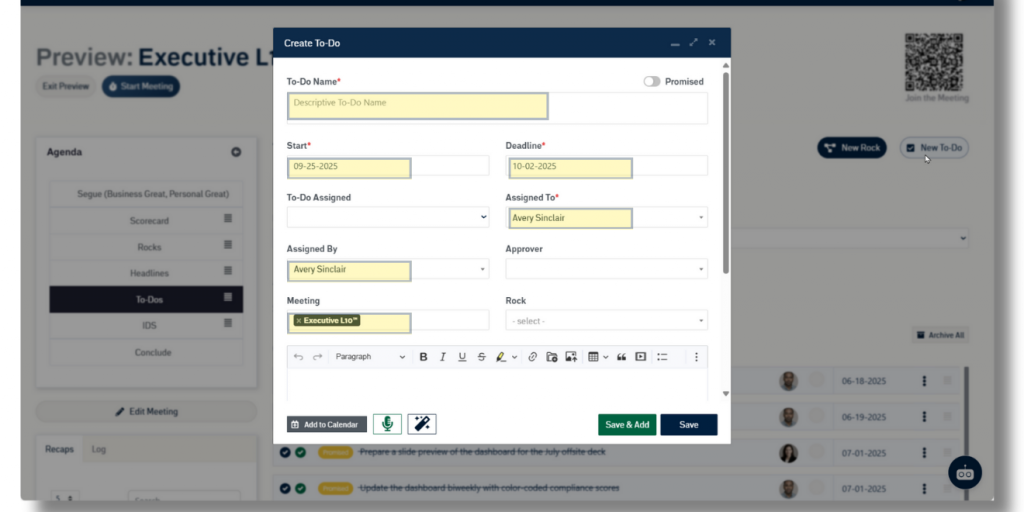
Action Items can be added to any meeting upon their creation or by editing the Action Item Details and selecting the appropriate Meeting. Action Items will appear in a Meeting as their own section for discussion just like Initiatives and Rocks. A thorough description of Action Items Management can be found here.
Next up: Attachments