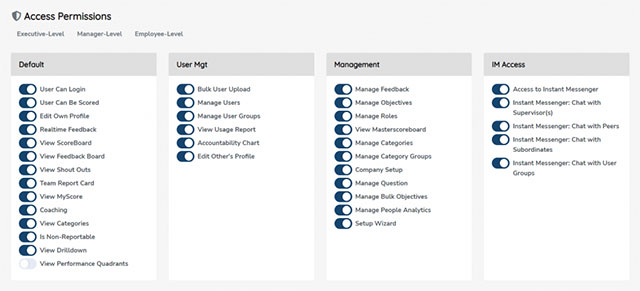
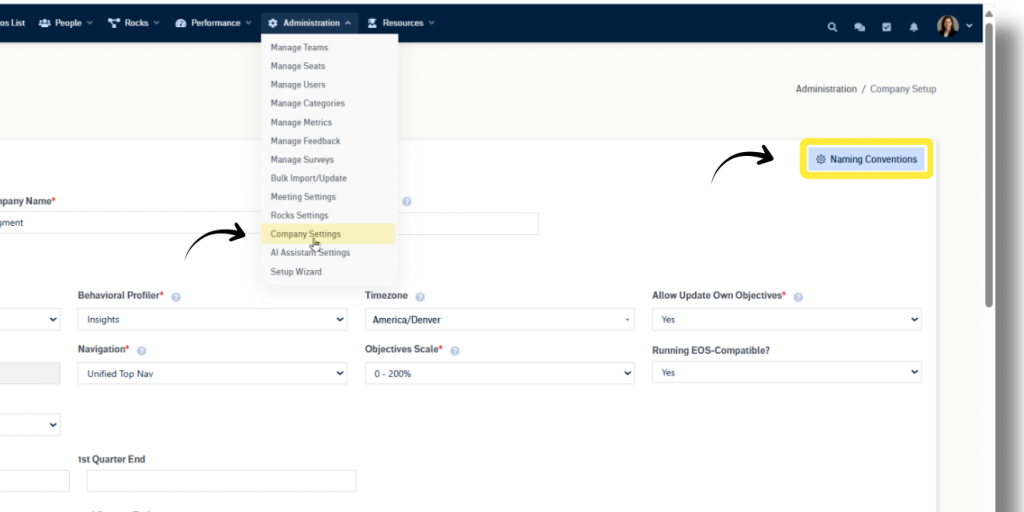
The Company Setup View is to be used by the organization’s administrators and controls the company’s Upstream+ application. To go to the Company Setup View, use the navigation panel and select Administration > Company Settings. On the Company Settings page, the following items can be updated if the user has the correct permissions:
General Information
- App Edition – the version of the application your organization is on
- Company Name
- NAICS – NAICS number (optional)
- Timezone – the default time zone for your organization
- OpenAI API Key – your secret token for even more AI power
- Naming Conventions – Allows companies to change the name(s) of menu items in Upstream+
Setup Details
- Review Frequency – For Reviews: Quarterly, Semi-Annual, or Annual. Note: changing the review frequency will cause that change to cascade through the application.
- Period Start and End Dates – define custom “start” and “end” dates based on your Review Frequency
- Behavioral Profiler – If you have an account with Predictive Index or Mind Mosaic
- Timezone – The default time zone for your organization. This can be overwritten in user profiles.
- Allow Update Own Goals – Allows users to update their own Goal scores
- Navigation – Where your company’s navigation panel will be located
- Speech Recognition – AI transcription and summarization (requires OpenAI Workspace Key)
- Goals Scale – Choose if you think about Goals on a 0-100% scale (where 80% means “Meets Expectations”) or a 0-200% scale (where 100% is the minimum expectation).
Organization-Wide Questions: Organization-specific questions that will show up on all performance reviews. Upstream+ comes with default questions, but they can be changed here. Use the “Add” button to add and click the “X” to remove.
- Values – Organizational Value employees can be rated on; generally found in an organization’s mission, vision, and/or Value statement
- Alignment – Questions for the employee to answer during a review to get Factor on how they feel they are aligned to the company
Company Setup: Additional information organizations can make available in the user profiles to further clarify the job description. Use the Add button to add and select the X to remove.
- Regions – Create regions that represent your organizations geographical reach
- Departments – Create the departments in your organization
- Job Titles – Create job titles to further clarify the specific job title within a larger organizational Role
Once completed, click on Save Changes.
Naming Conventions
Make Upstream+ your own by customizing how things are named. Simply click on the Naming Conventions button at the top-right. Learn more about tailoring Upstream+ to suite your needs in the Naming Conventions support article.
Next up: Global Meeting Settings