These are YOUR meetings. Customize all facets of each meeting and even rename what you call portions of GoExpand for your organization.
Logged-in users who have the permission “Global Rocks Settings” in their Seat will see Meeting Settings under the Administration navigation dropdown. Clicking that will take you to options for changing all sorts of defaults for your organization as a whole.
NOTE: Changes here are applied to ALL users within your organization.
Default Meeting Time
When creating a new meeting, you have several options for that meeting’s duration. Changing “Default Meeting Time (mins) here will change what the default option selected is for new meetings. Of course, the duration of each meeting can be changed on an individual basis. This simply sets what it should default to initially.
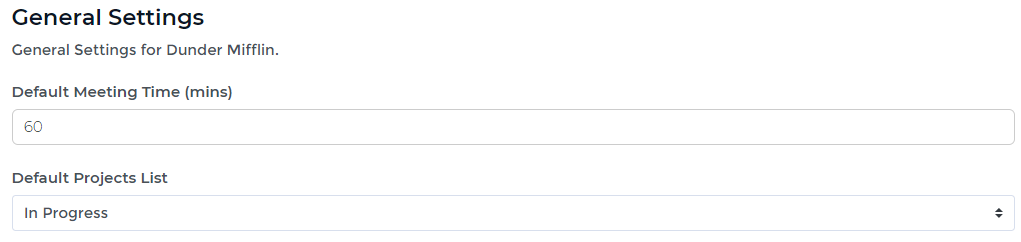
Default Rocks List
Much like Default Meeting Time, this sets the default status view for Rocks when listed in the Rocks List. Instead of showing ALL the Rocks by default, administrators may choose to auto-filter that initial view to “In-Progress” which will exclude any Rocks that are “pending” (starting in the future) or “completed” (archived). At the top of the Rocks List, you are still able to change that filter. This option in Meeting Settings simply sets its initial default view.
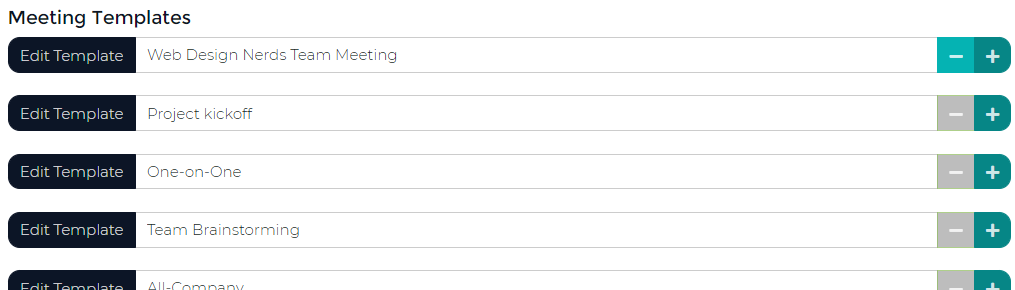
Meeting Templates
Here you have a list of existing meeting templates. Those that are the defaults may be edited, but not deleted. Any custom meeting templates can also be edited or deleted.
Naming Conventions
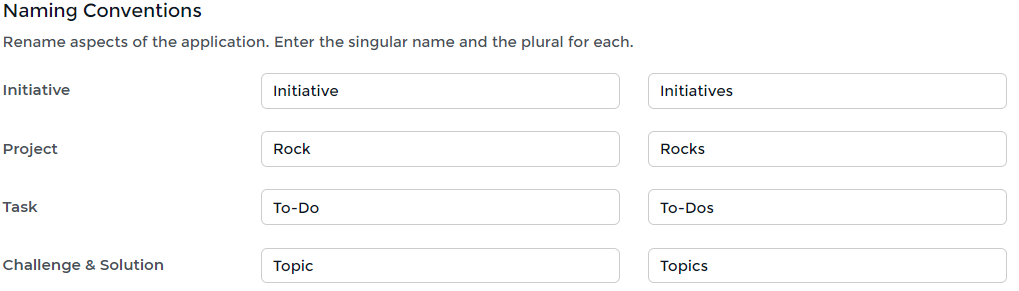
Make the application yours. Under the Naming Conventions section, you’ll see the default language used in the application for 1 and 3 Year Goal, Rocks, To-Do, and IDS. Maybe you want to change how those are referred to here and in the application.
Simply enter the singular and plural versions of each here and you’ll see them updated everywhere inside of the application for your organization after you click Save Changes.
Edit 1 and 3 Year Goal
1 and 3 Year Goals are the highest-level goals for an organization. They are essentially a group of Rocks planned over a long period of time. All Rocks have an option to choose which 1 and 3 Year Goal they should be associated with. Then, all To-Do within that Rock get rolled-up to the 1 and 3 Year Goal. We also use this when generating your Gantt chart and drilldown Rock Reports.
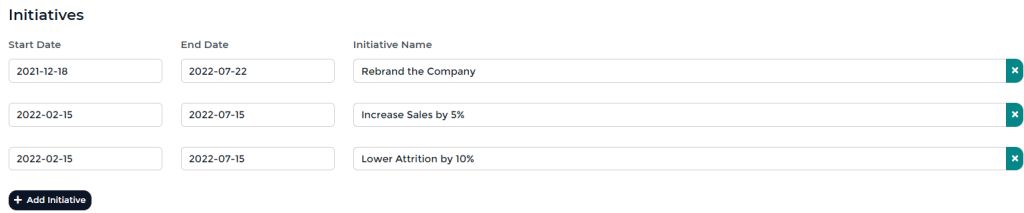
Simply give each a start date, end date, and a name. Remember, these are used more like “buckets” of Rocks to categorize the ultimate goal for the child Rock and associated To-Dos.
As we say, 1 and 3 Year Goals are how we can show the bat boy how his To-Dos, no matter how menial they may seem, are going to help us win the world series.
Edit Segue Questions
Under the Segue tab, you’ll see a list of “Segue Questions” we’ve supplied you by default. Here is where you can edit, delete, or add to the list. Each time a meeting starts, one of these segue questions will be randomly chosen from this bank to be shown to meeting attendees at the beginning of the meeting.
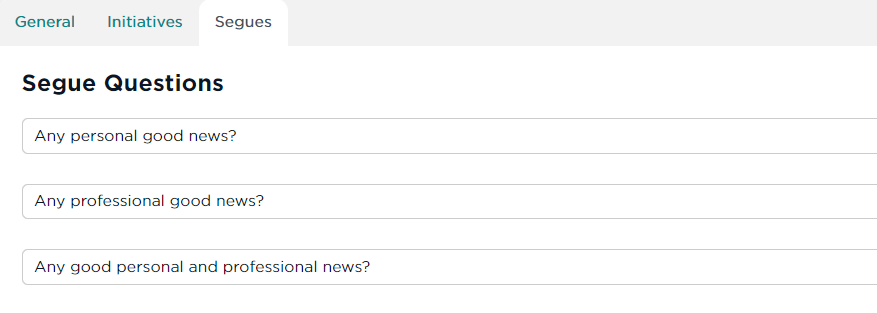
Segues are a way to help meeting attendees transition from working “in the business” to working “on the business.”
For more information about the power of Segues, here’s a video from our own Edgar Jones.
Save Those Changes
Once you’re all done, be sure to click the large, Save Changes, button at the very bottom to commit your changes.
UP NEXT: Rocks