Employee Reviews, or Performance Reviews, are conducted at intervals set in Company Setup (Annually, Semi-Annually, or Quarterly). These are crucial for measuring employee engagement and Engagements. These Performance Reviews include a tab for a snapshot of employee Metrics, tabs for rating the employee on Engagement with your organization’s Core Values and Seat-specific Roles and Skills, and a tab for action items to be completed after the Performance Review. Once a Performance Review is started, it will autosave until it is completed or saved for completion and submission later.
Here’s how to conduct a Performance Review
Select Employee and Period
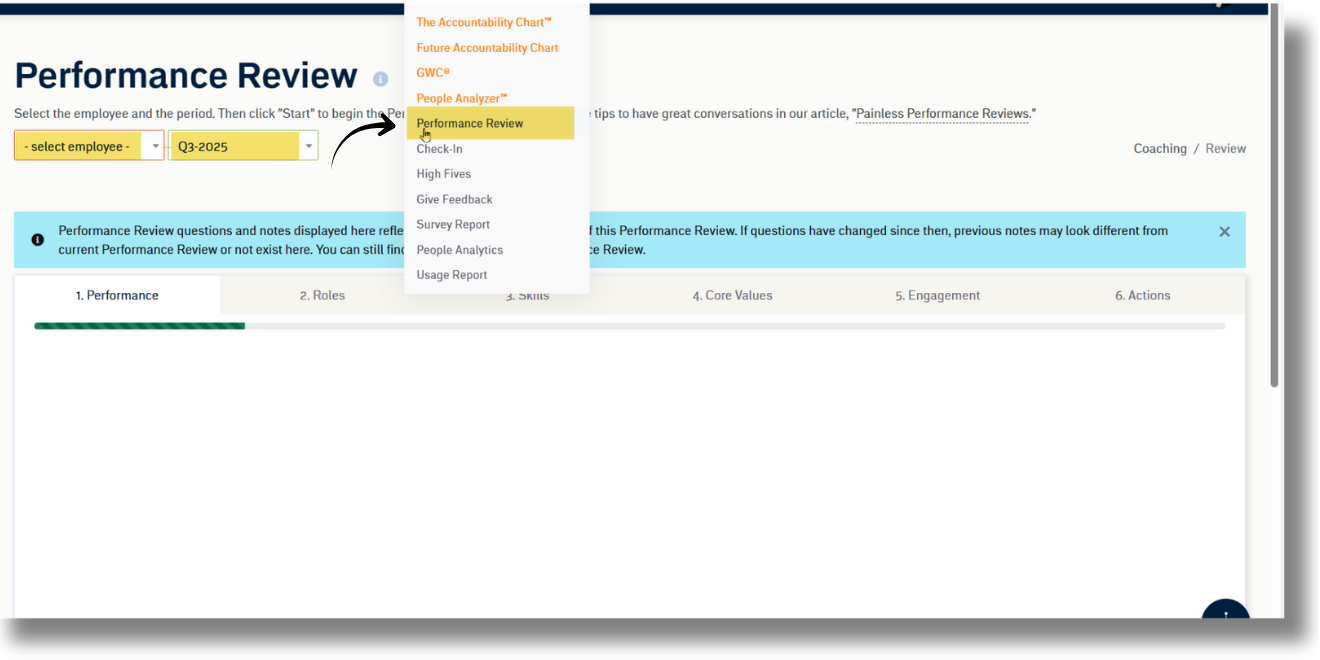
To get started, navigate to “People” in the menu, then click “Performance Reviews”. Choose the employee’s name and the review period from the dropdowns at the top. Then, click the Start button.
For detailed guidance, see Managing Employee Information.
Performance Tab
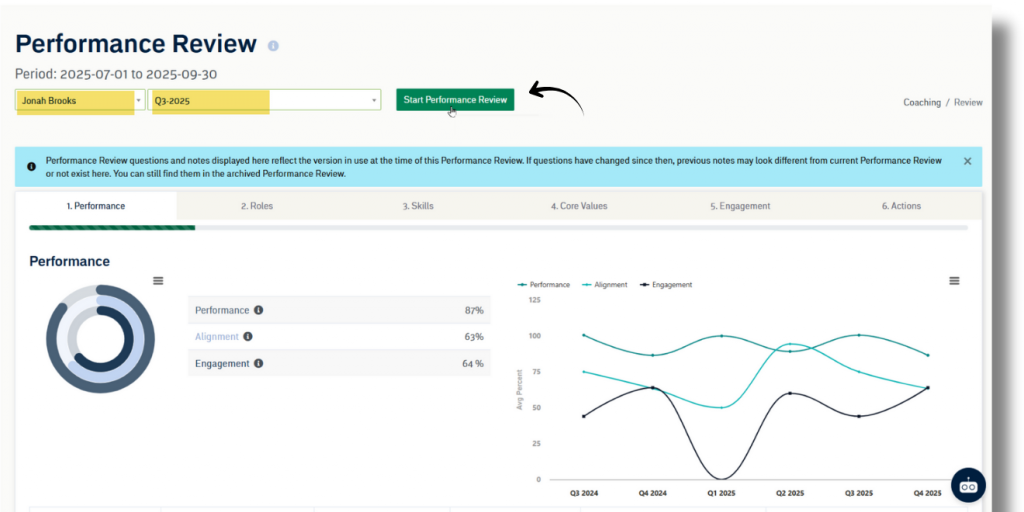
Review the employee’s Performance Metric Trends and Metrics. Ensure you’ve updated their Performance Metrics before starting the Performance Reviews. For more on setting Metrics, refer to Managing Metrics.
NOTE: Metrics must be updated prior to clicking “Start Performance Reviews“. Metrics can not be updated once you’ve started the Performance Reviews.
Previous Performance Reviews for the user are archived below the Trend Chart and can be reviewed before conducting the a new Performance Reviews.
When you’re ready to get started, just click “Start Performance Review“.
Seats, Core Values, Skills, and Engagements Tabs
Tabs 2-5 allows managers to rate employees on both company-wide Core Values and Seat-specific items. Each item is scored on a 1-5 scale, where 1 would be an F and 5 would be an A+. Notes can be added to each item to provide context for the scores. If your organization has speech to text enabled, this feature can be used in the notes section. If this is not the employee’s first Performance Review , you’ll see a button for “Prior Notes” which includes a list of the scores and notes given in prior Performance Reviews.
All the way along, you can enter notes along with your scores. You can also click the “+ Action Item” button to the right of your comment to add that as an action item on the last tab of the review.
Seats
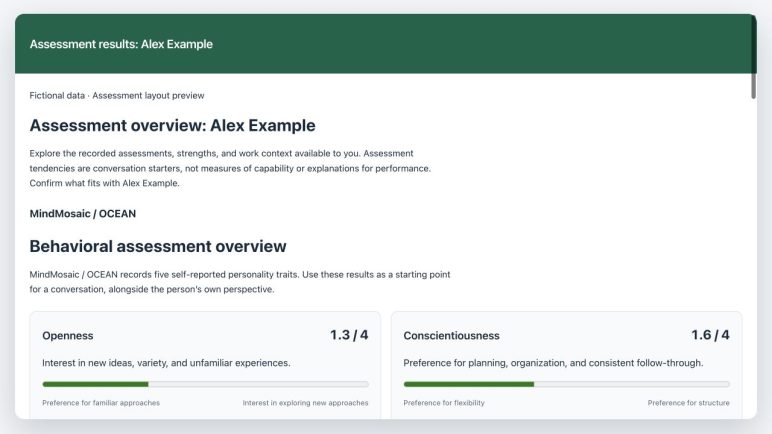
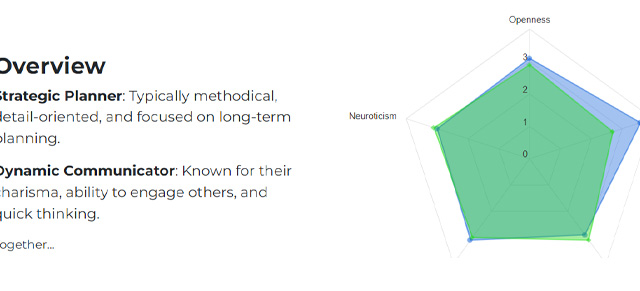
On the Seats page, assess the employee’s Seat Roles. These behaviors are editable in Build/Manage Seats. If your company is using a behavioral assessment tool supported by GoExpand, you can access that information here as well.
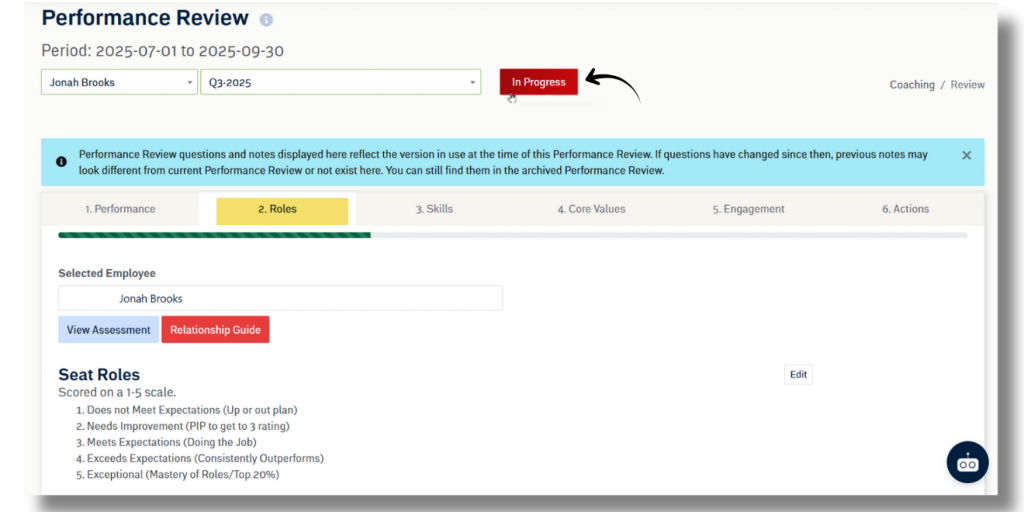
Select “Next” at the bottom to go to the Core Values tab.
Core Values
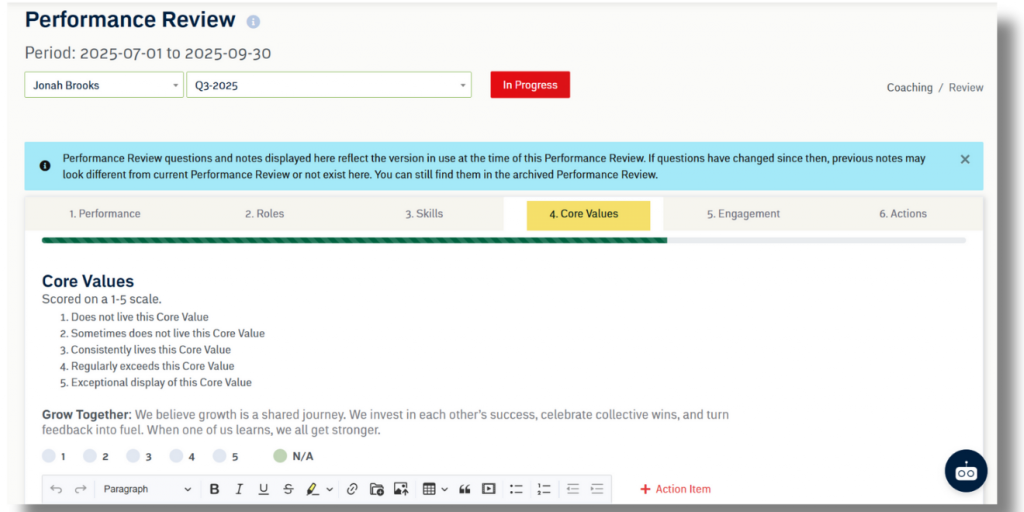
Here there are the questions set in your organization’s setup to ensure employees are aligned with organizational Core Values . The company Core Values are pulled directly from Company Setup and are the same throughout an organization.
Select “Next” to go to the Skills tab.
Skills
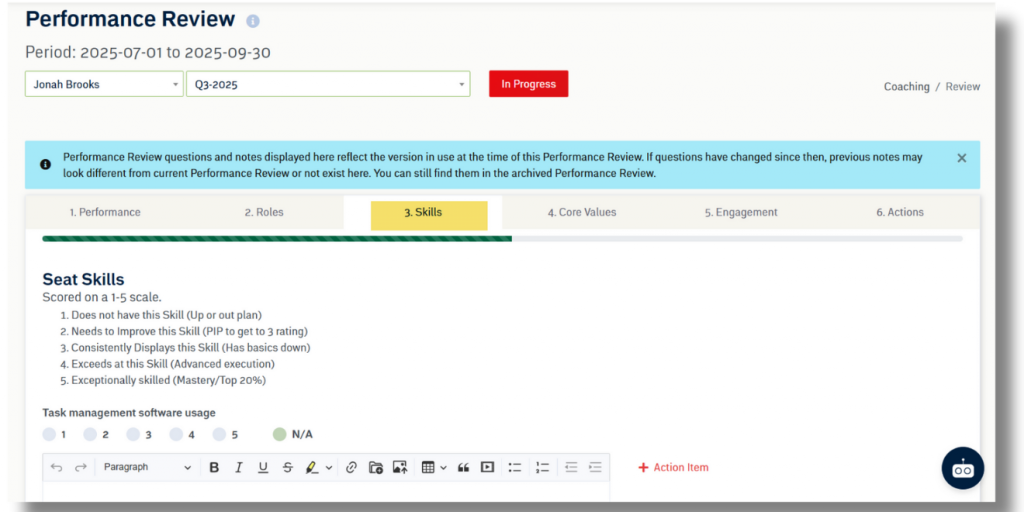
In the Skills tab, you’ll find questions based on the employee’s Seat. Use this to coach an employee on the Skills needed to excel in their Seat.
Select “Next” to go to the Engagements tab.
Engagements Tab
These “Engagements” questions help managers coach on employee engagement. They are defined in the Company Setup and usually determined to judge how well an employee understands and is motivated to execute on the organization’s vision and Core Values.
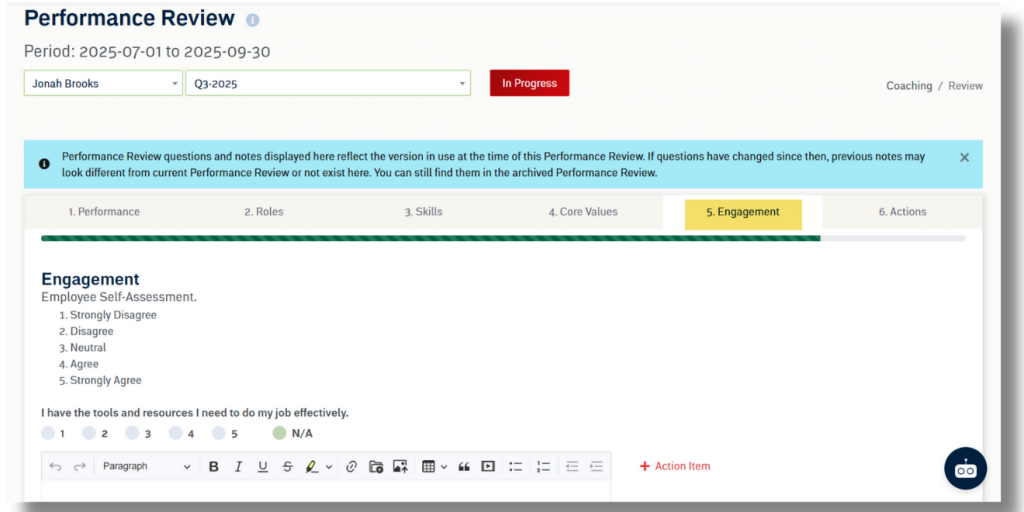
Select “Next” to be taken to the final, Actions tab.
Action Items (Moving Forward)
On the Actions tab, management can create or edit already added action items, which are key items for the user to focus on through the next Performance Review period. There is also a box where management can enter their coaching plan and attach any documentation that was discussed and provide any suggestions for how the employee can improve over the next period.
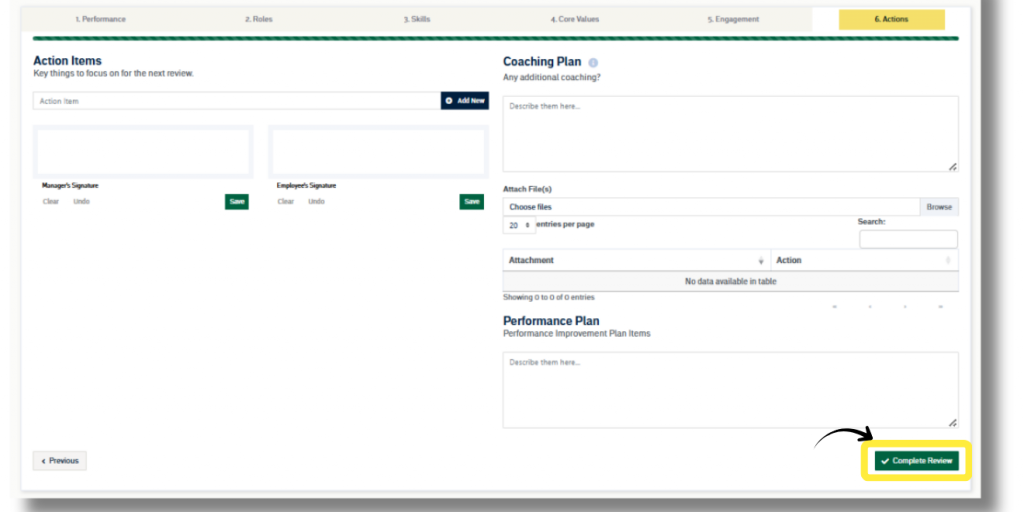
The “Add Performance Plan” button will show a Performance Improvement Plan (PIP) section for serious conversations and coaching items, such as write-ups, and allows for signed documentation to be attached, if required.
Remember the Performance Review will automatically save itself every 3-5 seconds. If you need to save the Performance Review and complete it later, just click the “In Progress” button and the content will be saved and can be edited later.
Once you’re all done, click the green Complete Performance Review button at the bottom of the last tab to submit the Performance Review.
WARNING: Once a Performance Review has been “completed” it can NOT be re-edited. If you complete a Performance Review in error, please create a support ticket. This is to prevent Performance Review from being re-opened and changed after they’ve been formally submitted.
Next up: Surveys