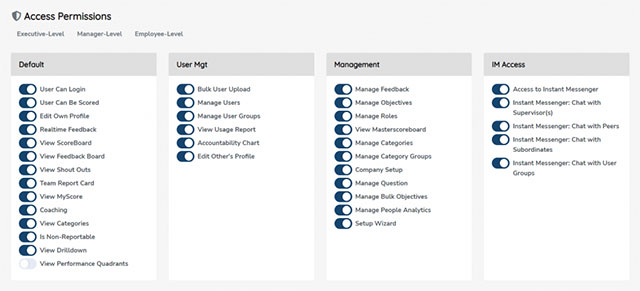
Change or update defaults for Rocks for your entire organization from Administration >> Rock Settings. NOTE: Your Role must have “Global Rock
Settings” active to access this admin settings view.
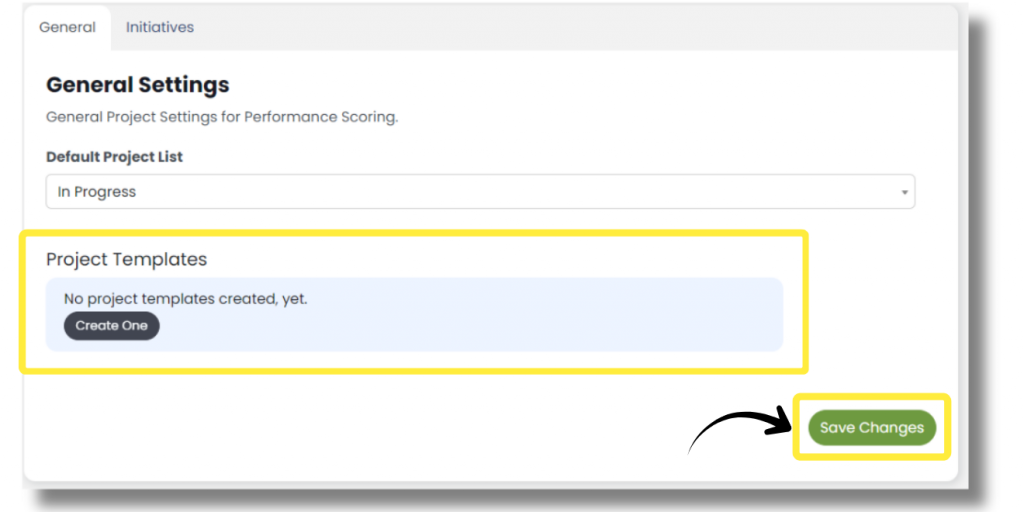
Default Rock List
The Default Rock List option sets the global default status filter for the Rock listing view. For example, if your organization has lots of Rocks and each Rocks are hidden by default. On the Rock listing page, individuals can still change that filter from the default you’ve set here.
Rock Templates
These are repeatable, updateable templates to be used for future Rocks. Here, you can edit existing ones, or create a new one. More about Rock Templates here.
Initiatives
In Pinnacle, Initiatives can be selected when creating or editing Rocks. So, you can think of Initiatives as the BIG goal a group of Rocks are all working towards. For example, an Initiative might be “Decrease Attrition by 20%.” You would want to set a timeframe for that lofty goal like, “by the next board meeting.” Then, your organization can create Rocks and select that Initiative so you can see all the Rocks that are all working towards that big Initiative.
Think of “Initiatives” as the BIG goal a group of Rocks are all working towards…
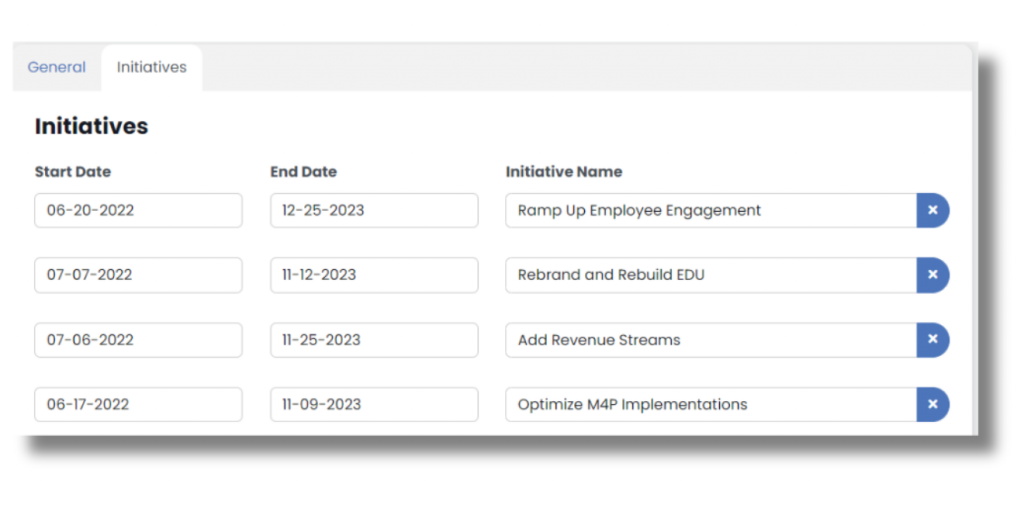
From Rock Settings, click the “Initiatives” tab. For each Initiative, give it a name, a start date, and an end date (since the application doesn’t know when your next board meeting is or what a reasonable timeframe for that big goal might be).
Remove Initiative rows by clicking the “x” on the right of that row. Click the “+ Add Initiative” button to add a new row.
Once you’re all done, click the Save Changes button at the bottom of the page.
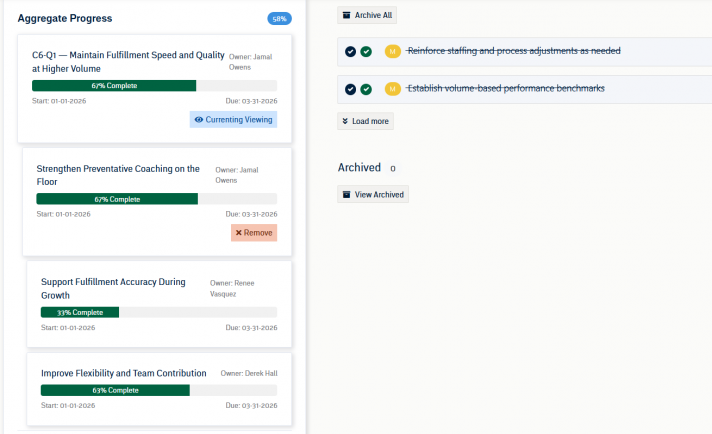
These Initiatives will be shown in the Visualize Gantt chart, as well as in the Rock Reports top-level drilldown chart. They are selected when creating or editing a Rock.
Next up: Setup Wizard