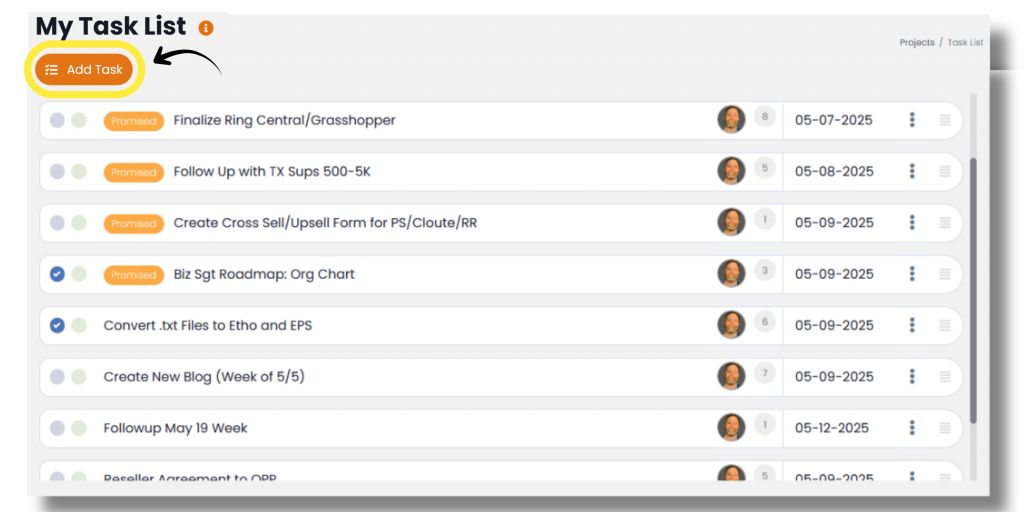
In Pinnacle, Action Items can be the building blocks of Rocks, important items for discussion in Meetings, or stand-alone “to dos” for individuals in the organization. No matter how they are used, Action Items are action items assigned to an individual, given a start and deadline date. Action Items can be marked as “Promised” if they are tied to team commitments and will contribute to a user’s Action Item completion percentage. Action Items can include additional information and resources in the “Action Item Details.” ,and if equipped, Speech Recognition can be utilized in any Action Item Details section. A Action Item can be created from the navigation panel, the Action Item widget on the dashboard, the My Action Item page, within a Rock, and in meetings.

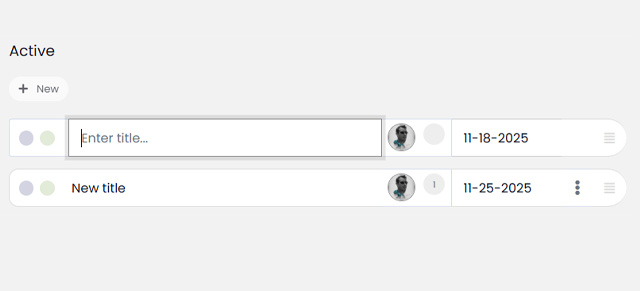
You can also use the “Quick Add” feature by clicking + Add button under “Active.”
Action Items come in a few different states:
- Not Started: The Action Item is not in progress and it’s not complete; no radio buttons are on.
- In Progress: The Action Item has started; the first radio button is selected.
- Complete: The Action Item has been marked as “complete” by the person it’s assigned to; both radio buttons are selected.

Completed Action Items will drop down to the “Completed” section and can be reopened by unchecking the “complete” radio button. Action Items that were setup to be reviewed by a supervisor will appear in the “For Review” section and cannot be fully complete until the employee’s direct “Reports To” reviews the Action Item and deems it complete and up to standard. At this point, the supervisor may either “Approve” it or “Reject” it.
Rejecting a Action Item puts it back on the Action Item list for the user it was assigned to, with a visual indicating it was, for whatever reason, rejected. Accepting the Action Item archives it.
As they say, “Trust, but verify.”
Once a Action Item has been assigned to you, you’ll find a running Action Item list on your Dashboard as well as in My Action Item List on the navigation panel.

Lengthy titles can seen by hovering over them. Action Items can be opened by clicking the title. You can re-order your Action Items by dragging and dropping them by the handle (three lines on the far right-hand side) into a priority order. By clicking the three vertical dots, you can interact with Action Items in the following ways:
- Action Item Details: Opens a the modal window just as if you’d clicked the title.
- Watch: This allows you to get notifications about this Action Item, specifically, depending on how you’ve set your notification preferences in the Notifications tab of your profile.
- Star: Used just as you might “flag” an email. This could be a priority or a favorite. That’s totally up to you.
- Reassign: Allows you to reassign this Action Item to another individual working in the same group (meeting or Rock).
- Delete: This will remove the Action Item totally from both your Action Item list as well as any meetings or Rocks it may be associated with.
NOTE: The delete function here is a “soft delete”. The Action Item isn’t really deleted; it’s just “deactivated” and “hidden”. Create a support ticket if you’ve “deleted” a Action Item by mistake.
Understand the Evolution
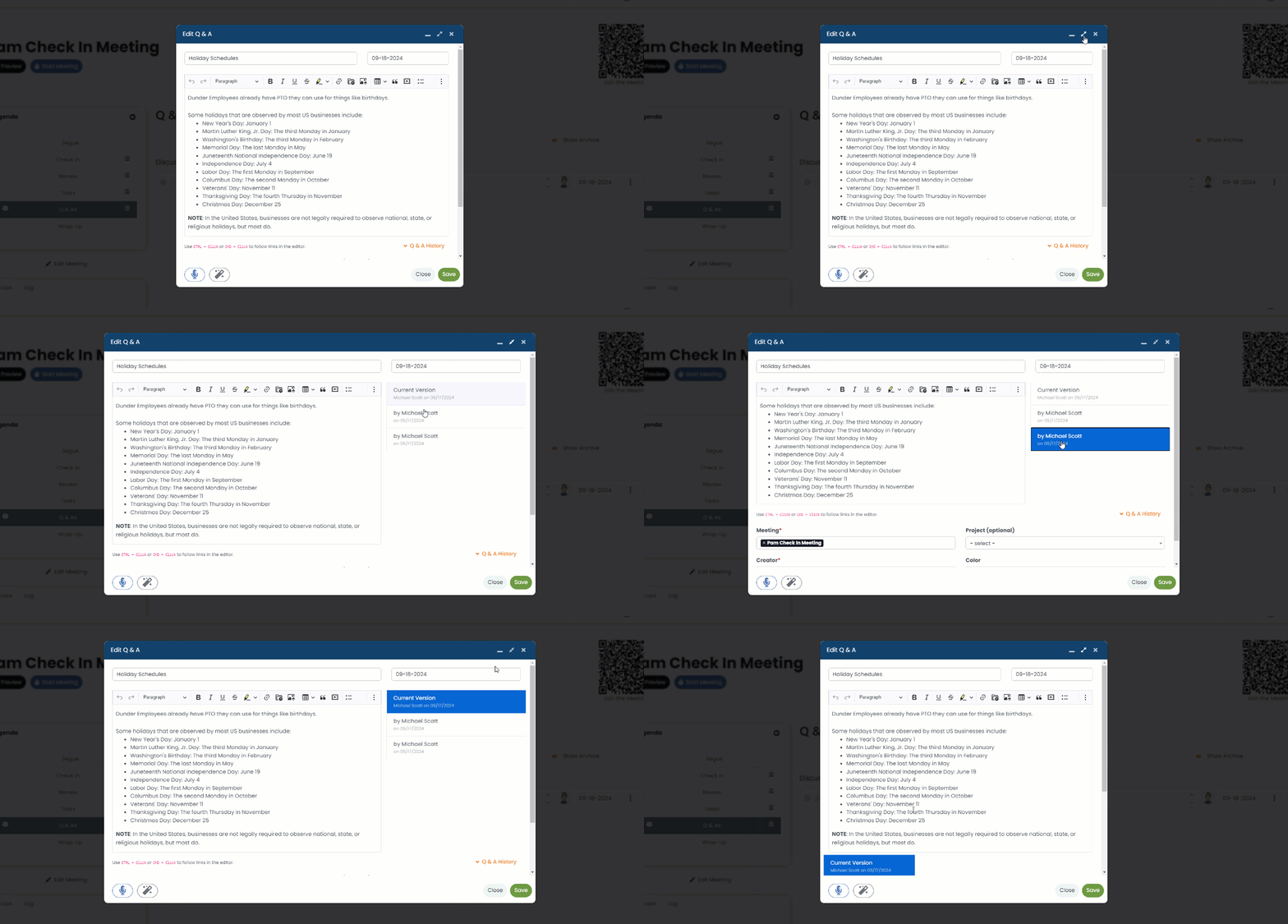
As a Action Item gets worked through, the dates will change, it could be reassigned, the scope of work involved in that Action Item could change. Change happens, but Pinnacle tracks every change to a Action Item. Click the “maximize” icon in the modal toolbar to show a revision history of the Action Item details. Alternatively at the bottom, you can click “Action Item History” for a timeline view of all other changes made to a Action Item.
Next up: Org Chart