In GoExpand, Rocks are a way of grouping a series of To-Dos that are all interrelated. Rocks, themselves, have a start date and a deadline. They have Creators, Team Members, and Viewers. Let’s go through a high-level overview into what all this means, how to use it for Rock Management, and all the ways Rock status can then be communicated elsewhere in the application.
Creating a Rock
If your Seat has the permission “Create/Edit Rocks“, you’ll see “Rocks” in the main navigation. Click on “Rocks List” to see all the current Rocks you have access to see.
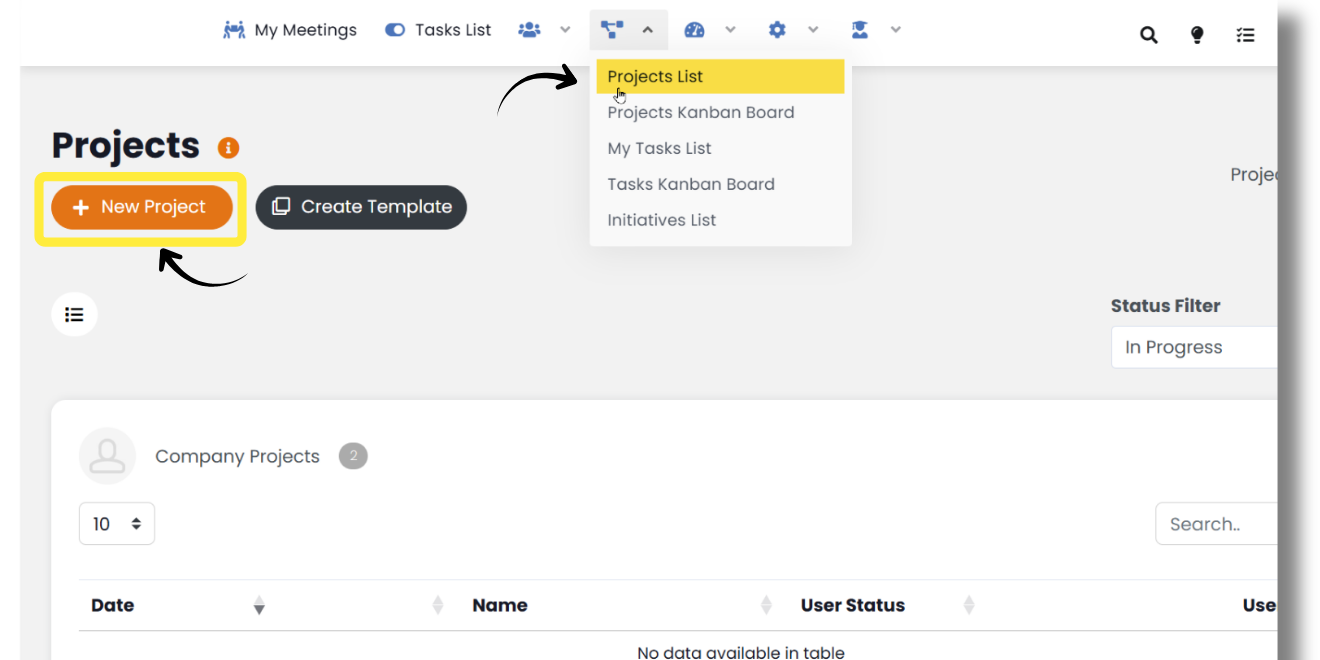
At the top, click New Rock to create a new one.
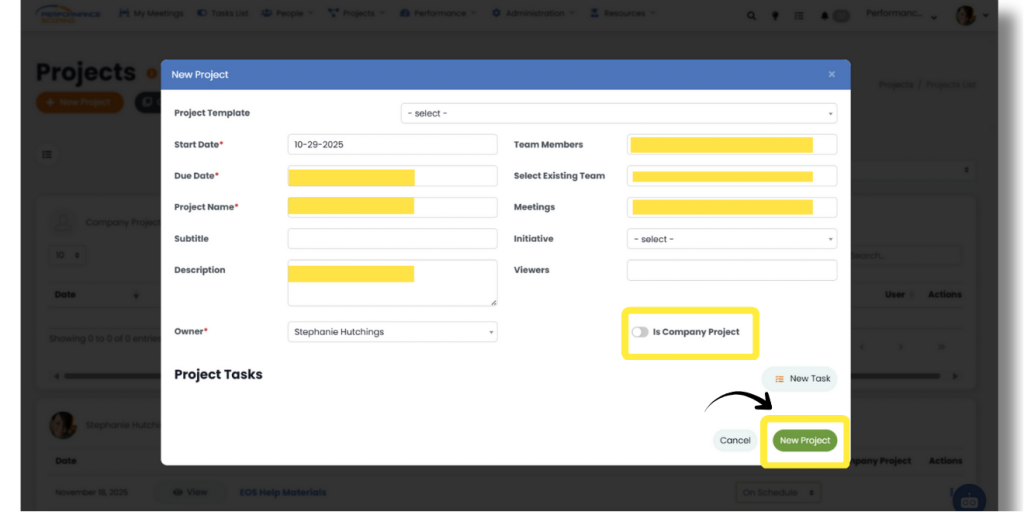
Enter your new Rocks start date (defaults to today’s date), a deadline/due date, give it a short name as well as a shorter subtitle name (optional). Then, give the Rock a high-level description.
If you plan on having “Rock Meetings”, enter the screensharing URL in the “Meeting URL” field.
Select the “Owner” of the Rock. The Rock Owner is the person ultimately responsible for the Rock. Keep in mind that the Owner is not necessarily actually ON the Rock team.
Select users from your organization who should be able to “see” the Rock and its details, but are not actually working on the Rock in the field, “Viewers”.
Select all the individual “Team Members” who will actually be working on the Rock. In this field we can select any individual. In the next field, we could choose an entire Team that’s already been created. See “Creating Teams” for details about how to create these groups of individuals. You might want to go ahead and add yourself as a Team Member on the Rock.
If you already have some meetings that you know will need to report on this Rock, you can go ahead and add this Rock to those meeting agendas from the “Meetings” field.
Lastly, managers with the top-level access permissions should have setup “1 and 3 Year Goals” in Global Rock Settings. In the last field, select the Organizational “1 and 3 Year Goal” you feel this Rock is most likely to work towards achieving.
Don’t worry too much if you’re not sure which one to choose. 1 and 3 Year Goals are buckets of Rocks and Rocks are buckets of To-Dos. Together, they’re used in Gantt Charts, and the Rock Reports drilldown chart.
When you’re done, click the New Rock button at the bottom.
Add To-Dos to Your Rock
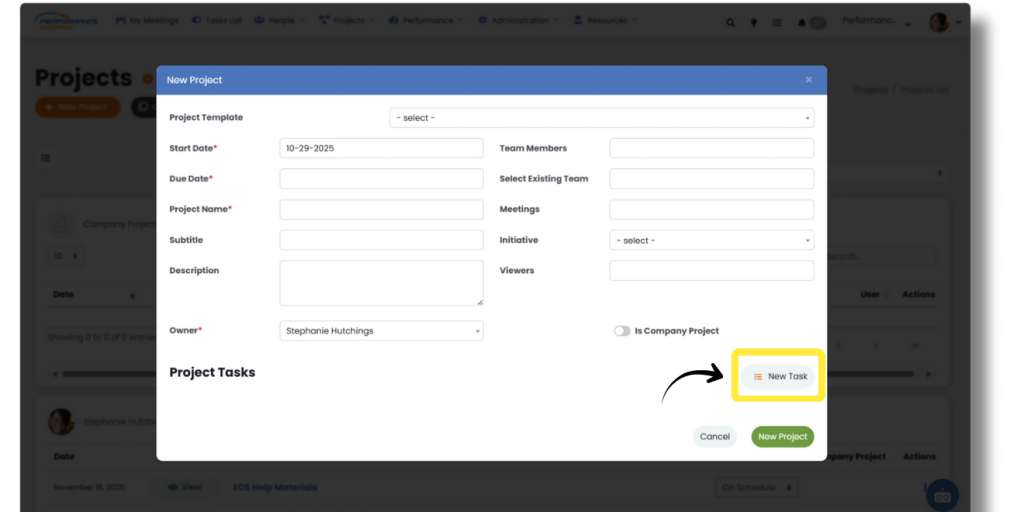
Now that we have our new Rock created, we need to add some To-Dos to it. Click on the Details button on the newly created Rock and then click New To-Do to start creating To-Dos for the Rock.
These To-Dos do not have to be perfect. You don’t have to get the start and end dates perfect. Think of it as an exercise in breaking this big Rock into smaller parts and assigning those smaller parts to the appropriate people associated with the Rock.
Rock Management
Now that you have all these different To-Dos associated with your Rock and “ownership” of each To-Do delegated, allow your people to write-up the sub-To-Dos you feel need to be completed. Those “sub-To-Dos” could be written-out inside of each To-Dos “details,” or broken into their own, separate To-Do.
Each To-Do in the list has, essentially, three states: Not Started, In Progress, Complete. Click the first check box to mark that To-Do in progress. For mathematical reasons, that To-Do is now worth “50%.” Then, click the second check box to make that To-Do Complete. Complete To-Dos are considered to be worth “100%.”
Then, ALL the To-Dos within your Rock‘s “completeness” are added up to determine the total Rock completeness. The “On-Track” and “Off-Track” status is calculated based on today’s date along the continuum from the Rock‘s start to end dates. The calculation is a little complex for this article. Here’s a simplified explanation.
Let’s say you have a 6-week Rock. If “today” falls in the middle of that Rock, we’re assuming you should be about half-way done (50%). If the actual percent complete of all To-Dos within the Rock add up to significantly LESS than 50% done, the Rock is considered “Off-Track”, otherwise, it’s considered “On-Track”.
Don’t agree with the math? That’s ok. It’s possible there’s not an fairly even distribution of To-Dos within the Rock. In Meetings where the Rock is included in the Agenda, you’ll find an editable dropdown where you, the Rock Owner, can select things like “Progressing as Planned” to communicate to others the Rock is in little or no danger. We call those “feelings.”
Rock Reports
The status of each Rock is automatically reported in all sorts of ways. Let’s review three of them.
Rock Status Review in Meetings
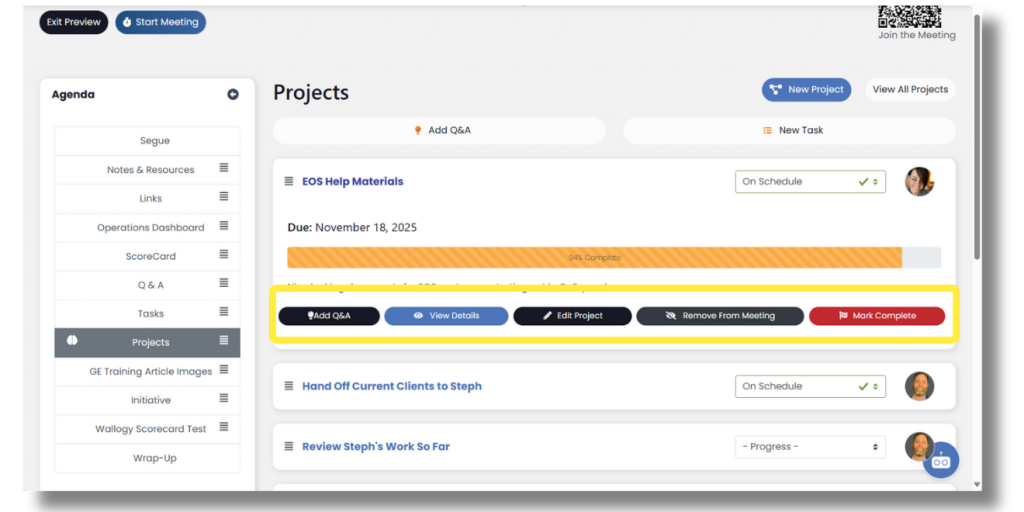
As we mentioned before, Rocks that have been added to Meetings will appear in the meeting agenda. Each Rock‘s percent of total complete is listed as well as how the Rock Owner is feeling about its progress. There’s a “View Details” button to open a new window to drilldown into specific To-Dos inside the Rock that may require attention.
Rock Reports
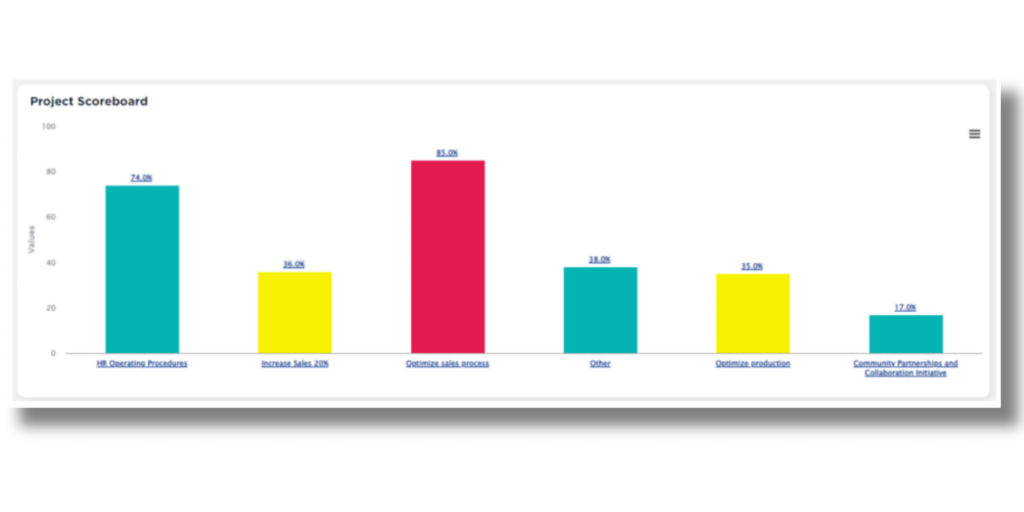
Rock Status is also shown in Rock Reports for those who have that permission in their Seat. These include a stacked bar chart listing the number of To-Dos assigned to each employee by status. There is also a drilldown column chart showing the 1 and 3 Year Goals, Rocks within those 1 and 3 Year Goals, down to the To-Dos within those Rocks.
Gantt Chart
There is also a report which collapses Rocks and To-Dos into 1 and 3 Year Goals and overlays them in a Gantt Chart. Click the “>” chevron on the left to expend/collapse each. If you drag & drop them horizontally, it’ll automatically update the start and end dates for you.
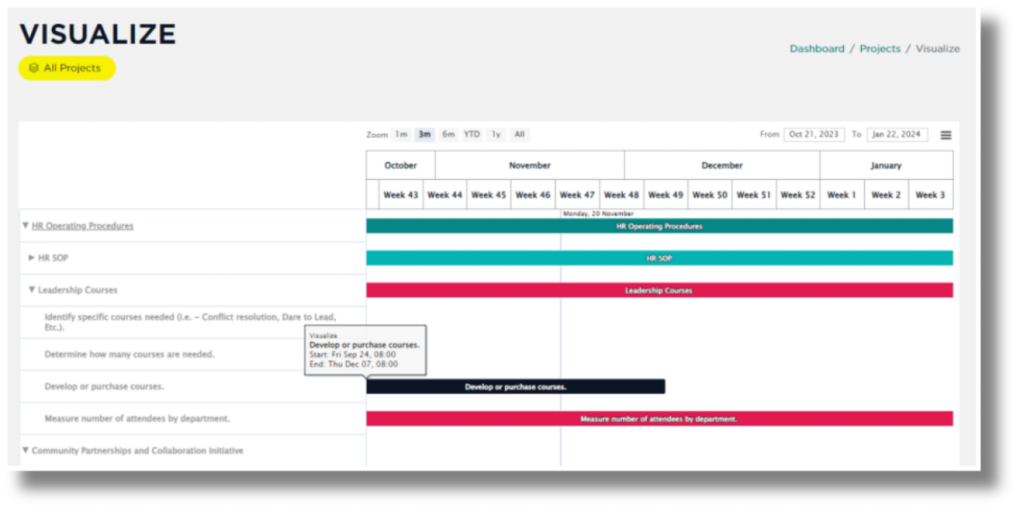
The vertical blue line indicates today’s date.
Love reports? There are a LOT more available to managers. Let’s take a look at a few next.
UP NEXT: Reports