Finding and reviewing To-Dos
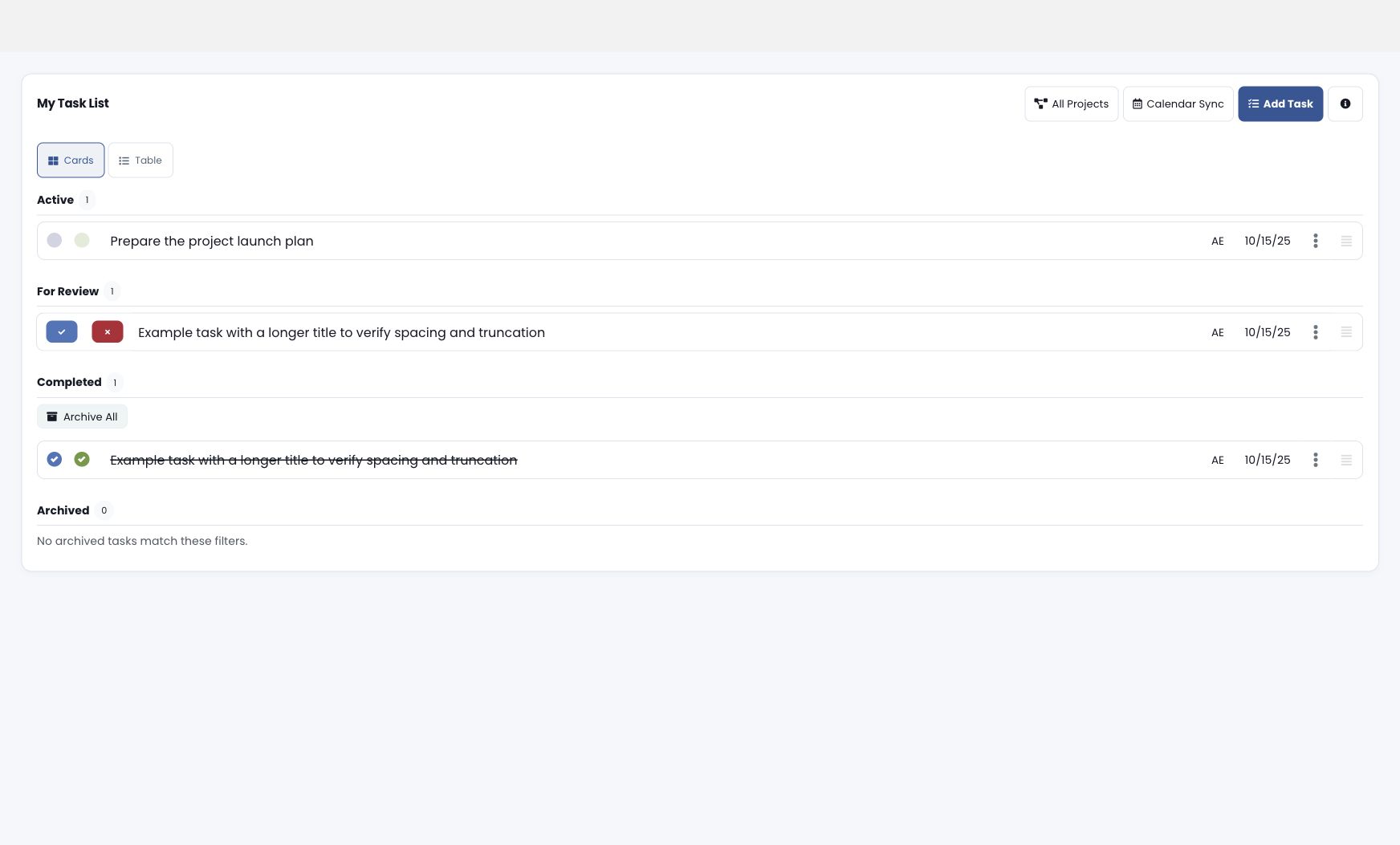
Use Cards for grouped action items or Table to compare fields. The list keeps Active, For Review, Completed, and Archived separate. Counts and empty-state messages help distinguish an empty section from a missing list. Date and status filters are available in list views that support them.
The first status bubble shows progress and the second shows completion. Review items use separate approve and reject controls. An owner photo, or centered initials when a photo is unavailable, identifies the person associated with the item. Open the title or Details action to read the complete text on a phone or tablet.
Archive All applies to completed items; it is separate from marking an item complete. Use the archived area to find archived items. Available actions depend on your permissions and the item’s state.
In Meeting Start and Meeting Preview, the To-Do section retains both New Rock and New To-Do. Dashboard lists also retain the all-Rocks control, Calendar Sync, creation action, and help. Labels follow your organization’s Naming Conventions.
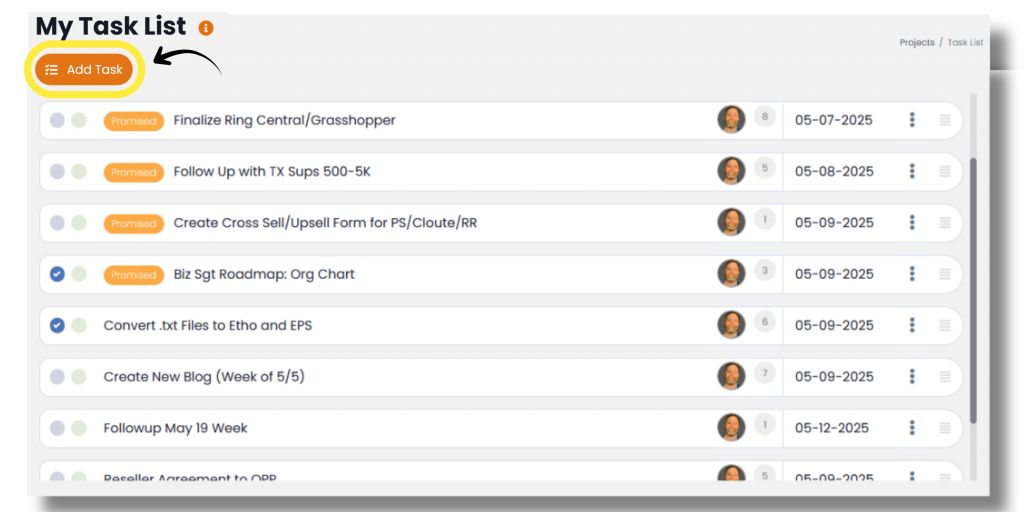
In GoExpand, To-Dos can be the building blocks of Rocks, important items for discussion in Meetings, or stand-alone “to dos” for individuals in the organization. No matter how they are used, To-Dos are action items assigned to an individual, given a start and deadline date. To-Dos can be marked as “Promised” if they are tied to team commitments and will contribute to a user’s To-Do completion percentage. To-Dos can include additional information and resources in the “To-Do Details.” ,and if equipped, Speech Recognition can be utilized in any To-Do Details section. A To-Do can be created from the navigation panel, the To-Do widget on the dashboard, the My To-Do page, within a Rock, and in meetings.

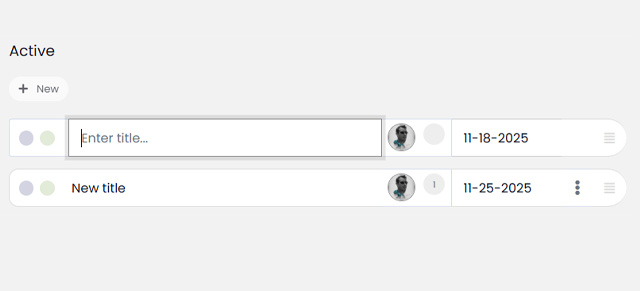
You can also use the “Quick Add” feature by clicking + Add button under “Active.”
To-Dos come in a few different states:
- Not Started: The To-Do is not in progress and it’s not complete; neither status bubble is selected.
- In Progress: The To-Do has started; the first status bubble is selected.
- Complete: The To-Do has been marked as “complete” by the person it’s assigned to; both status bubbles are selected.

Completed To-Dos will drop down to the “Completed” section and can be reopened by unchecking the completion status bubble. To-Dos that were setup to be reviewed by a supervisor will appear in the “For Review” section and cannot be fully complete until the employee’s direct “Reports To” reviews the To-Do and deems it complete and up to standard. At this point, the supervisor may either “Approve” it or “Reject” it.
Rejecting a To-Do puts it back on the To-Do list for the user it was assigned to, with a visual indicating it was, for whatever reason, rejected. Accepting the To-Do archives it.
As they say, “Trust, but verify.”
Once a To-Do has been assigned to you, you’ll find a running To-Do list on your Dashboard as well as in My To-Do List on the navigation panel.

Lengthy titles can seen by hovering over them. To-Dos can be opened by clicking the title. You can re-order your To-Dos by dragging and dropping them by the handle (three lines on the far right-hand side) into a priority order. By clicking the three vertical dots, you can interact with To-Dos in the following ways:
- To-Do Details: Opens a the modal window just as if you’d clicked the title.
- Watch: This allows you to get notifications about this To-Do, specifically, depending on how you’ve set your notification preferences in the Notifications tab of your profile.
- Star: Used just as you might “flag” an email. This could be a priority or a favorite. That’s totally up to you.
- Reassign: Allows you to reassign this To-Do to another individual working in the same group (meeting or Rock).
- Delete: This will remove the To-Do totally from both your To-Do list as well as any meetings or Rocks it may be associated with.
NOTE: The delete function here is a “soft delete”. The To-Do isn’t really deleted; it’s just “deactivated” and “hidden”. Create a support ticket if you’ve “deleted” a To-Do by mistake.
Understand the Evolution
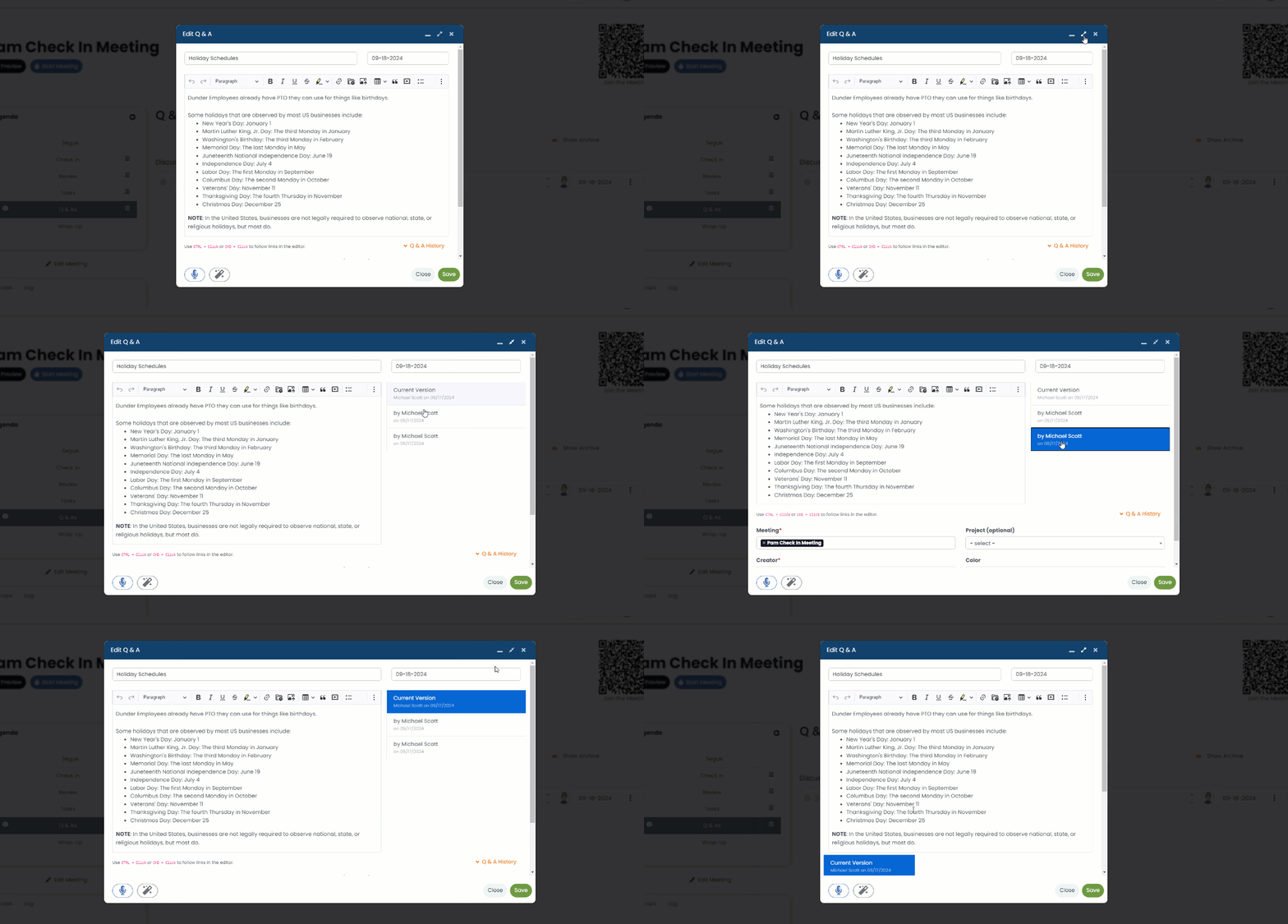
As a To-Do gets worked through, the dates will change, it could be reassigned, the scope of work involved in that To-Do could change. Change happens, but GoExpand tracks every change to a To-Do. Click the “maximize” icon in the modal toolbar to show a revision history of the To-Do details. Alternatively at the bottom, you can click “To-Do History” for a timeline view of all other changes made to a To-Do.
Next up: The Accountability Chart