Canva is a powerful design tool that makes it easy for anyone to create stunning presentations, graphics, and visual content without needing advanced design skills. By embedding your Canva designs directly into a Upstream+ meeting, your visuals become part of the conversation — no switching apps, no lost context. This keeps everyone aligned around the same visual materials, makes meetings more engaging, and ensures that your creative assets are seamlessly integrated into the decision-making process.
Here’s how to embed your Canva designs in your meetings.
In Canva:
- Create or open an existing design.
- From the menu bar above the editor, select Share.
- Select See all.
- Select Embed from the options.
- For your design to be embedded, it will be made public. Select Embed to confirm.
- Copy the HTML
More documentation is available in Canva’s help docs.
In Upstream+:
- Go to My Meetings
- Click the Edit gear next to the meeting to access that meeting’s settings.
- Toggle Embedded Items on.
- Select iFrame in in the button at the beginning.
- Paste the entire HTML from Canva in the next input field. (Upstream+ will auto-format the code for you)
- Give this agenda item a name and an allocated amount of time.
- Click Save Changes at the bottom.

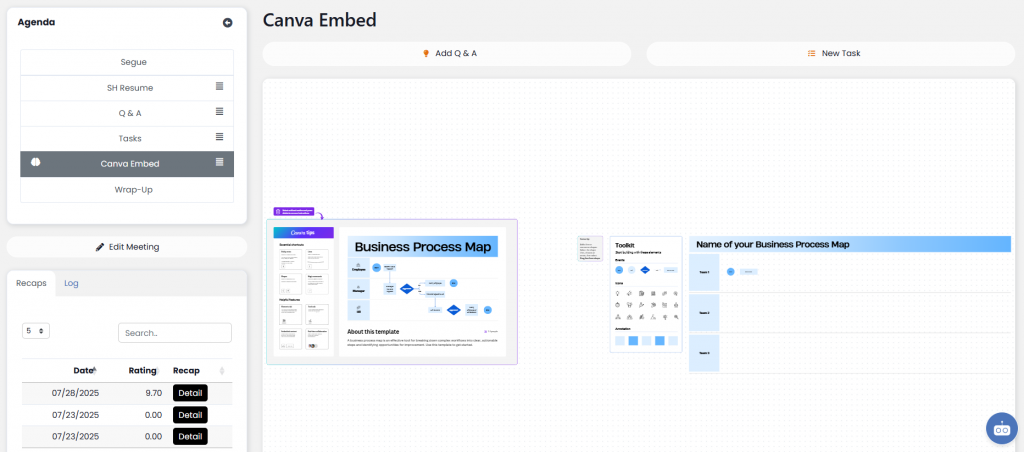
When viewing your meeting, you’ll see the new agenda item added and your Canva design automatically embedded in your Upstream+ meeting.
Learn more about embedding 3rd party tools into your meetings.