In GoExpand, you can create long-term goals with 1 and 3 Year Goals. 1 and 3 Year Goals are designed to be a group of Rocks (which consist of their own To-Dos) that contribute to the larger goal. This layered structure enables you to manage and track progress at different levels—from the granular To-Do level to the broader 1 and 3 Year Goal level. By grouping Rocks together under a single 1 and 3 Year Goal, you can focus on achieving a strategic objective while monitoring the performance and timelines of each individual Rock.
Here’s how to create an 1 and 3 Year Goal.
Step 1: Open the 1 and 3 Year Goal Creation Modal
- Navigate to the 1 and 3 Year Goals page (Rocks > 1 and 3 Year Goals List).
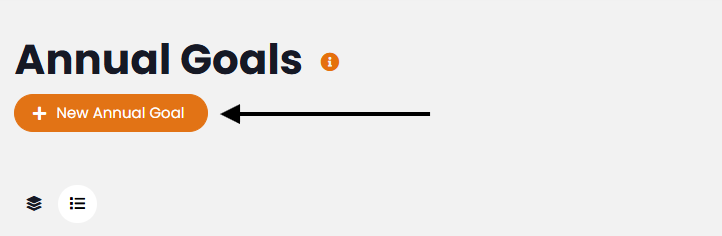
- Click the “+ 1 and 3 Year Goal“ button at the top of the page.
Step 2: Enter 1 and 3 Year Goal Details
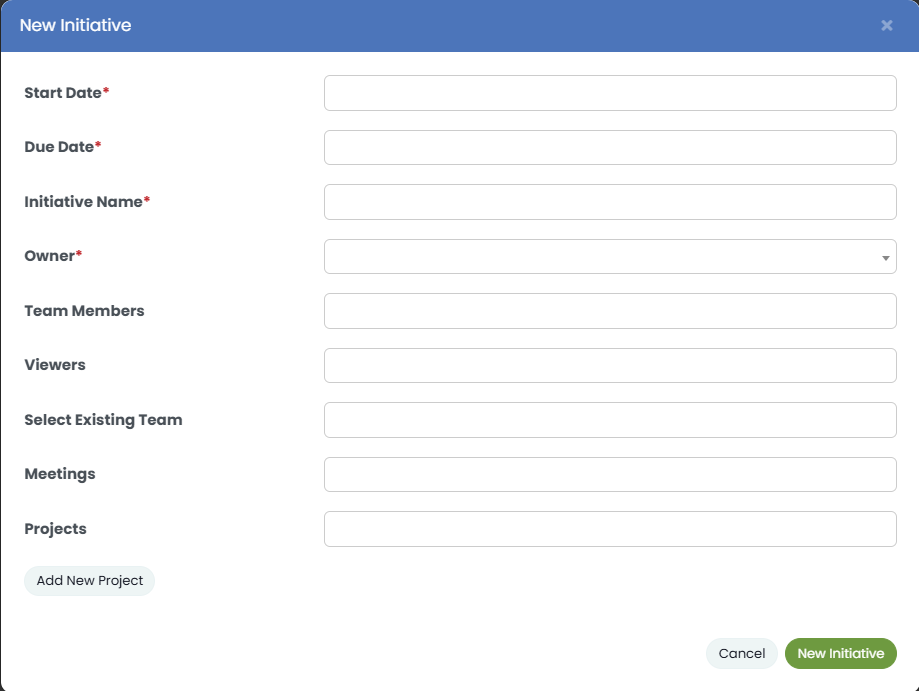
- Start Date & Due Date: Select the appropriate start and end dates from the date picker fields.
- 1 and 3 Year Goal Name: Enter a descriptive name.
- Owner: The person who will oversee the 1 and 3 Year Goal.
- Team Members: Individual users who need to view and interact with the 1 and 3 Year Goal.
- Viewers: Individual users who only need to view the 1 and 3 Year Goal but aren’t contributing members.
- Select Existing Team: Add entire Teams to the 1 and 3 Year Goal.
- Meetings: If needed, select one or more meetings from the dropdown. This will associate the 1 and 3 Year Goal with the selected meetings.
- Rocks: If there are Rocks already created that need to be associated with the 1 and 3 Year Goal, select them from the dropdown.
Step 3: Add New Rocks to the 1 and 3 Year Goal
- In the Add New Rock button, and you will see a default Rock block.
- Fill in the Rock details.
- If you wish to add additional Rocks, click the “Add New Rock“ button. A new Rock block will appear—repeat the fields as needed.
Step 4: Submit the 1 and 3 Year Goal
- Review all the entered information.
- Click the “New 1 and 3 Year Goal“ button at the bottom of the modal.
Note: 1 and 3 Year Goals can also be created in the same manner from the V/TO.
Viewing and Managing 1 and 3 Year Goals
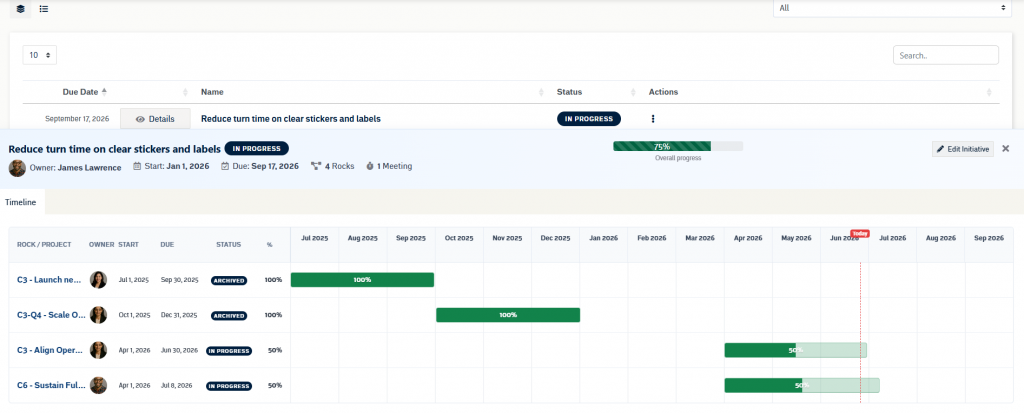
The 1 and 3 Year Goals page includes both card and list views. Select an 1 and 3 Year Goal card, the 1 and 3 Year Goal name, or the Details button to open the detail panel.
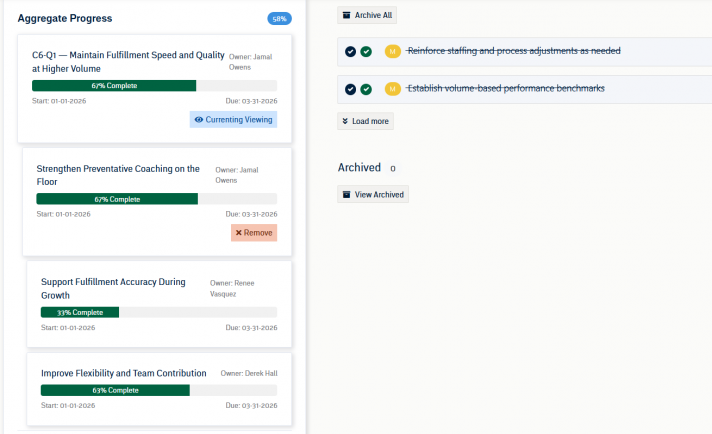
The detail panel shows the 1 and 3 Year Goal name, owner, start date, due date, status, attached Rocks count, meeting count, and overall progress. Overall progress is calculated from the progress of the attached Rocks.
The timeline view displays each attached Rock with its owner, start date, due date, status, percent complete, and timeline bar. Select a Rock row or timeline bar to open that Rock in the slide-out detail drawer.
To update an 1 and 3 Year Goal, use the three-dot actions menu or select Edit 1 and 3 Year Goal from the detail panel.
If no Rocks are attached, the detail panel will show an empty state. Use the edit workflow to attach existing Rocks or create a new Rock.