Formula Builder
Formula Objectives calculate their values using other Objectives and mathematical operators. Instead of entering a value manually, the Objective result is generated from the formula you create.
Creating a Formula
To create a formula Objective:
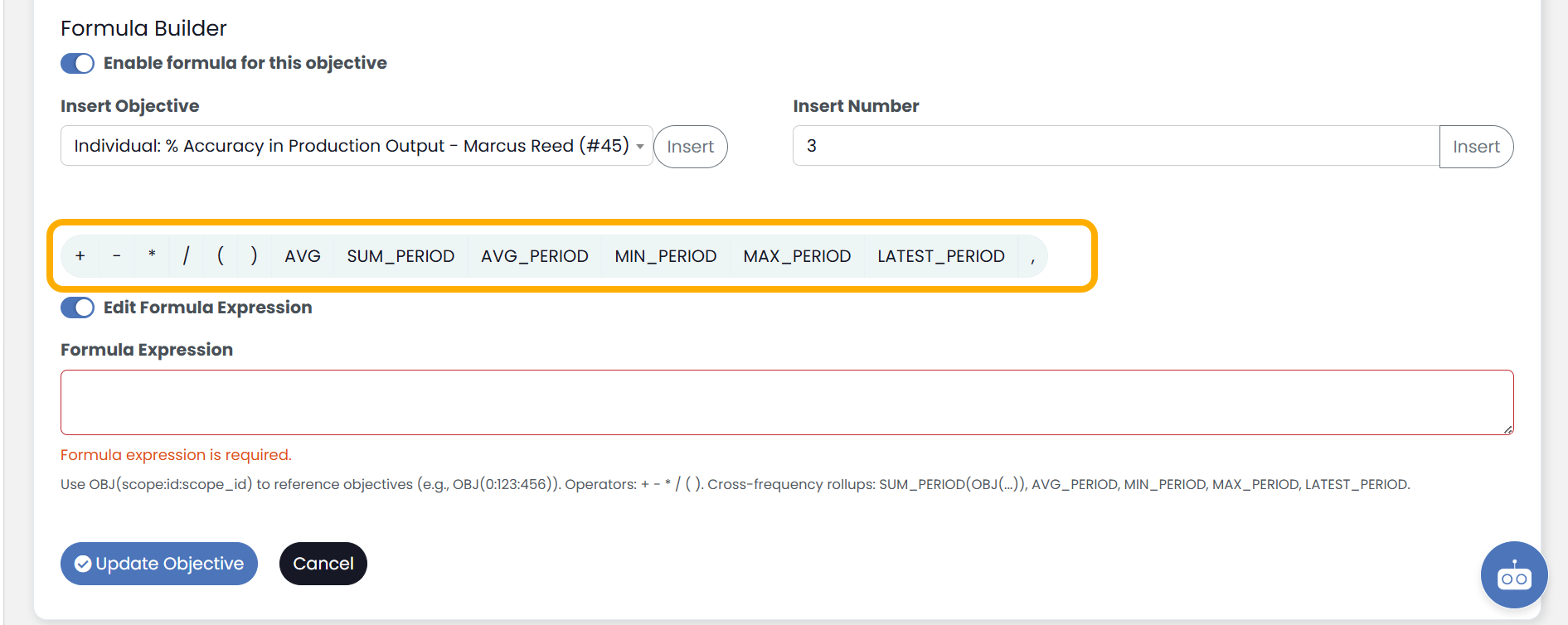
- Select Enable Formula Builder at the bottom of the Objective creation screen/modal.
- Build your formula using Objectives, numbers, and operators.
- Validate the formula.
- Save the Objective.
The calculated result will update based on the values used in the formula.

Adding Objectives
Objectives can be inserted directly into the formula.
To add an Objective:
- Place your cursor where the Objective should appear.
- Select the Objective from the available Objective list.
- Select Insert, and the Objective will be inserted into the formula.
When the formula runs, the current value of the selected Objective is used in the calculation.
Using Operators
The Formula Builder supports standard mathematical operators.
Common operators include:
- Addition (+)
- Subtraction (-)
- Multiplication (*)
- Division (/)
- Parentheses ( )
Examples:
- Revenue – Expenses
- Sales / Opportunities
- (Revenue – Expenses) / Revenue
Using parentheses can help control the order in which calculations are performed.
Adding Numbers
Static numbers can be included in formulas alongside Objectives.
Examples:
- Revenue * 0.10
- Sales + 100
- (Production Hours / 40) * 100
Numbers entered into the formula remain fixed unless manually changed.
Formula Validation
Formulas must pass validation before they can be saved.
Validation checks for:
- Missing operators
- Missing Objectives
- Incomplete expressions
- Invalid characters
- Unmatched parentheses
If validation fails, review the formula and correct any errors before saving.
Formula Results
Formula Objectives automatically recalculate based on the values of the Objectives included in the formula.
If an Objective used within the formula changes, the formula result will update accordingly.
Things to Know
- Formula Objectives are calculated automatically.
- Objectives used in a formula must remain active and accessible.
- Parentheses can be used to create more advanced calculations.
- Validation must succeed before a formula Objective can be saved.
- Formula Objectives can be used anywhere standard Objectives are available throughout the application.