Use feedback in GoExpand to recognize helpful actions or discuss a constructive next step. Start with what you observed and why it matters; your organization’s configured feedback types determine how the entry is scored.
Where to give feedback
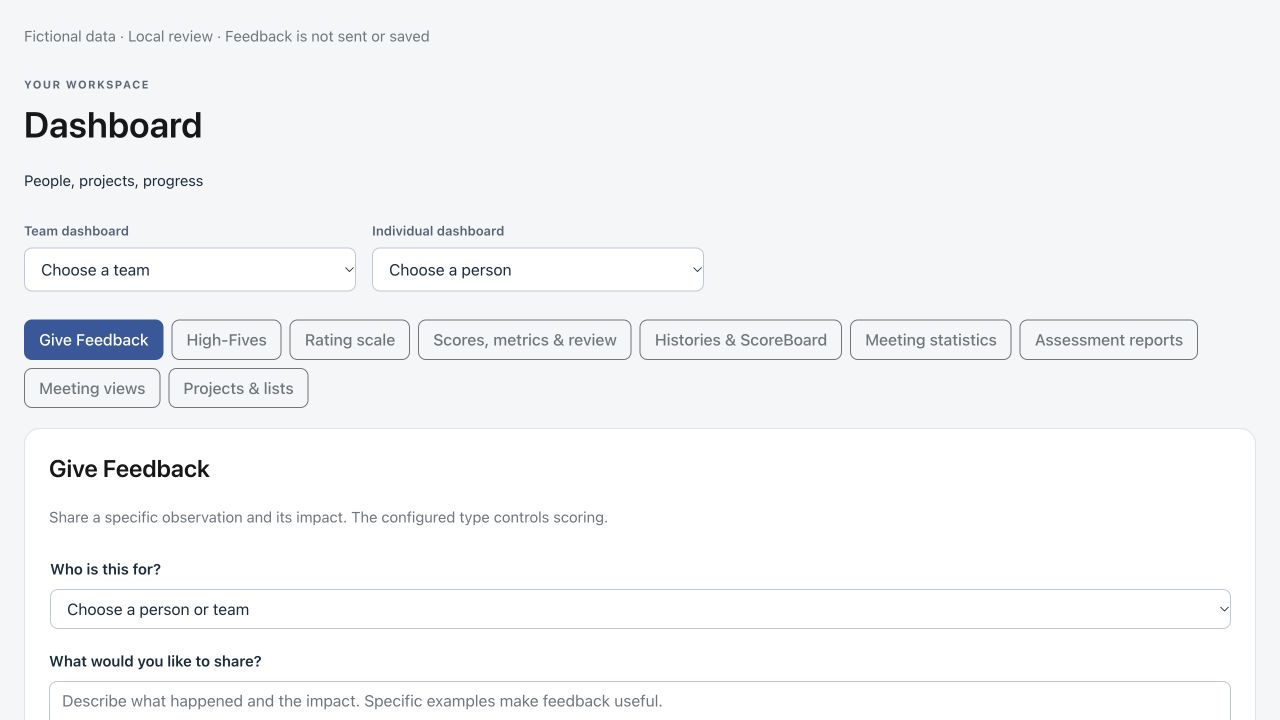
Open Give Feedback from your dashboard or the People menu. Meeting feedback and Shout-Outs use the same compact approach. Names may differ according to your organization’s conventions.
Write and send an observation
- Choose the person or team. Search for the recipient and confirm your selection.
- Describe what happened. In “What would you like to share?”, describe an observed action, its impact, and any useful next step. For example: “You explained the handoff clearly, which helped the next team resolve the request.”
- Confirm the feedback type. Choose the configured type that best fits. If a unique matching phrase suggests a type, review it and change it if needed. The type’s existing scoring rules apply.
- Add detail only when useful. Select Add context for background, or Attach file for a supporting file or photo. These optional controls stay compact until needed.
- Review and send. Check the recipient, observation and type before selecting the send button. Cancel clears the form without sending feedback.
What tone suggestions mean
The composer can suggest that wording sounds positive or constructive. This local wording suggestion is not an AI assessment of someone’s performance or personality. Mixed or unclear wording requires your judgment. A suggestion does not invent a category or numeric score, and you can override a suggested type. Date and value are handled by the existing entry workflow.
Recognition and constructive feedback
For recognition, describe a specific helpful action and its impact. For constructive feedback, describe the expectation, what happened, and a practical next step. Avoid personality labels and include only details appropriate for the intended audience. Shout-Outs use the organization’s positive feedback types.
Find and review your records
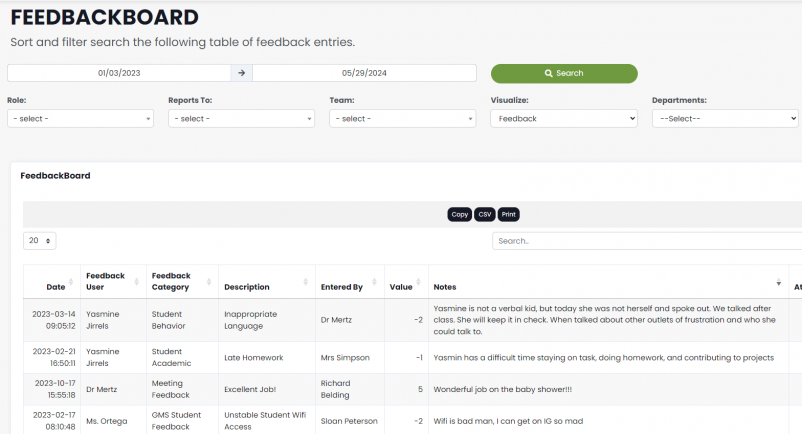
Open the Feedback Board to review the records you are allowed to see. The dashboard recognition count or configured name also opens the underlying feedback records. Reporting relationships and access settings determine visibility. Notifications depend on your organization’s configuration.
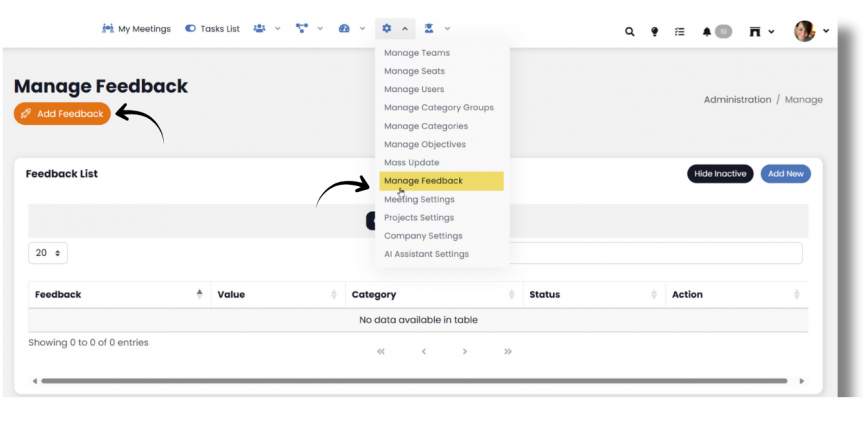
Related guides: Shout-Outs, Dashboard scores and performance widgets, and Creating and managing feedback types.