GoExpand mirrors your company’s unique Seats and responsibilities. In GoExpand, Seats are also used for setting access permissions. Let’s go through how to create custom Seats for your organization.
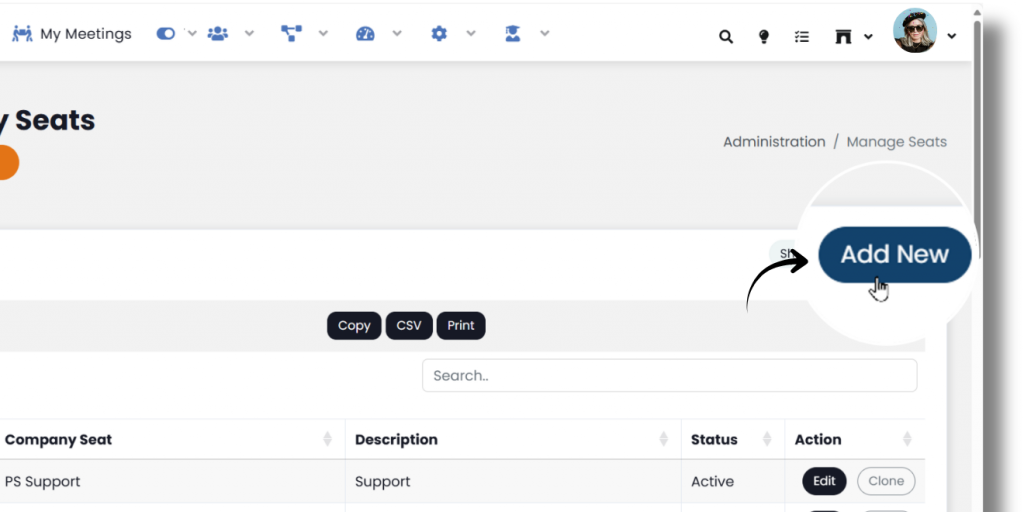
To create custom Seats, select Administration from the main navigation and then click Manage Seats.

The page will have a list of your company’s Seats in the order that they were created during initial setup. Click the Add New button at the top-right of the page to create a new Seat.
- Enter the Seat name, a description of that Seat, and the status.
- Add Behaviors (which are the desired behaviors exhibited in that Seat, like “persistence in follow-ups” for a sales Seat) and Skills (which would be like “ability to use CRM” for a sales Seat). Select the “Examples” button to select from our curated list of top behaviors and Skills based on industry research. To filter the list begin by typing the Seat name, select the square next to the behaviors you would like to add and click “Add Selected” button to add to the Seat being created.
- At the bottom, select the Access Permissions you would like to grant to users in this Seat.
- Click Add New Seat to create the new Seat.

Seats can be edited or made inactive by selecting “Edit” from the “Manage Seats” page and updating the Seat properties. For additional support please contact your account manager.
See the Permissions Glossary for a full list.
Next up: Add Users