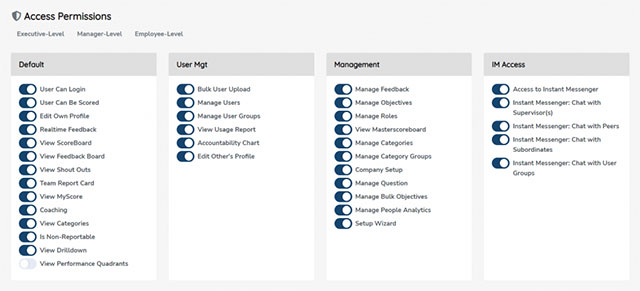
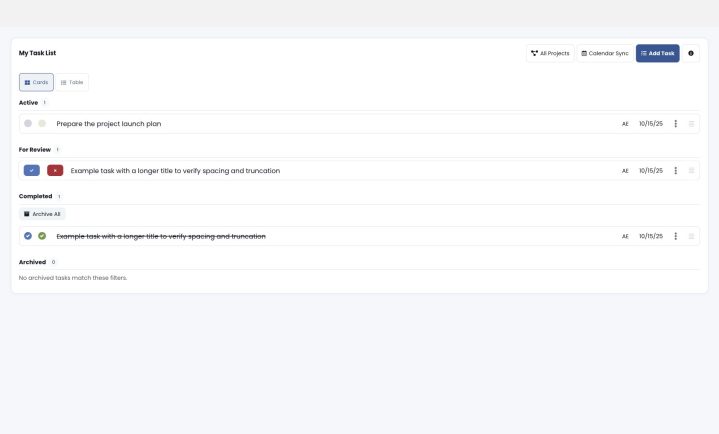
We’ve had the ability to bulk import and export user data since way back in version 2. Now, we have the option to export Rock and To-Do data to edit in a CSV editor, like Excel, and then re-import in bulk into GoExpand.
Export Rock and To-Do Data
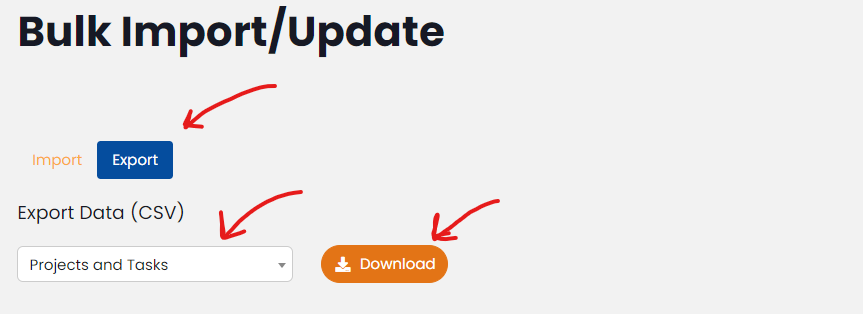
If you have permission in your role, go to Administration >> Bulk Import/Update. To export the data first, choose “Export,” select “Projects and Tasks” and then click the “Download” button.
To Import Rock and To-Do Data
If you have permission in your role, go to Administration >> Bulk Import/Update. Click the “Import” button. Then, click “Browse” and select the CSV file you would like to import. Once you have it, click on the “Up” arrow.
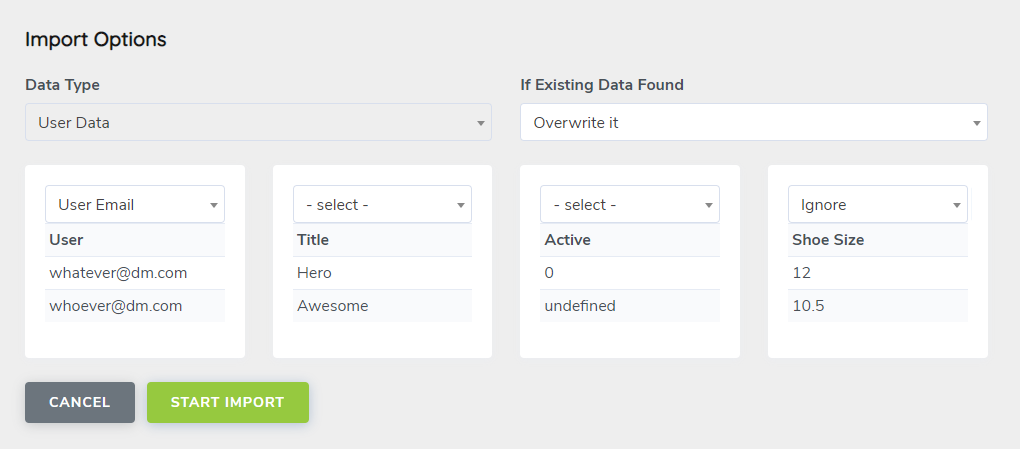
Once that file has been uploaded and processed, you’ll have the option to map each column in your file to a database table in GoExpand just like bulk importing user data.
More Bulk Import/Export information here.