Meetings and Rocks have an activity log which maintains a history of everything that’s happened with them. To-Dos, the building blocks of Rocks and Meetings, also keep a detailed timeline of their history.
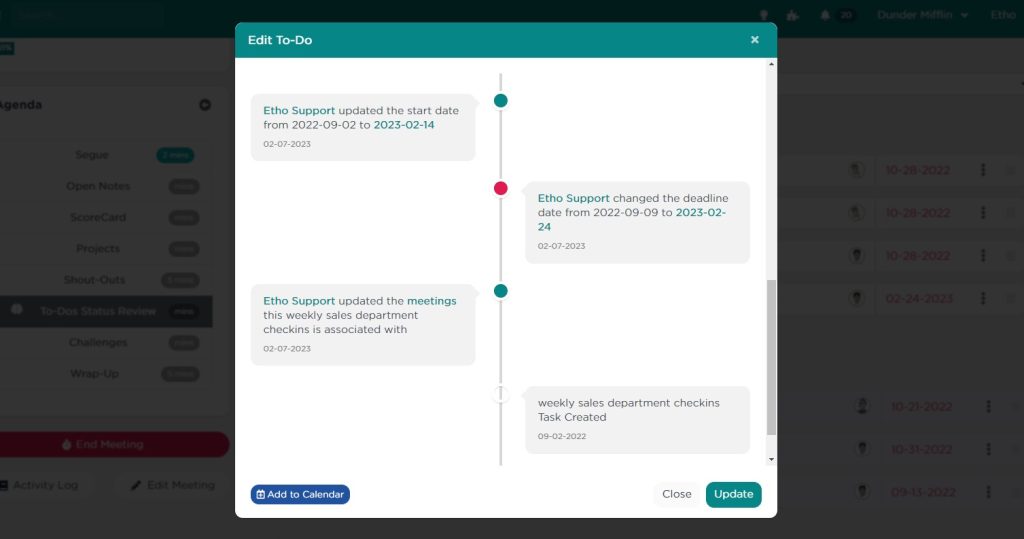
To view the history of any To-Do or QA topic, navigate to the To-Do or QA Topic Details and click on the link labeled “To-Do or QA History” found below the main content area. This will display the To-Do‘s or QA topic’s timeline in reverse chronological order, offering you a clear view of each action taken.
What Does the History Include?

The timeline includes a plethora of valuable information, such as:
- Creation and Modification: See when the To-Do or topic was initially created, by whom, and any changes made to start and deadline dates, including who made these changes.
- Status Updates: Track status changes throughout the lifecycle of the To-Do or topic. For To-Dos, this could be updates like “in progress,” “complete,” etc. For QA topics, statuses like “created,” “discussed,” “solved,” etc., are noted.
- Role Shifts: Monitor updates to the To-Do owner, approver, and assigner to keep up with who is responsible at any given stage.
- Completion and Approvals: Find out who marked the To-Do or topic as complete, rejected, accepted, archived, or deleted.
This feature not only ensures transparency and accountability but also enhances the ability to manage Rocks and meetings effectively. By keeping an accurate and easily accessible log of all activities, teams can stay aligned, track progress meticulously, and identify areas needing attention swiftly.
It’s all there, in a nifty timeline.
What about the details?
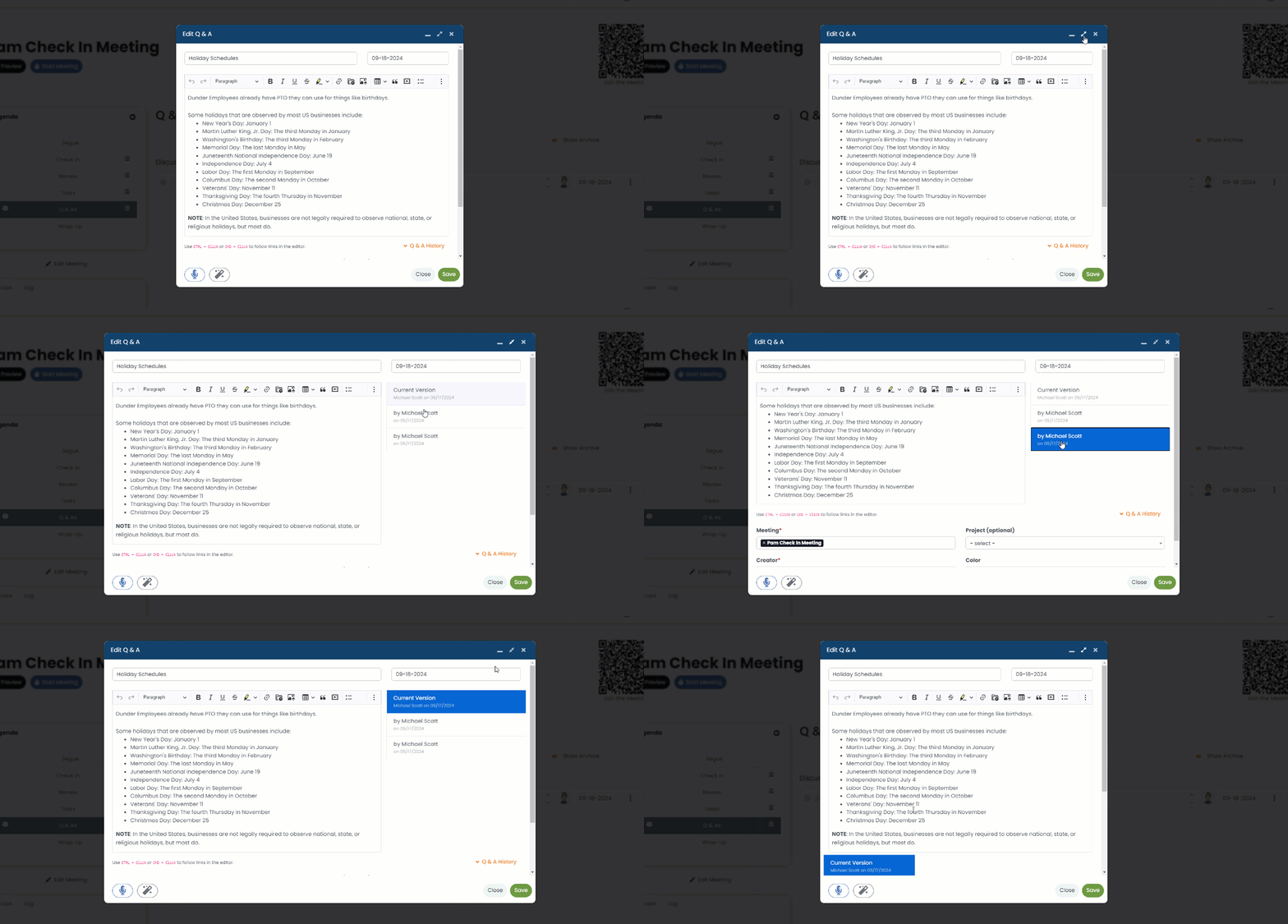
As of v6.7 of GoExpand, you can click the “expand” button at the top-right to widen the modal and view the revision history for the details inside the To-Do or IDS.