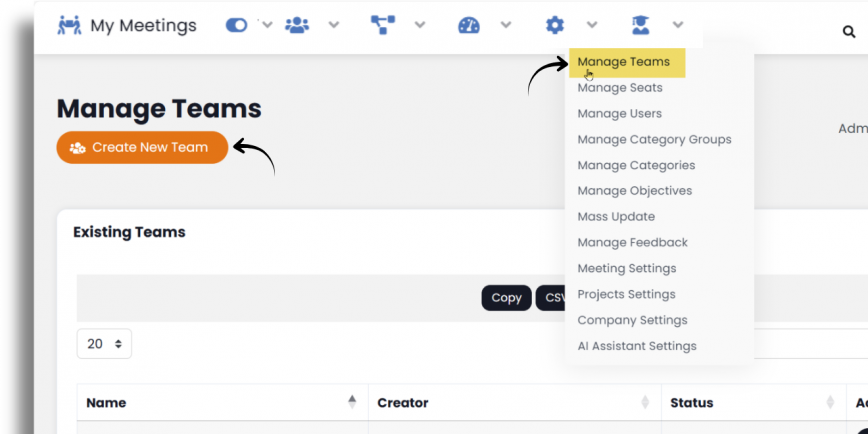
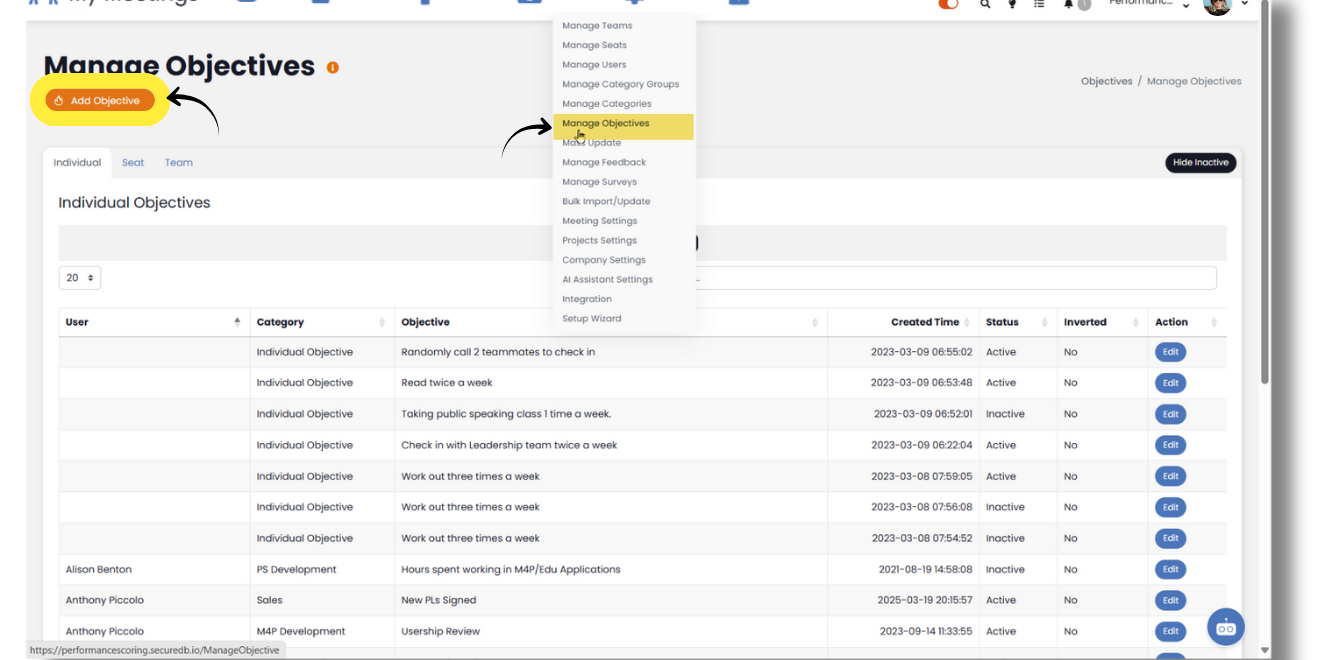
To add Metrics in GoExpand, select Administration in the navigation menu, then select Manage Metrics from the dropdown. On the next page, select Add Metric near the top left.
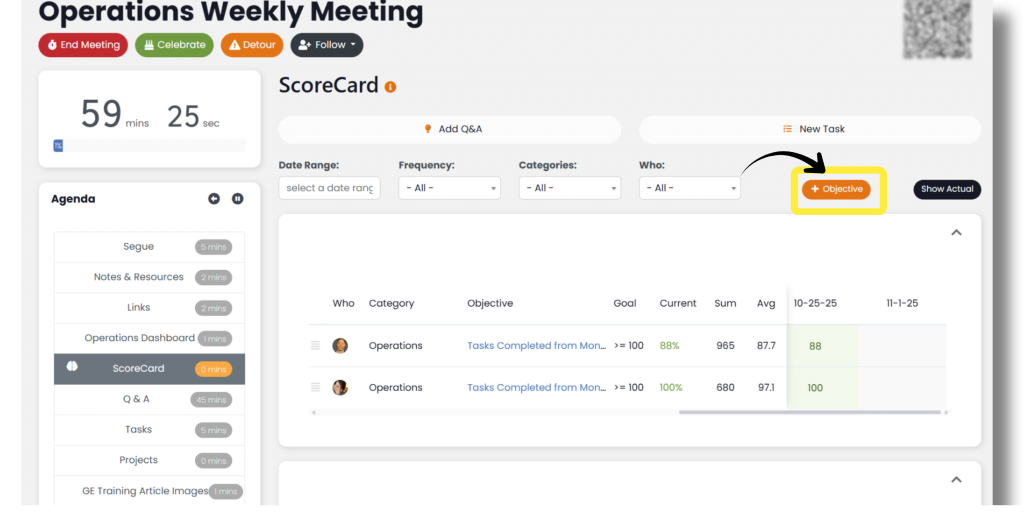
Metrics can also be added through meetings.
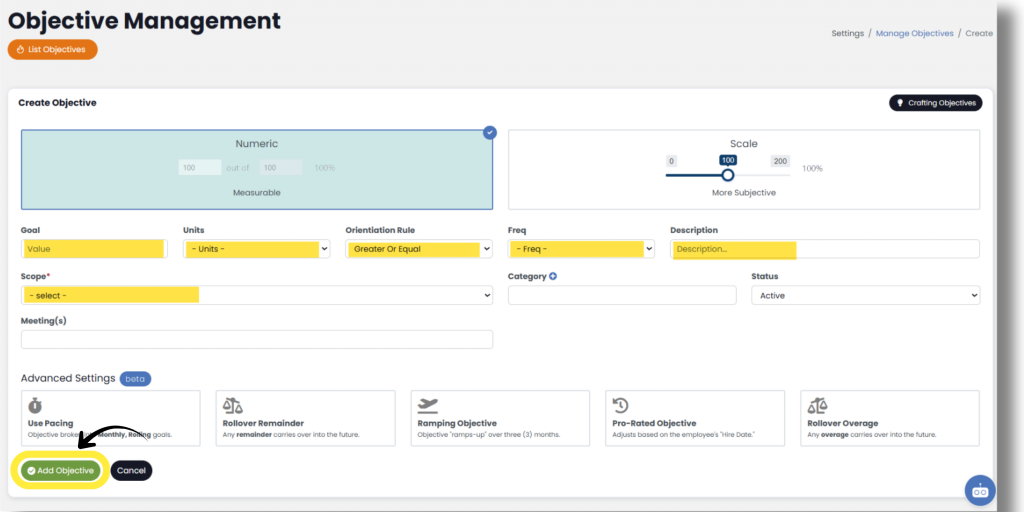
First, select whether the Metrics will be a numeric (Metric) goal or if it will be a scale goal (more subjective).
Next, set the Metrics Orientation, then enter the Value(s) under Goal. Orientation allows users to choose how performance against the goal will be measured. The available Goal Orientations are:
- Inside Range [min, max] – The value must fall within a defined range.
Example: Success if between 90 and 110. - Outside Range (value < min OR value > max) – Success occurs when the value falls outside the defined range.
Example: Success if below 60 or above 120. - Greater Than Goal (strict) – The result must be strictly greater than the goal value.
- Greater Than or Equal To Goal – The result must be greater than or equal to the goal value.
- Equal To Goal (exact) – The result must match the goal value exactly.
- Less Than Goal (strict) – The result must be strictly less than the goal value.
- Less Than or Equal To Goal – The result must be less than or equal to the goal value.
Now that the orientation and its value is set, select Units, Frequency, and then type a Description of the Metric
Next, select the Scope: Individual, Seat, or Team, then select the coresponding Individual, Seat, or Team the Metrics is for.
Next, select the Metrics Category, then set the Status to Active or Inactive.
4. Click Add Metric to complete.
Formula Builder
To create a Metric calculated by other Metrics, toggle on the formula builder.
Begin by selecting the first Metric in the formula from the Insert Metric dropdown and then select Insert. Next, select any math operators needed between the Metrics or insert any numbers needed. To complete your formula, make sure to close it with the end parenthesis “)” button.
If you need to edit your formula at any time, toggle on Edit Formula Expression, and you will be able to edit withing the text box.
Next up: Dashboards