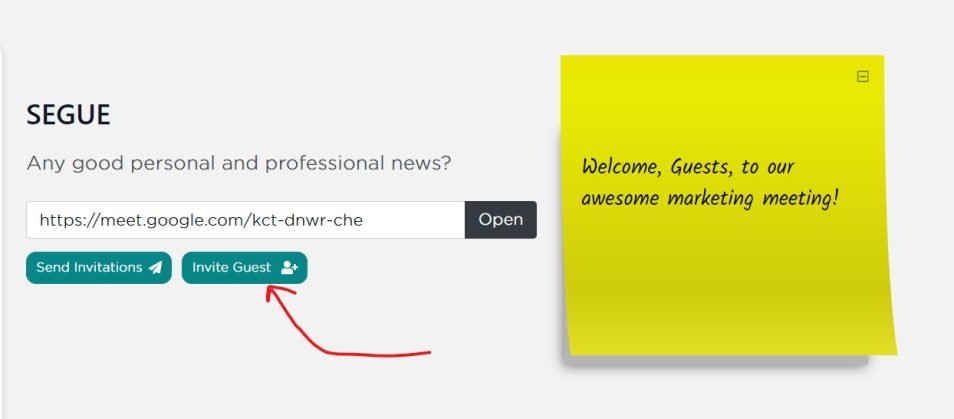
When you’re in a live meeting, you don’t have time to fill out a long form for every follow-up. The Quick Add feature lets you capture Action Items and Topics on the fly from within the meeting screen—just click Add, type a title, and hit Enter. Everything else is pre-filled for you. Use this when you just want to “jot it down now, fine-tune it later.”
Where “Quick Add” Appears
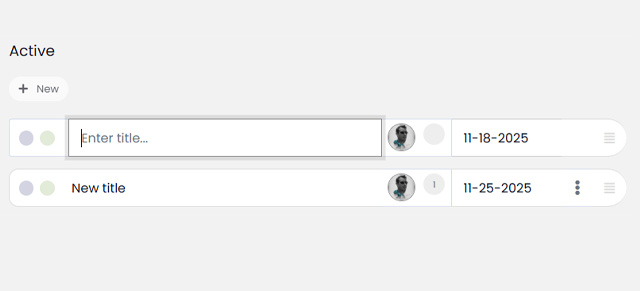
Inside a meeting, go to the Tasks or Challenges section. At the top of the Active list you’ll see either:
- An inline row that says “Enter title…”, or
- A + New button (which inserts that inline row when clicked).
Both are part of “Quick Add.”
Quick Add Button

Newly-Added, just type the title

Quick Add a Action Item During a Meeting
- In your meeting, go to the Action Items tab/section.
- Do one of the following:
- Click directly into the “Enter title…” field at the top of the list, or
- Click + New to create that inline row and place your cursor there.
- Type the Action Item title.
- Press Enter or click anywhere outside the field.
The system instantly saves the Action Item and converts the inline row into a normal task line with all the usual icons (avatar, date, menu, etc.)—no page refresh and no modal.
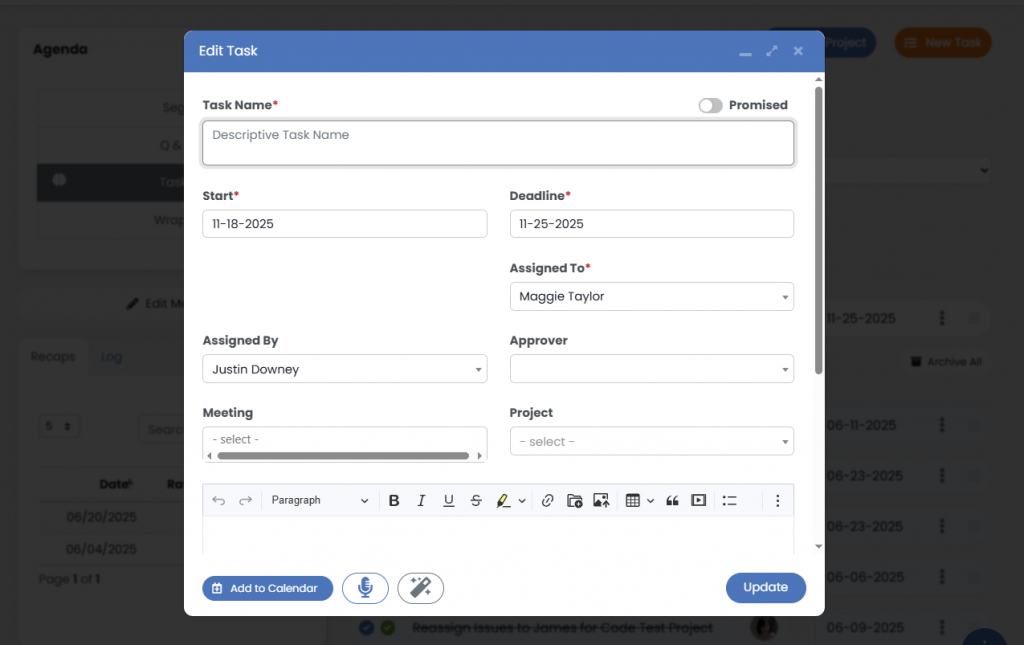
If you want to edit the newly-added Action Item or make adjustments, just click the title or the three dots and then “Action Item Details” to open the modal with all the options.
Quick Add a Topic During a Meeting
- In your meeting, go to the Topics tab/section.
- Click into the “Enter title…” row or click + New at the top.
- Type the Topic title.
- Press Enter or click anywhere outside the field.
The inline row is saved and turned into a standard Topic entry in the list.
When to Use Quick Add vs. Full Create
Use Quick Add when:
- You’re in a meeting and need to capture an action item right now.
- You don’t want to break the conversation by opening a full Create modal.
- You just need a simple reminder (title only) and will refine details later.
Use the full Create modal when:
- You need to set detailed fields immediately (specific assignee, advanced options, etc.).
- You’re designing a more complex Action Item or Topic with complete context from the start.
Both methods create the same type of Action Item or Topic. “Quick Add” just gets you there with the least possible friction during a meeting.