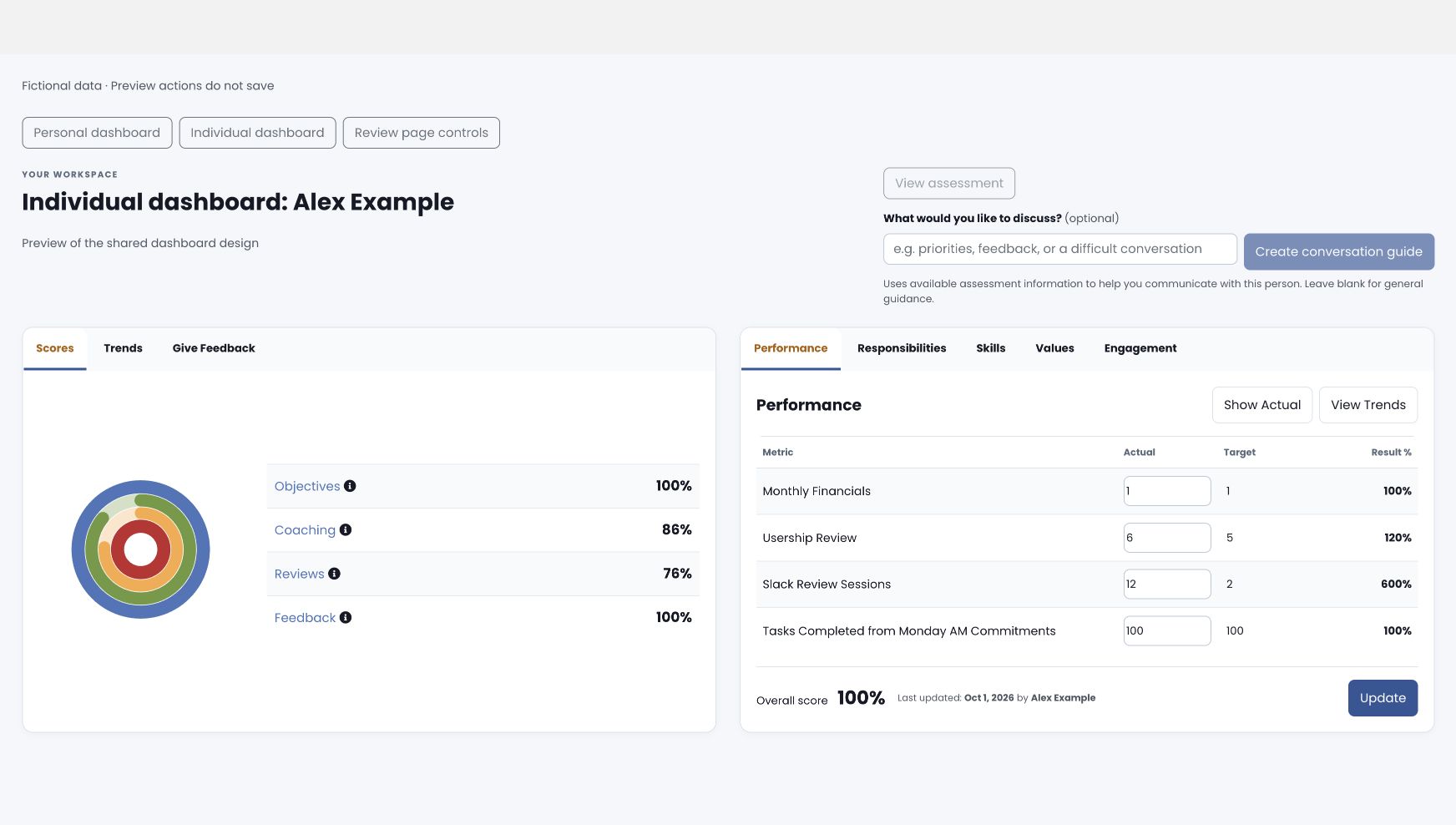
Your GoExpand dashboard brings score summaries and detailed performance information together. The same widget layout is used when viewing an individual dashboard, subject to your permissions and your organization’s naming conventions.
Read the summary, then open the detail
Use Scores for the current summary and Trends to review changes over time. Select a score category to inspect its supporting detail, then return to All Scores. Where available, Give Feedback opens the feedback workflow.
A trend line describes the data shown for its date range. A future date on an axis does not, by itself, represent a forecast. Treat a future projection as an estimate only when the chart explicitly identifies it as projected data.
Use the detailed performance tabs
The adjacent widget contains the performance measures, responsibilities, skills, values, or other tabs configured for your organization. Select the relevant tab to review its items. A long list can scroll within its own area so the score summary remains easy to find. Available edit and update controls depend on your permissions.
Navigate comfortably on a smaller screen
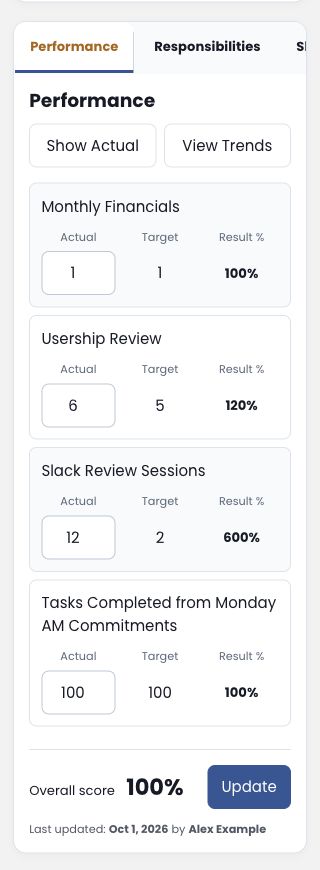
On a phone, widgets stack vertically. Swipe the tab row horizontally if a tab is outside the visible area. Scroll within a long list to reach additional items. Use the labeled buttons for actions and the information icon for help.
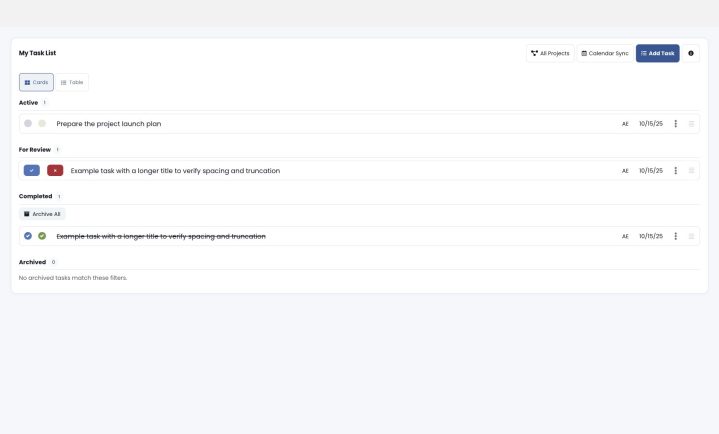
Related guides: Customizing Your Dashboard, To-Do Management, and Naming Conventions.
Read Actual, Target and Result
Each performance metric shows its name, Actual value, Target and Result. Use Show Actual or Show Percentage to change how the result is displayed; View Trends opens its history. Update saves permitted edits through the existing scoring workflow. The overall score and last-updated information remain visible below the metrics.
On a phone, each metric becomes a compact card with matching Actual, Target and Result labels. Score summary text is larger, while long responsibilities and skills lists scroll within their own widget.
Prepare a conversation on an individual dashboard
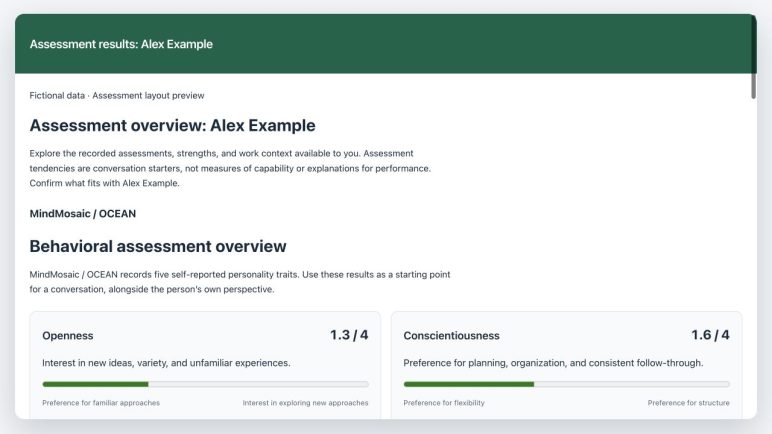
View assessment results opens the selected person’s available report. Enter what you want to discuss with that person, then select Create conversation guide. Leave the topic blank for general guidance. Review pages provide review-specific examples such as achievements, challenges, goals and development. See Assessment Results and Conversation Guides for framework and work-context explanations.