Formula Builder
Formula Metrics calculate their values using other Metrics and mathematical operators. Instead of entering a value manually, the Metric result is generated from the formula you create.
Creating a Formula
To create a formula Metric:
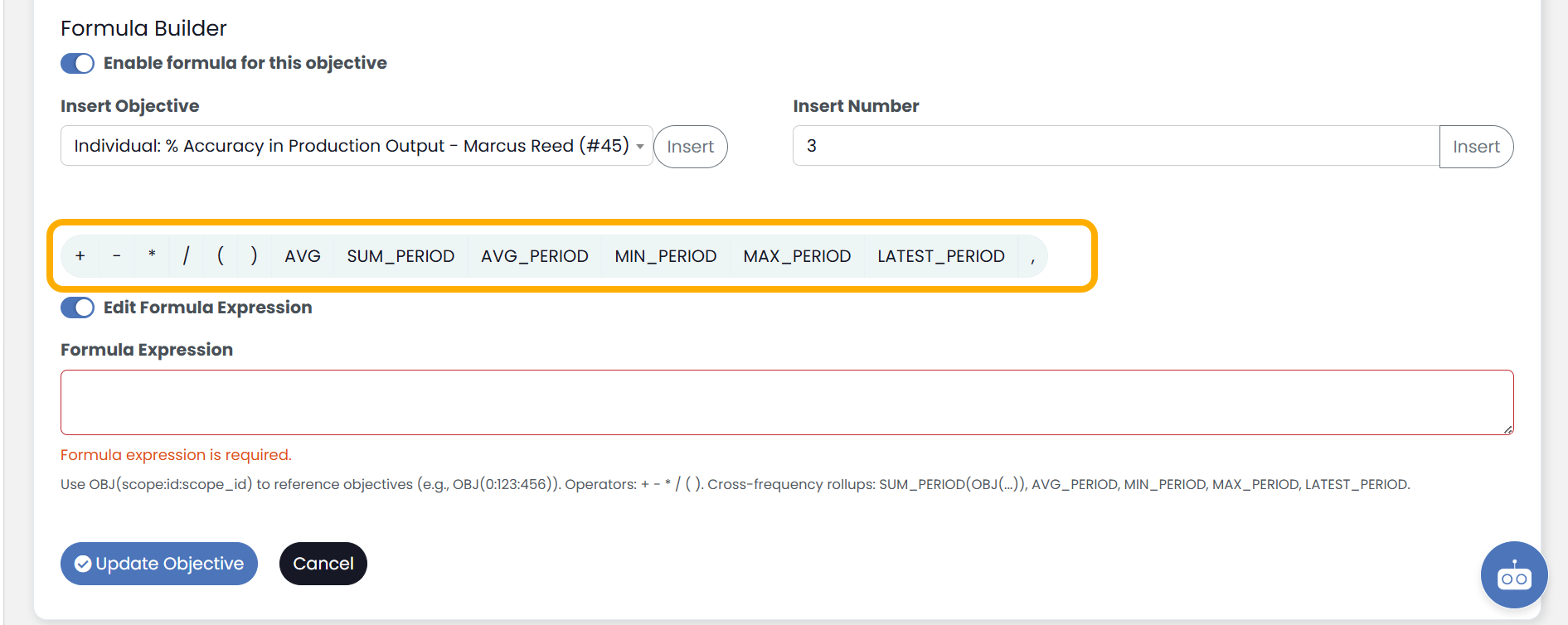
- Select Enable Formula Builder at the bottom of the Metric creation screen/modal.
- Build your formula using Metrics, numbers, and operators.
- Validate the formula.
- Save the Metric.
The calculated result will update based on the values used in the formula.

Adding Metrics
Metrics can be inserted directly into the formula.
To add an Metric:
- Place your cursor where the Metric should appear.
- Select the Metric from the available Metric list.
- Select Insert, and the Metric will be inserted into the formula.
When the formula runs, the current value of the selected Metric is used in the calculation.
Using Operators
The Formula Builder supports standard mathematical operators.
Common operators include:
- Addition (+)
- Subtraction (-)
- Multiplication (*)
- Division (/)
- Parentheses ( )
Examples:
- Revenue – Expenses
- Sales / Opportunities
- (Revenue – Expenses) / Revenue
Using parentheses can help control the order in which calculations are performed.
Adding Numbers
Static numbers can be included in formulas alongside Metrics.
Examples:
- Revenue * 0.10
- Sales + 100
- (Production Hours / 40) * 100
Numbers entered into the formula remain fixed unless manually changed.
Formula Validation
Formulas must pass validation before they can be saved.
Validation checks for:
- Missing operators
- Missing Metrics
- Incomplete expressions
- Invalid characters
- Unmatched parentheses
If validation fails, review the formula and correct any errors before saving.
Formula Results
Formula Metrics automatically recalculate based on the values of the Metrics included in the formula.
If an Metric used within the formula changes, the formula result will update accordingly.
Things to Know
- Formula Metrics are calculated automatically.
- Metrics used in a formula must remain active and accessible.
- Parentheses can be used to create more advanced calculations.
- Validation must succeed before a formula Metric can be saved.
- Formula Metrics can be used anywhere standard Metrics are available throughout the application.