You can integrate directly with Asana to keep your To-Dos and Rocks perfectly in sync. Once connected, updates flow both ways — meaning changes made in either platform automatically appear in the other.
This integration helps teams stay aligned without switching between tools. You can view, create, and update Asana tasks directly from GoExpand, keeping meetings and Rocks seamlessly connected to your workflow.
Connect Your Asana Account
- In GoExpand, navigate to Administration → Assana Integration.
- Scroll down below the organizational settings.
- Click Connect Asana.
- You’ll be redirected to Asana’s secure sign-in page.
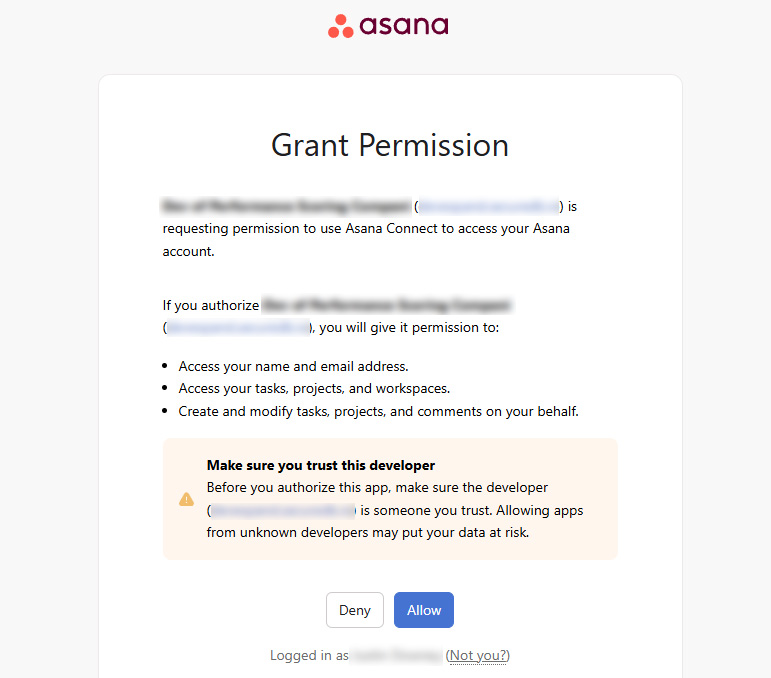
- Log in with your Asana credentials and Grant Access authorize GoExpand to access your account.
- Once connected, your Asana account will appear as “Linked” under Integrations.
NOTE: Your Asana login is protected using OAuth 2.0 — GoExpand never stores your password, only a secure access token.
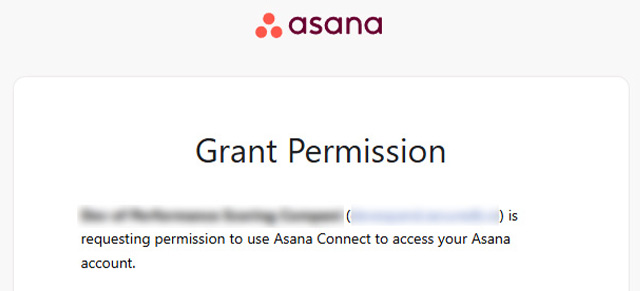
Asana Not Connected

Grant GoExpand Access
Asana is now connected

Sync Rocks and To-Dos
Once your accounts are connected:
- Asana projects appear in your Rocks list in GoExpand.
- You can create new Asana projects or tasks directly within GoExpand — they’ll automatically appear in Asana.
- Moving or completing To-Dos in either platform updates them instantly on the other (after a short delay).
All key details sync both ways:
- To-Do and Rock names, owners, due dates, and descriptions
- Statuses and sections (To Do, In Progress, Done)
- Assignees, comments, and attachments
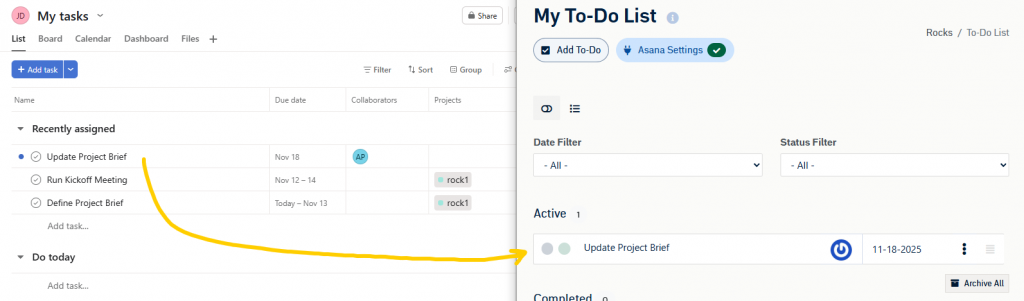
Pro Tip: If you already use the GoExpand Kanban board, Asana tasks will populate automatically into their matching swimlanes.
Keep Everything in Sync
GoExpand uses real-time webhooks to mirror updates between systems — so when someone updates a To-Do, changes the assignee, or marks it complete in Asana, you’ll see that reflected almost immediately in GoExpand (there’s about a 30 second lag for the handshake).
Disconnecting Asana (Optional)
You can disconnect your Asana account anytime:
- Go to Administration → Assana Integration.
- Click Disconnect.
- Your data will remain safe in both systems — only the sync connection will stop.
What if the connection is lost?
It happens sometimes that the oAuth connection could be lost or expired. In that case, simply disconnect Asana Integration and then re-Connect it. You won’t lose anything. After about 30 seconds, the sync will be complete (depending on the number of tasks and projects).
Organization-Level Settings
There is a way to connect your entire GoExpand organization to your Asana Workspace. There are a few caveats, however.
- Completed once by an admin
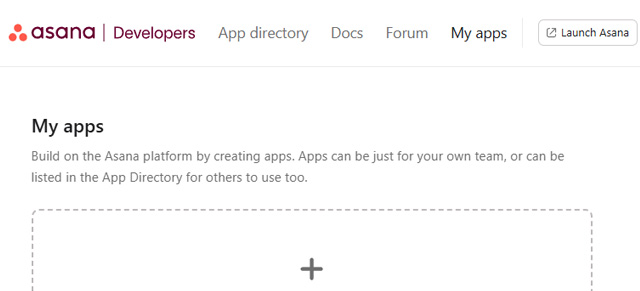
- Values come from the Asana Developer Console
- Required to enable Asana integration for your company
Here’s how to set Asana Integration up organization-wide.
Summary
The Asana integration bridges your team’s productivity tools — connecting Rocks, meetings, and To-Dos in one seamless workflow. Once connected, you’ll enjoy effortless updates, two-way syncing, and greater visibility across both platforms.