The SV&EP is designed to simplify strategic planning by distilling company or departmental vision into a concise two-page document. The SV&EP helps leadership teams align on the organization’s direction by answering critical questions, which are divided into two main sections: Vision and Plan. A third section, SWOT, is for brainstorming and documenting Strengths, Weaknesses, Opportunities, and Strengths.
Enable Permission to Access
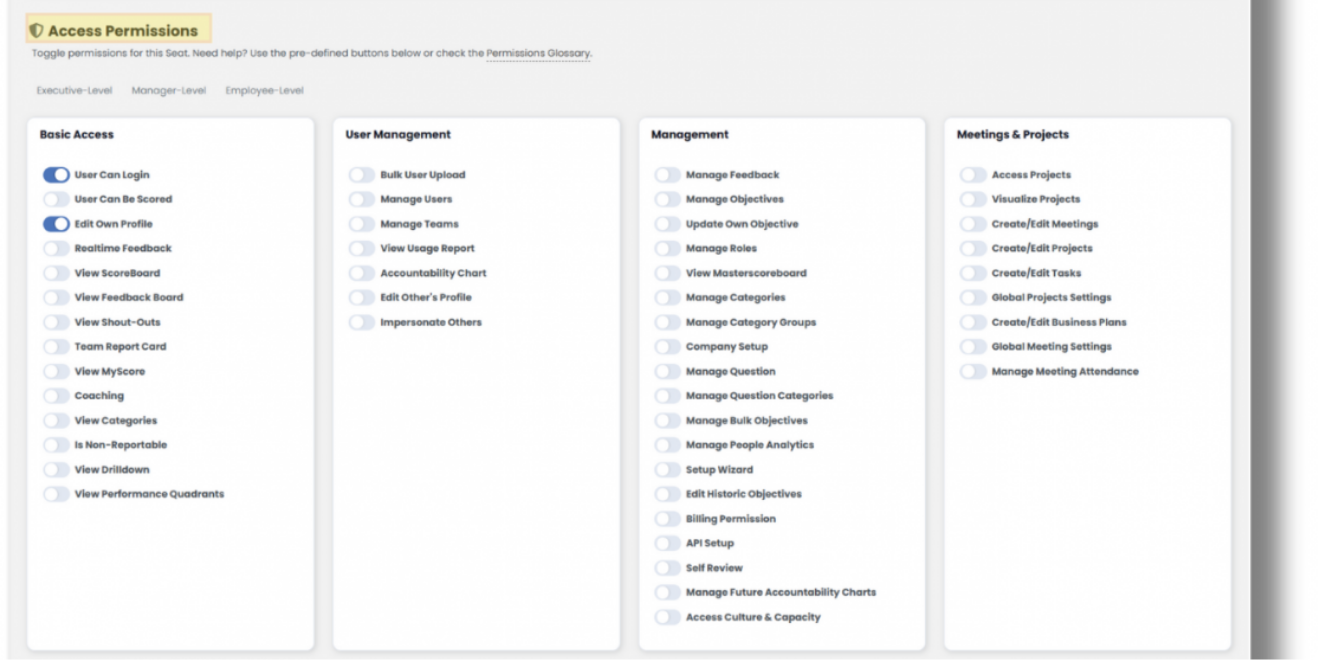
To ensure certain Roles have access to the SV&EP, enable the permission in Administration >> Manage Roles >> and click Edit on the Role you’d like to enable this feature for. Scroll down to the “Access Permissions” section and toggle on “Create/Edit SV&EPs” in the Meetings & Rocks section. Select “Save Role” at the bottom, and you’re good to go.
Editing the Company SV&EP
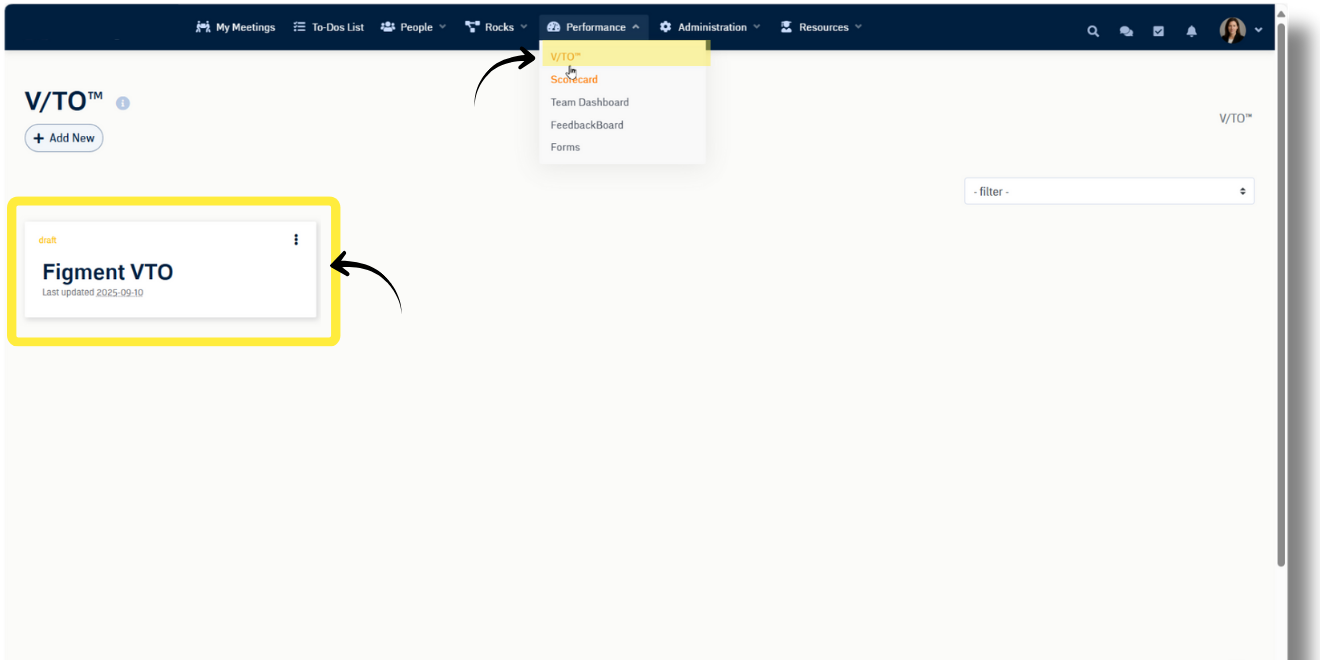
Navigate to Performance > SV&EP and click the title of the “Company SV&EP“.
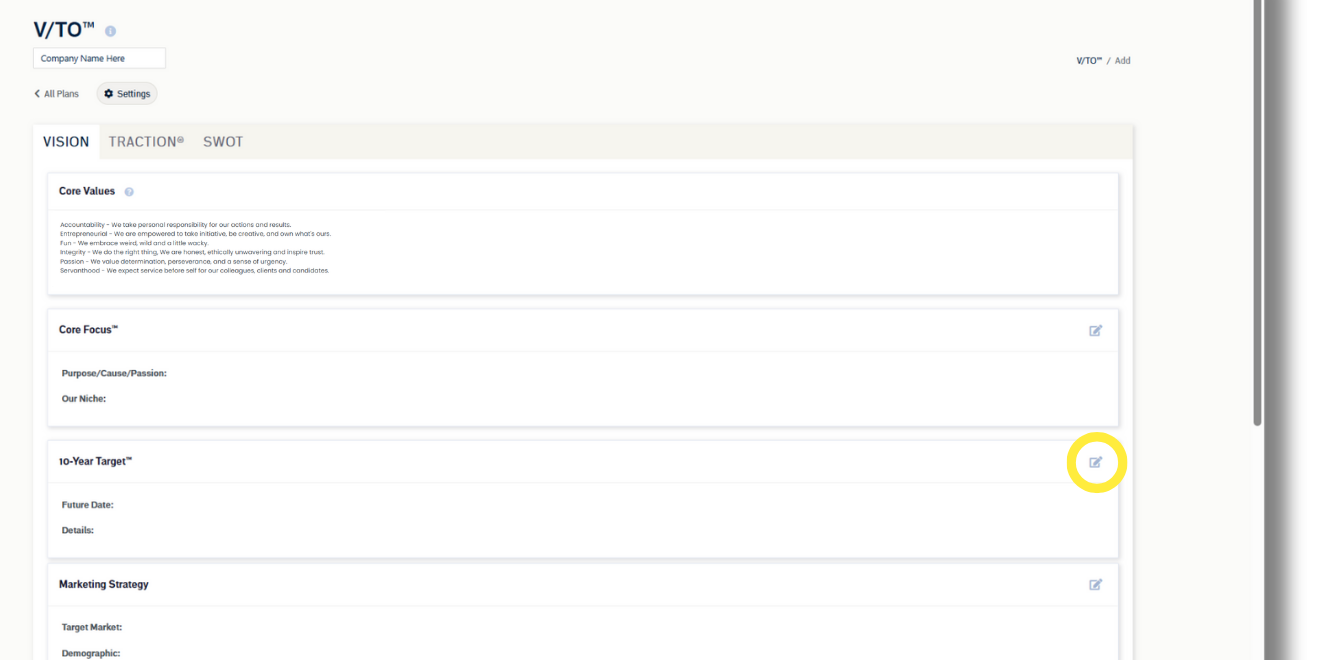
The SV&EP consists of three sections arranged in tabs: Vision, Plan, and SWOT. On the first tab, Vision, you will notice the Company Value are already filled out; they pull from your Company Settings and can only be edited in Administration > Company Settings. All other items on SV&EP are editable. Edit each section by selecting the edit icon in the top right of each box. Save by selecting the ✅ or discard changes using the ❌. Text entered on the SWOT tab saves automatically.
Note: Existing SV&EPs auto save anytime you update a section and save it; there is no option to save the entire plan.
Many fields in each section are simple text fields, but others are interconnected to other parts of the application. Here’s a list of those special fields:
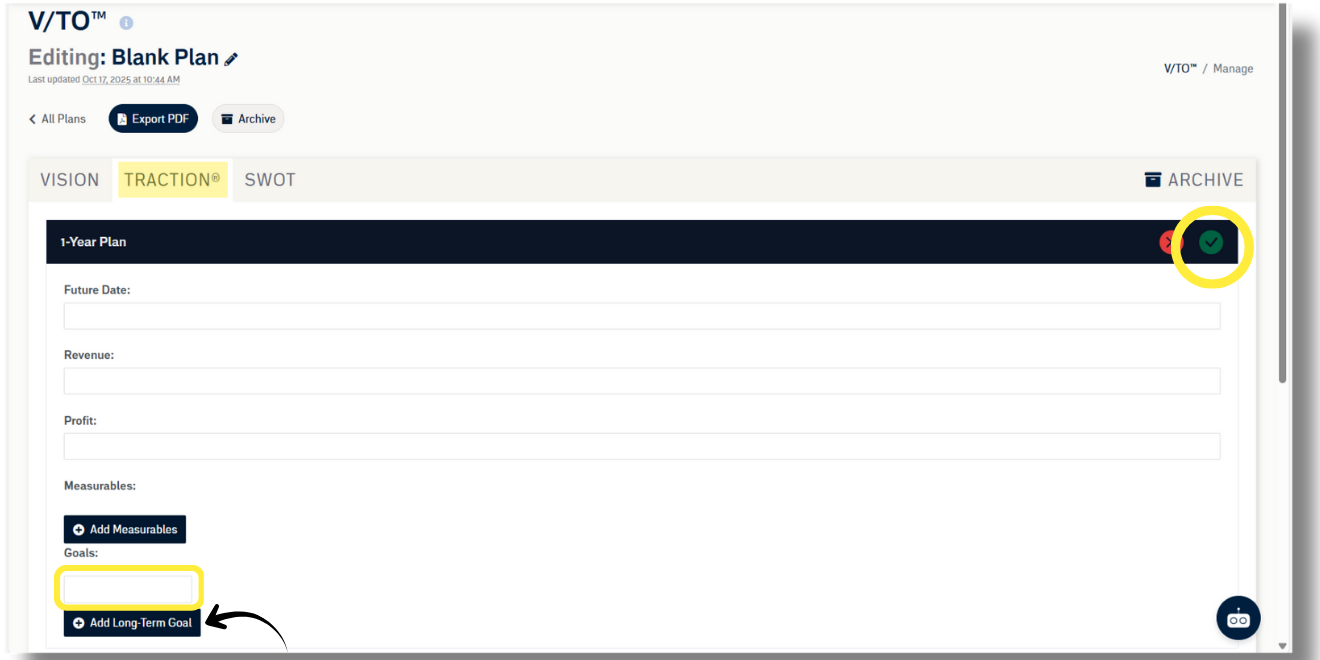
- 3-Year Vision and 1-Year Plan > Long Term Goals: Add existing Initiatives to your plan (click in the box), or create new ones (select +Add Initiative).
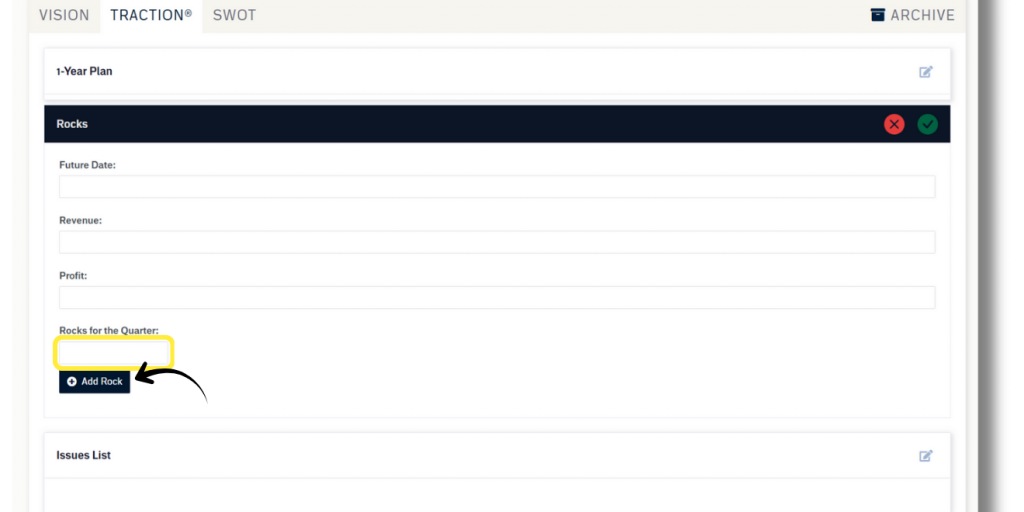
- Rocks > Rocks for the Quarter: Add existing Rocks to your plan (click in the box), or create new ones (select +Add Rock).
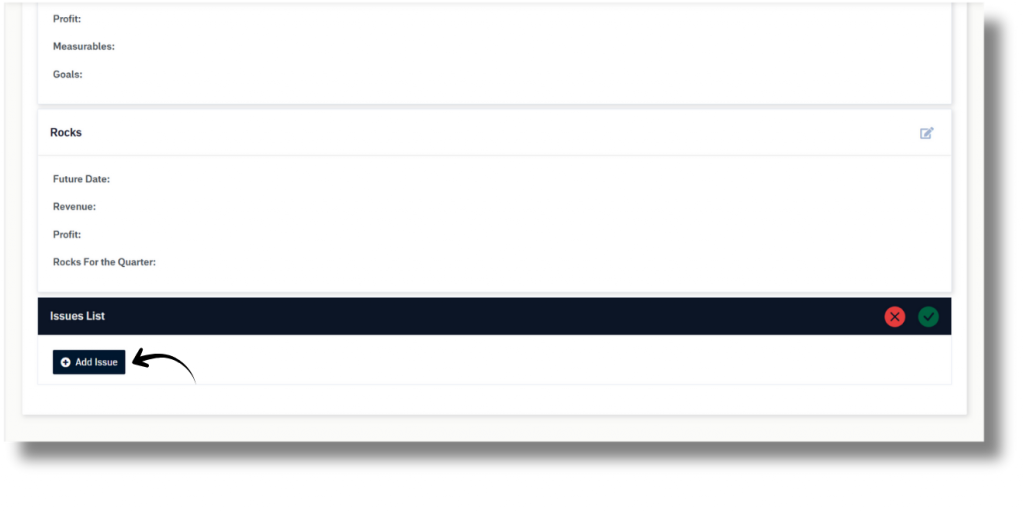
- Issues List: Create issues and add them to the meetings in which they should be discussed (select +Add Issue).
Archiving a SV&EP
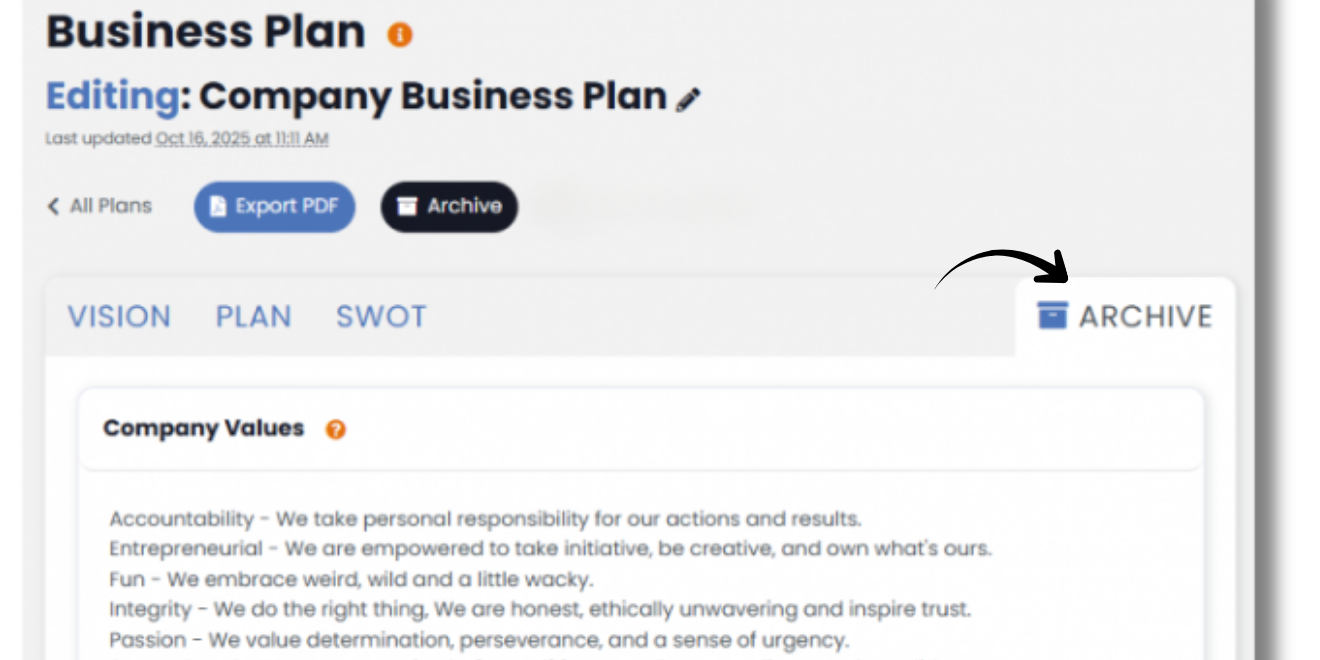
When updates to the SV&EP are needed (usually quarterly), users can archive the existing plan to preserve the work previously done and then move on to making updates. To archive a SV&EP, just click the Archive button below the plan title and then select OK to confirm.
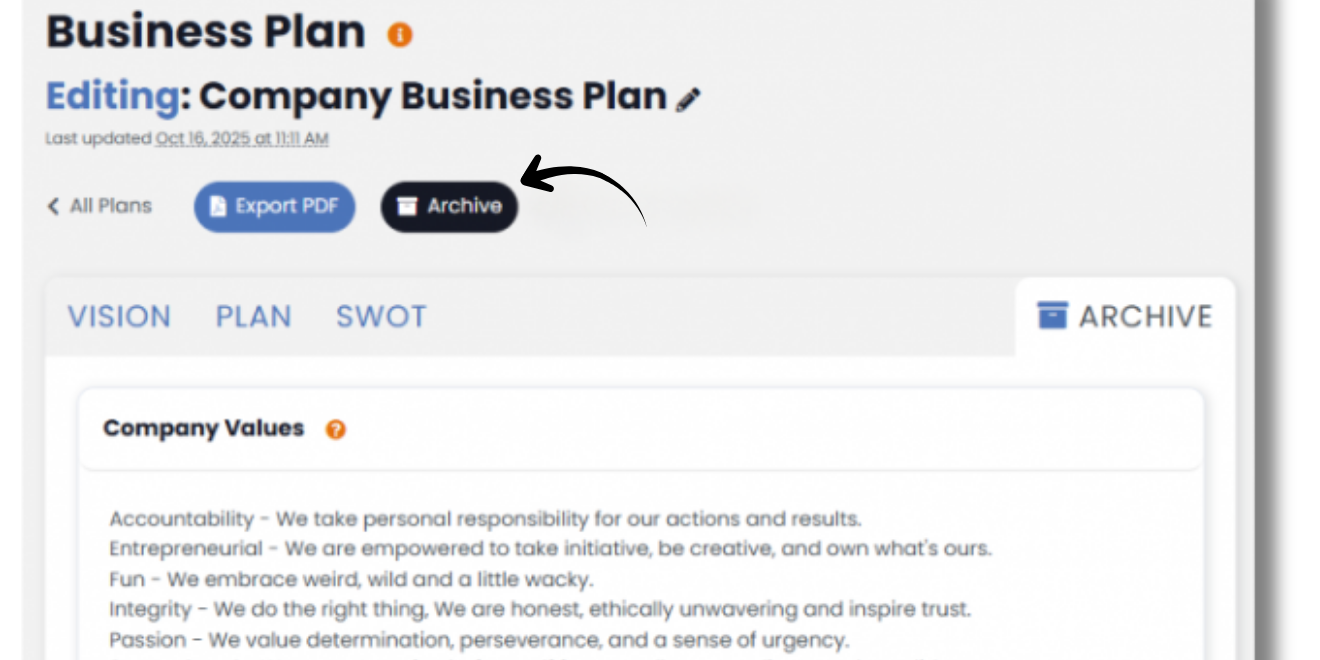
Archived versions of the SV&EP can be accessed by selecting the Archive tab on the right side of the plan.
Create a New SV&EP
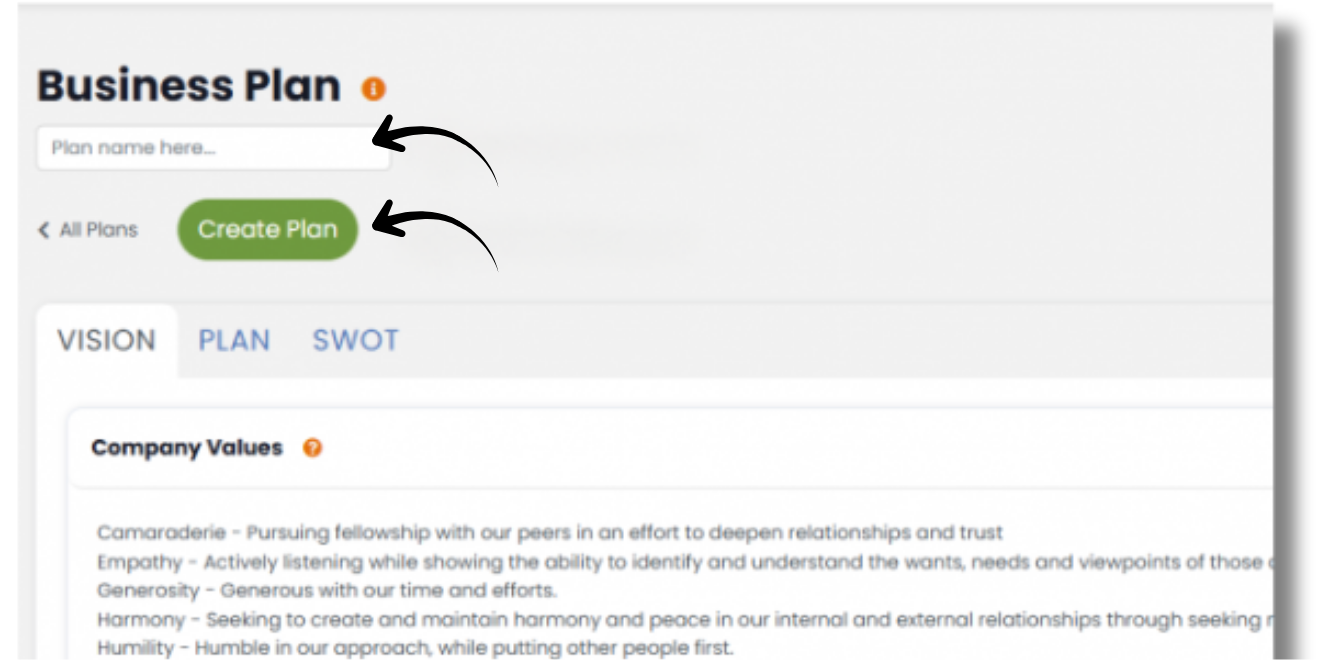
Creating a New SV&EP is just the same as editing an existing one, but with one important addition: saving the new plan. To create a new plan, select “+New Plan” from the main SV&EP page. Enter the title of your new plan then select “Create Plan”. Once created, you can edit your new plan, and it will autosave.
Embed a SV&EP in Meeting
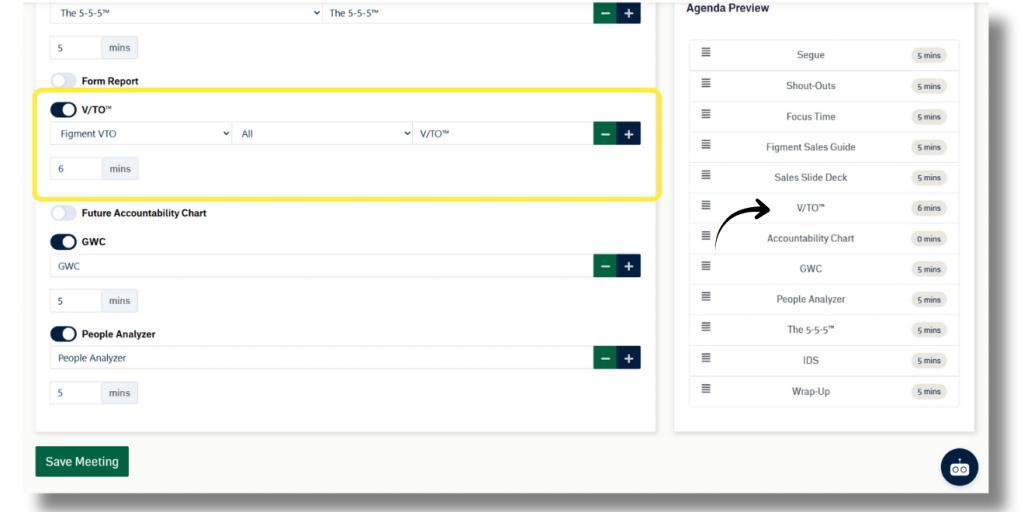
From a particular meeting’s settings, scroll towards the bottom and toggle “SV&EP.” Select the SV&EP from the list of non-historical SV&EPs and give that agenda item a name and dedicated number of minutes. The name defaults to “SV&EP” but you can re-name it in each meeting, if you choose.
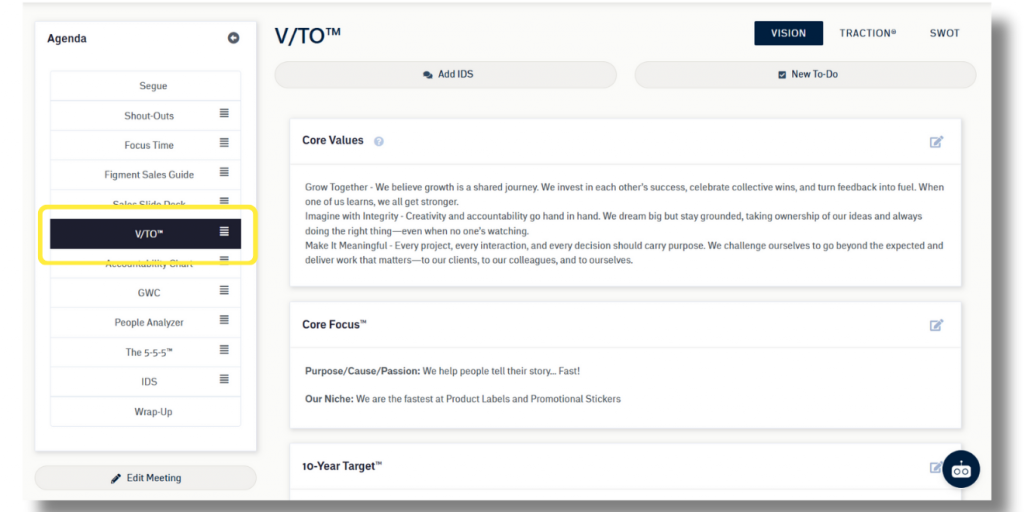
Once in your meeting, you’ll see that agenda item. When you get to that agenda item, you’ll see your SV&EP embedded in your meeting, just like in the SV&EP tool.
Up Next: Meeting Overview