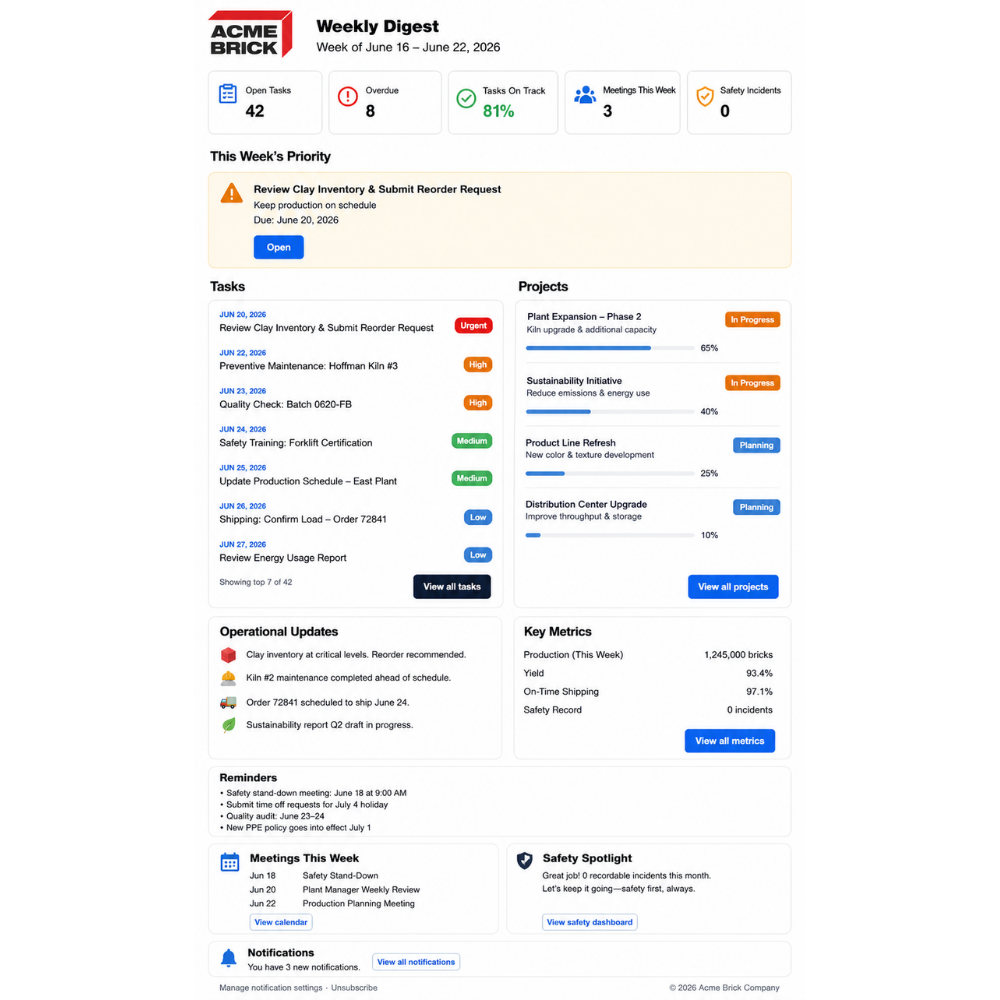
Daily and Weekly Digest emails are short, user-personalized emails that summarize what happened for a user over a chosen period:
Daily covers activity from the last 24 hours.
Weekly covers the last 7 days and is sent on the user-selected day.
Digests surface concise, actionable items so users can act on overdue work, see Rock status, view unresolved issues, review meeting/time metrics, and spot “shoutouts” for direct reports. Digests limit list size (e.g., top 5 Rocks / top 5 unresolved issues) and link out to the application for full context.
What the digest can include
Users can enable or disable sections. Sections available in the digest include:
To-Dos (open / overdue, due date, quick view link)
Rocks (Rock name + status, top 5 with View All Rocks CTA)
My Unsolved / Unresolved Issues (title, status, age, view link — top 5)
Reminders (Rock due soon, long-running unresolved issues, late To-Dos, etc.)
Notifications (recent notifications for the period)
Meetings (total meeting time, number of meetings, avg length)
Team Metrics / Shoutouts
How to set up Daily or Weekly Digest Emails
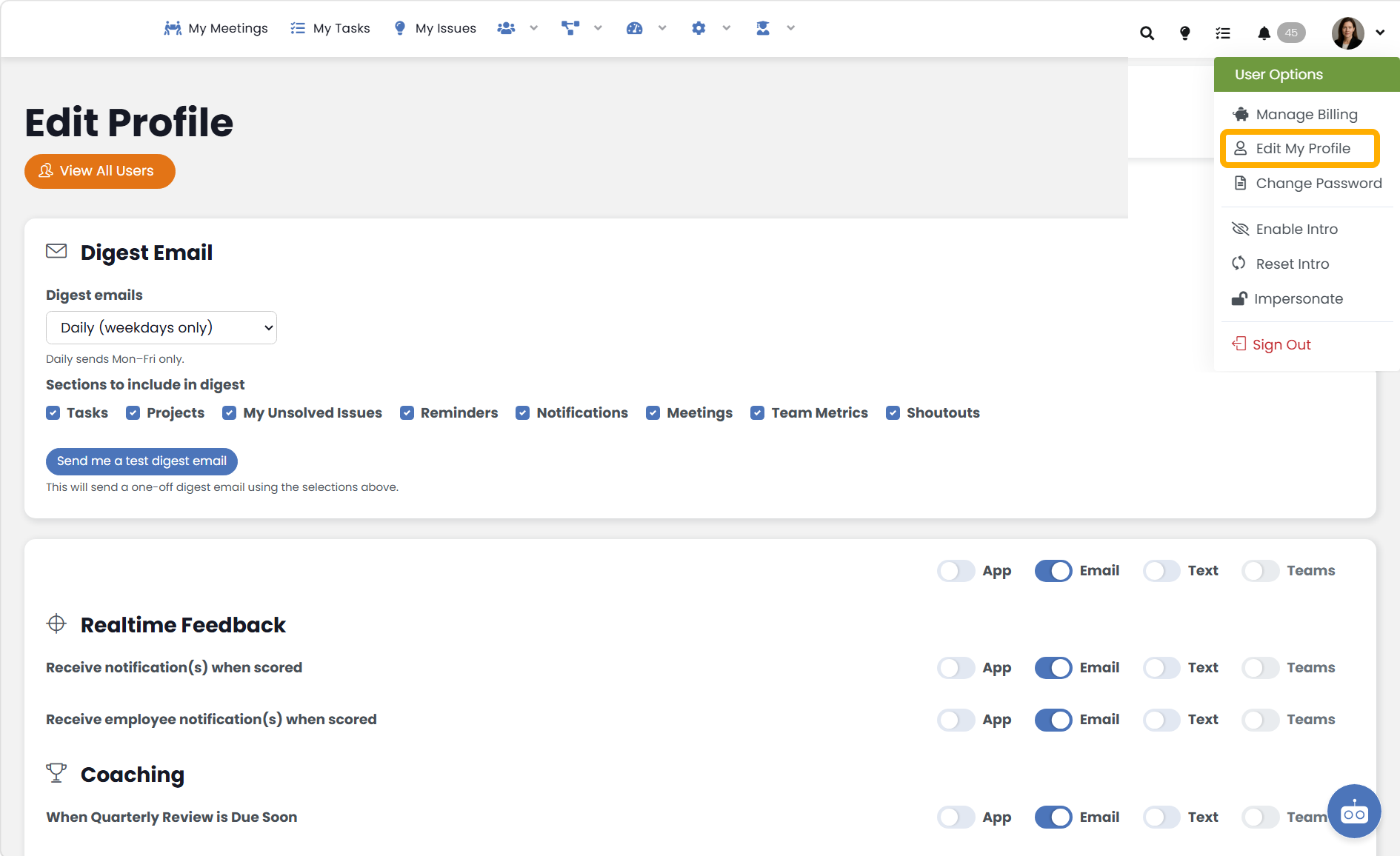
To access Daily Digest settings, navigate to your User Profile > Notifications. Daily digests are sent early morning in your local time zone; weekly digests are sent on the user’s time zone and selected weekday.
Open the application and go to your profile / user menu.
Click your avatar or name at the top right and then select edit profile.
Open Notification Settings.
From the user profile, choose Notifications.
Find the Digest emails setting.
Locate the Digest Email section. The options are: None | Daily | Weekly.
Choose Daily or Weekly.
Select Daily if you want a digest covering the last 24 hours.
Select Weekly if you want a digest covering the last 7 days.
If you select None, you will not receive digest emails.
(If Weekly) choose your preferred send day.
When Weekly is selected, a control appears to pick the weekday the digest should be sent. Choose the desired day.
Pick which sections to include (optional).
In the same Notification Settings area you can toggle which sections appear in your digest (for example: To-Dos, Rocks, My Unsolved Issues, Reminders, Notifications, Meetings, Team Metrics, Shoutouts). Enable only the sections you want to receive.
Save your settings.
Click Save Chages at the bottom of your profile page to commit changes.
Confirm timezone and brand defaults (if relevant).
Digests are sent using the local time zone for daily and weekly sends using the time zone set in Company Settings.
To stop digests at any time.
Return to Notification Settings and set Digest emails to None, or disable all sections.
Limits and reminders
Rocks and issue lists are intentionally short (top 5 items) to avoid email bloat; CTAs link to full pages for more detail.
Reminders include rules such as long-running unresolved issues (for example unresolved > 14 days), Rock due-soon reminders, and late To-Do reminders.