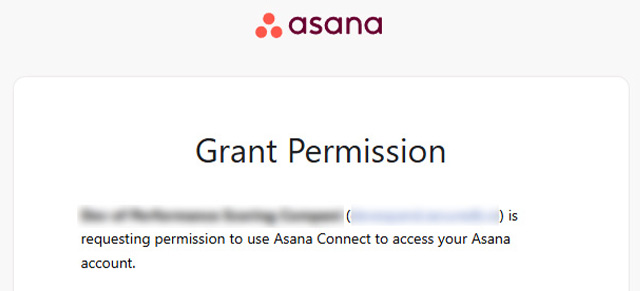
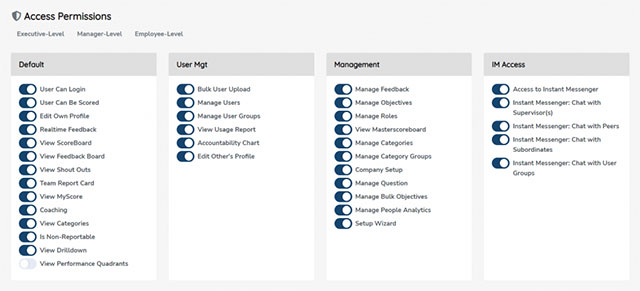
These settings are required one time per organization and must be completed by an administrator. They allow this system to securely communicate with your company’s Asana workspace. This section configures how your entire organization connects GoExpand to Asana’s API.
It does not connect your personal Asana account. Here’s how each user can connect their own personal Asana account to GoExpand.
Instead, it establishes:
- API identity for your organization
- Ability to map and sync Asana teams & users
- Ability to create and manage webhooks
- Backend operations like importing projects
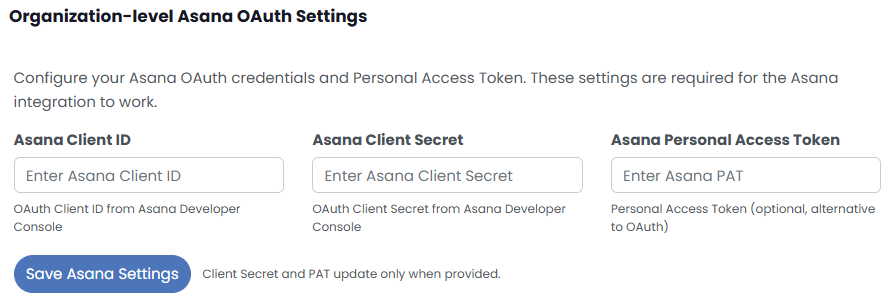
You must be logged into Asana using an account that has permissions to create an OAuth app from the Asana Developers Console.
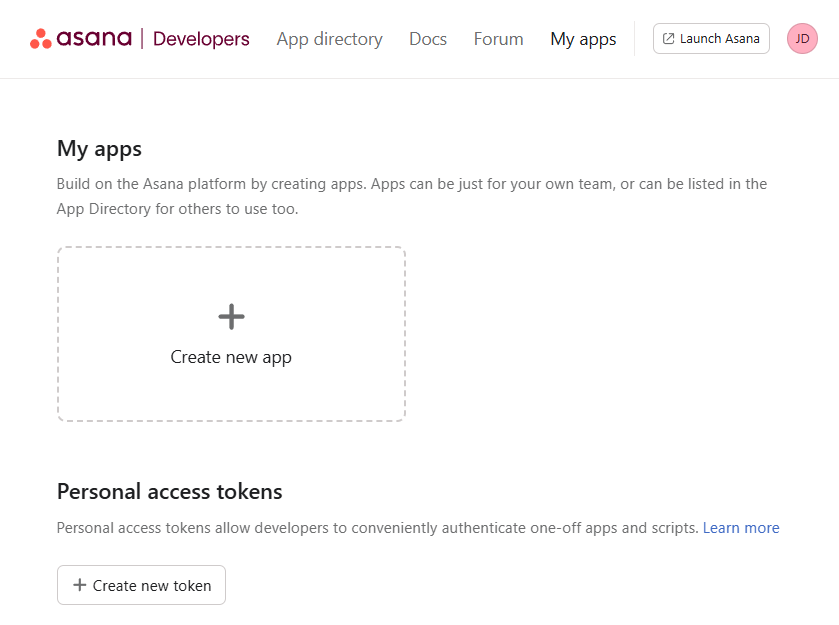
Steps to get your Client ID, Client Secret, and Optional Personal Access Token (PAT):
Step 1: Open the Asana Developer Console
- Go to https://app.asana.com/0/developer-console
- Click “+ New App”
- Name it (example: “GoExpand Integration”)
- Select your organization/workspace
- Create the app
Step 2: Retrieve Your Credentials
Inside your newly created app:
- Client ID:
Visible under the OAuth tab → copy & paste it here. - Client Secret:
Also inside the OAuth tab → copy & paste it here.
(This value is hidden—click “Show Secret.”) - Personal Access Token (PAT):
Only required if you prefer API access without OAuth.
Create under:
Developer Console → Personal Access Tokens
Then paste it here.
Great — below are the remaining steps written in the same step-by-step style as your original content. Paste them directly after your existing Step 2. I kept the tone and formatting consistent and included the exact values and checks your admins will need.
Step 3: Register Redirect URI and Webhook URL in Asana
- In the Asana Developer Console, open your app → OAuth (Authorization) settings → Redirect URIs.
- Add the exact redirect URI used by the application:
https://expand.securedb.io/asana/settingsAlso add the trailing-slash variant to be safe:https://expand.securedb.io/asana/settings/Important: Asana requires an exact match (scheme, host, path and trailing slash). If your org uses tenant subdomains (for exampleacme.expand.securedb.io), add each tenant’s exact URL (Asana does not accept wildcards). - If you will have Asana call webhooks directly, add the webhook target URL:
https://expand.securedb.io/asana/webhook(The integration supports an optional prefix at/asana/webhook/{prefix?}.) - Save your changes in the Asana console.
Step 4: Configure OAuth Scopes and Distribution
- Still in the Asana app, open OAuth / Authorization → Scopes. You must choose scopes (or enable full permissions) before users can authorize.
- Two options:
- Full permissions (recommended for simplicity) — enable Full permissions (often labelled
default). - Or granular scopes — add the recommended minimal scopes below if you prefer to limit permissions:
projects:read tasks:read tasks:write users:read teams:read webhooks:write workspaces:read
- Full permissions (recommended for simplicity) — enable Full permissions (often labelled
- Open Manage distribution and set Choose a distribution method → Any workspace if you want any Asana workspace to be able to connect. If you intentionally restrict installs, add the specific Asana workspace(s) that may install the app — note this prevents other customers’ Asana workspaces from authorizing.
Step 5: Copy Client ID / Client Secret / (Optional) PAT into GoExpand
- In Asana copy the Client ID and Client Secret from the OAuth tab.
- In GoExpand (Organization-level Asana OAuth Settings): paste Client ID into Asana Client ID, paste Client Secret into Asana Client Secret, and (optionally) paste a Personal Access Token (PAT) if you want company-level API access without per-user OAuth. The PAT will be used as a fallback for backend operations.
- Click Save Asana Settings. The application will store the credentials and then attempt to verify the connection; if a PAT is present it will be preferred for API calls, otherwise it will attempt to use an admin user’s OAuth token.
Step 6: Complete the Connect / Authorize Flow
- After saving, GoExpand will indicate whether it requires connection and provide a Connect / Authorize link. Click that link to open the Asana consent screen and approve the app. (If the UI shows a message and
connect_url, GoExpand will redirect you into Asana.) - Asana will redirect back to:
https://expand.securedb.io/asana/settingsThe application exchanges thecodefor an access token using the sameredirect_urivalue. If the registered redirect URI does not match exactly, Asana will reject the request.
Step 7: Verify and Test
- Use the GoExpand Asana settings page Quick Actions: View Workspaces, View Projects, or Load Teams to confirm the API calls succeed and the integration can list Asana data. If these returns lists of workspaces/projects/teams you are connected.
- Verify webhook accessibility using the built-in test handshake or by creating a test webhook in the Asana app and confirming GoExpand receives the handshake. The application exposes a webhook test endpoint and the public webhook endpoint (
/asana/webhook) must be reachable by Asana.
Troubleshooting — quick fixes for common errors
- Error:
The 'redirect_uri' parameter does not match a valid url for the application.
Cause/fix: The redirect you registered in Asana does not match exactly the redirect used by the app. Addhttps://expand.securedb.io/asana/settings(and the trailing slash variant) to Asana and save. - Error:
Your app does not have any scopes registered.
Cause/fix: Scopes are missing in the Asana app settings. Either enable Full permissions (default) or add the recommended granular scopes in Step 4. After saving scopes, re-run the Connect flow. - Error:
Authentication failed. Your token may have expired.
Cause/fix: OAuth token expired and could not be refreshed. Reconnect the user (or disconnect & reconnect) or configure a company PAT so the application can operate without per-user OAuth. The application will attempt to refresh tokens automatically, but when refresh fails it prompts reconnect. - Webhook unreachable / handshake failure
Cause/fix: Asana cannot reachhttps://expand.securedb.io/asana/webhook. Ensure firewall and DNS allow public access and test the webhook handshake endpoint. The app excludes the webhook URL from CSRF so Asana’s handshake will succeed if reachable. - Proxy / SSL / Unsupported SSL request errors
Cause/fix: Corporate proxy or SSL inspection may block the token exchange. Confirm the server can make outbound TLS connections and configureASANA_PROXY/ proxy settings if necessary; check logs for the SSL/proxy diagnostic message surfaced by the token exchange.
Paste those values into the Asana Integration inputs and click Save Asana Settings at the bottom.