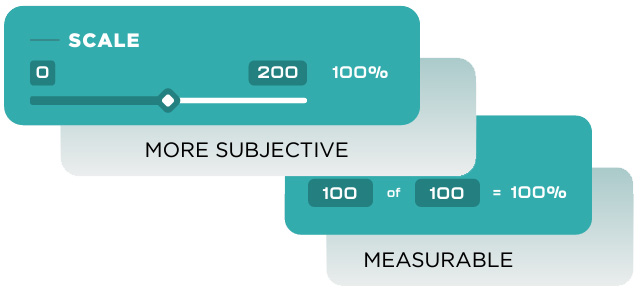
By default, GoExpand uses numeric Metrics. That is a goal value (the number you’re trying to meet or exceed) and the current value (the amount you’ve achieved so far). That works great if your Metric was X number of widgets made per month. What if your Metric was a little more subjective, like percent complete of a Rock? That’s what Scale Metrics are for. Here’s how to use them.
Create or Edit an Metric
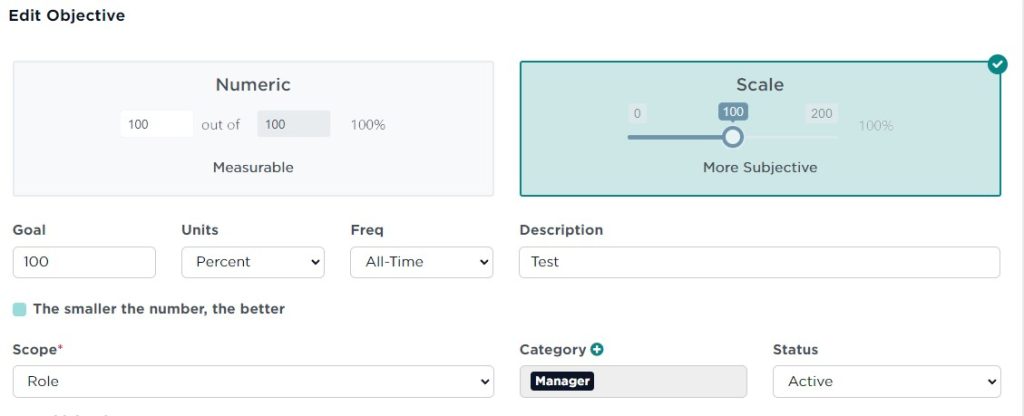
From the left-hand navigation, go to Administration >> Manage Metrics. Click the Edit button next to the Metric you want to edit or click Add Metric to create a new one, as you normally would.
Select Scale
At the top, you’ll see two options: Numeric (the default) and Scale. Select Scale.
Before & After
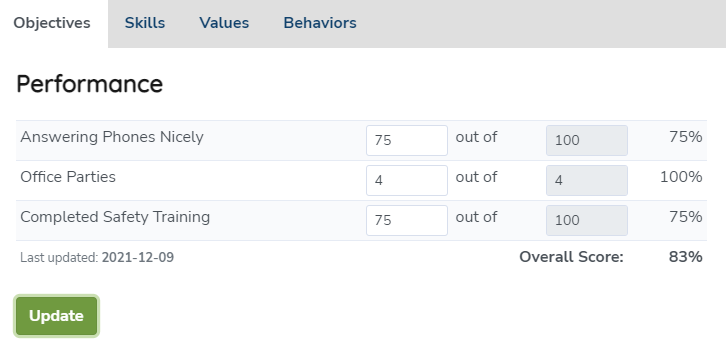
If you then went to look at how that Metric looks, you’ll find it now has a sliding scale you can use which has increments of 5 between 0% and 200%.
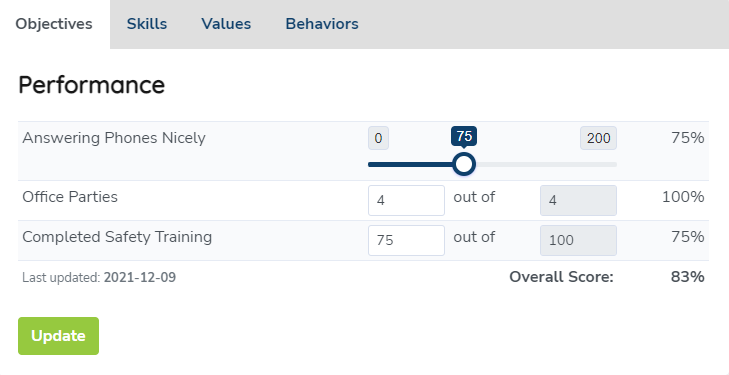
The slider also denotes visually that this is more of a scale than a hard numeric value.