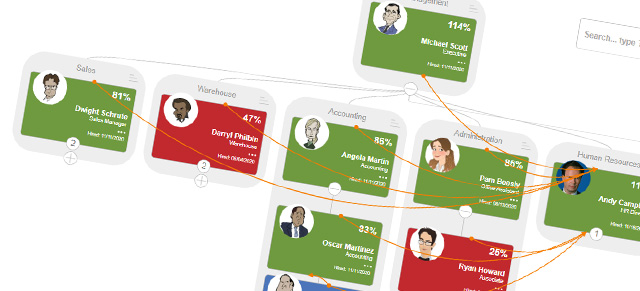
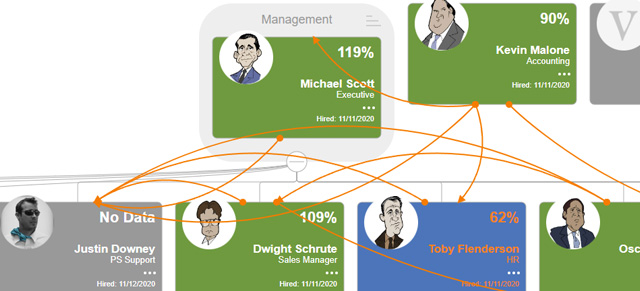
The The Accountability Chart displays your company’s hierarchy in the form of user tiles color-coded by performance score or Engagement score for the previous 30 days. The The Accountability Chart is fully interactive, allowing users with the correct permissions to create or edit users and their Seats. Employee tiles can also be moved to change department and/or reporting structure on the fly.
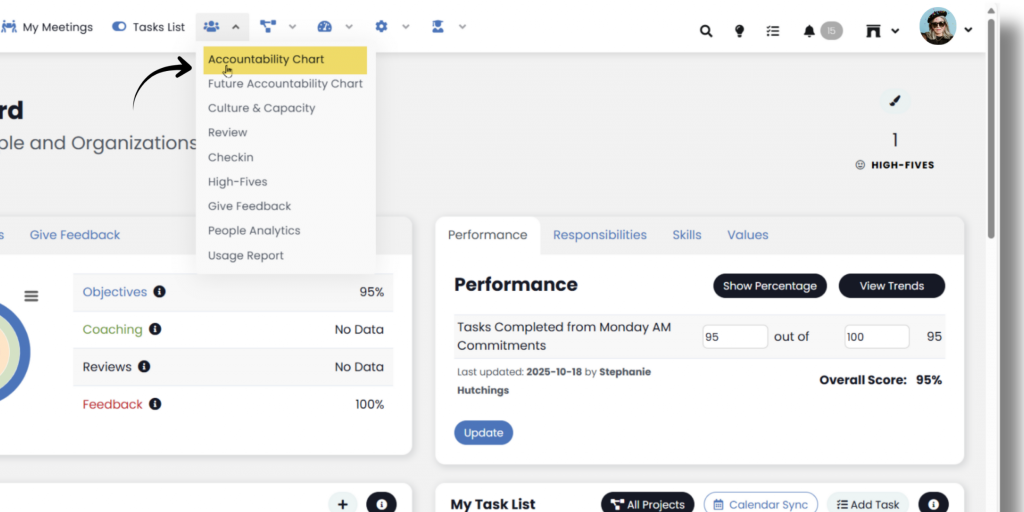
Access the The Accountability Charts from the navigation panel by selecting People >> The Accountability Chart.
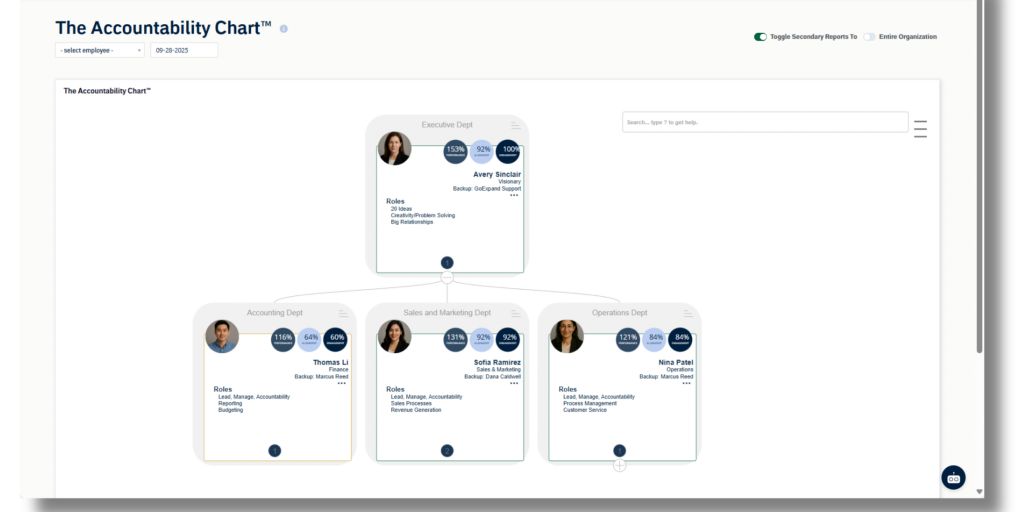
The default The Accountability Chart will display the logged-in user and all users that primarily report to them. You can view the entire organization by using the “Entire Organization” switch at the top. Primary reporting lines are grey, and secondary reporting lines are orange. You can turn off the secondary reporting view by using the “Toggle Secondary Reports To” switch at the top. If your organization has departments, the The Accountability Chart will group employees in those departments on the chart. You can turn off the departmental view by using the “Toggle Department” switch at the top. To change the users displayed on the The Accountability Chart, either select the dropdown in the top left of the page and select a new employee, or select the + symbol underneath an employee to expand the chart further. Tile colors are determined by Performance and Engagement scores in GoExpand.
Moving Users
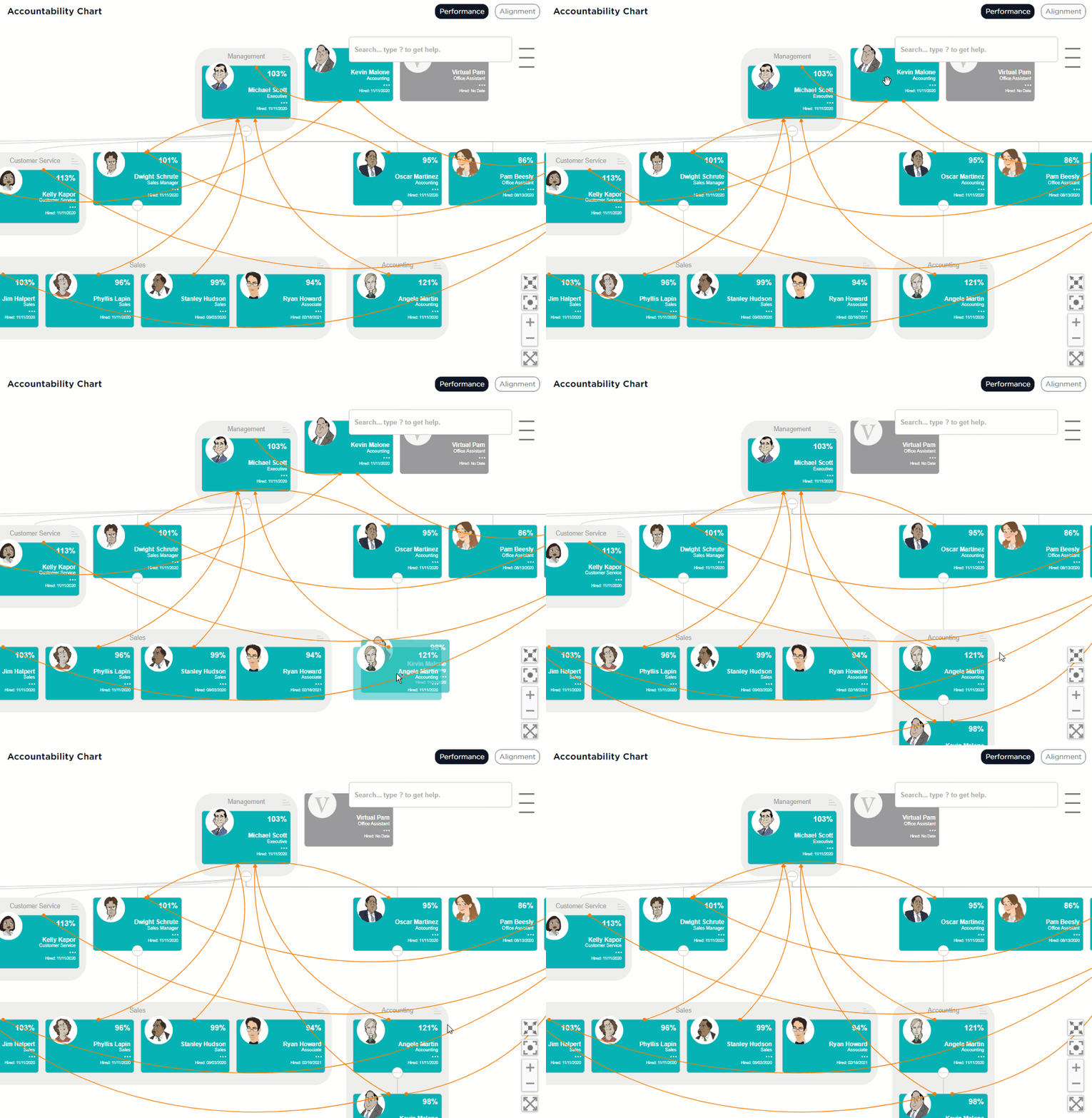
In the event an existing user needs to move within your organization, the The Accountability Chart can be used to update reporting structure and/or department by dragging the user’s tile and dropping it on the tile of the new manager.
Employee Slide-Out Panel
Clicking a user tile activates a slide-out panel that gives users with the correct permissions the ability to edit the Seat, edit the User, and access their Employee Dashboard.
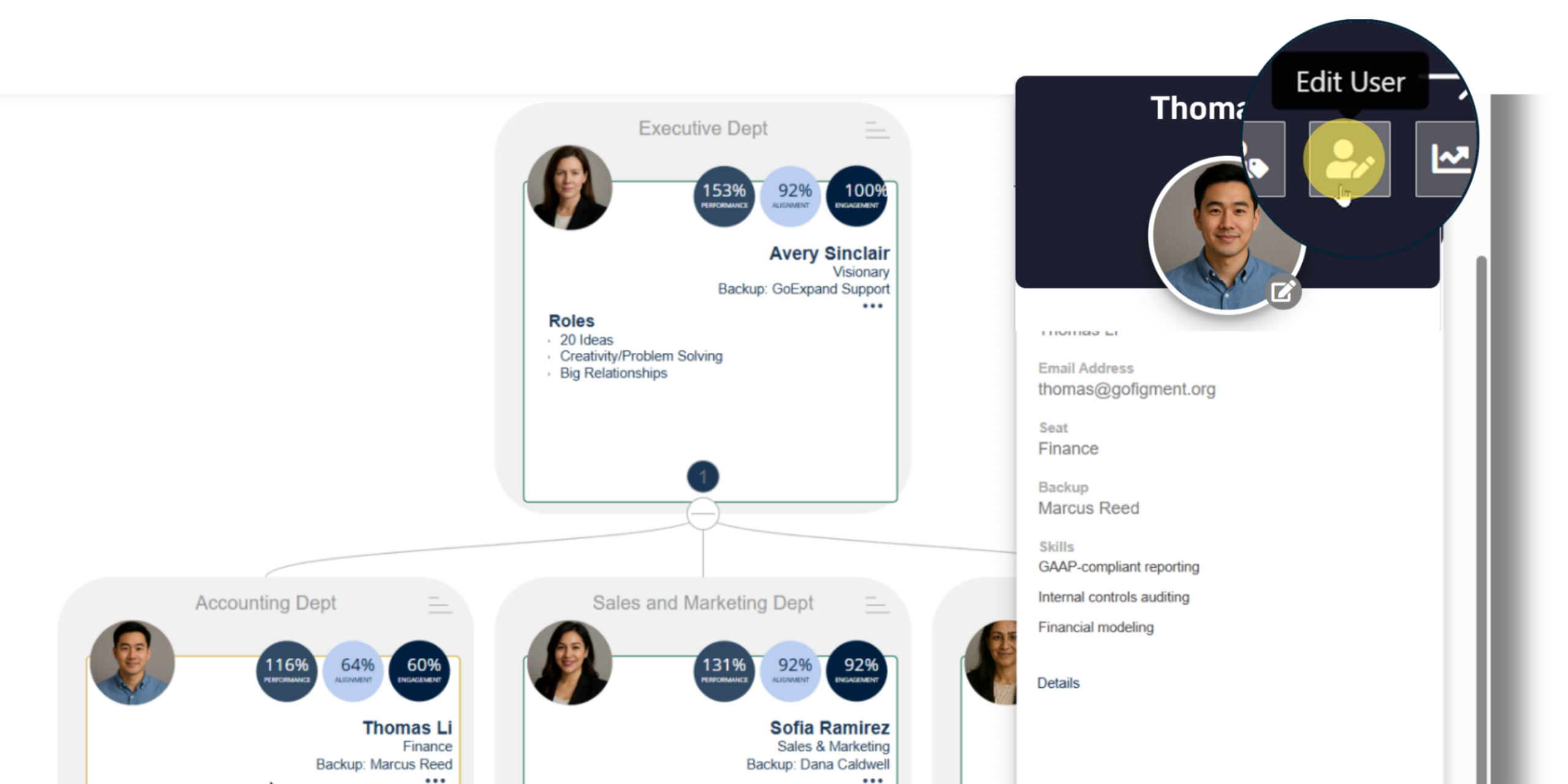
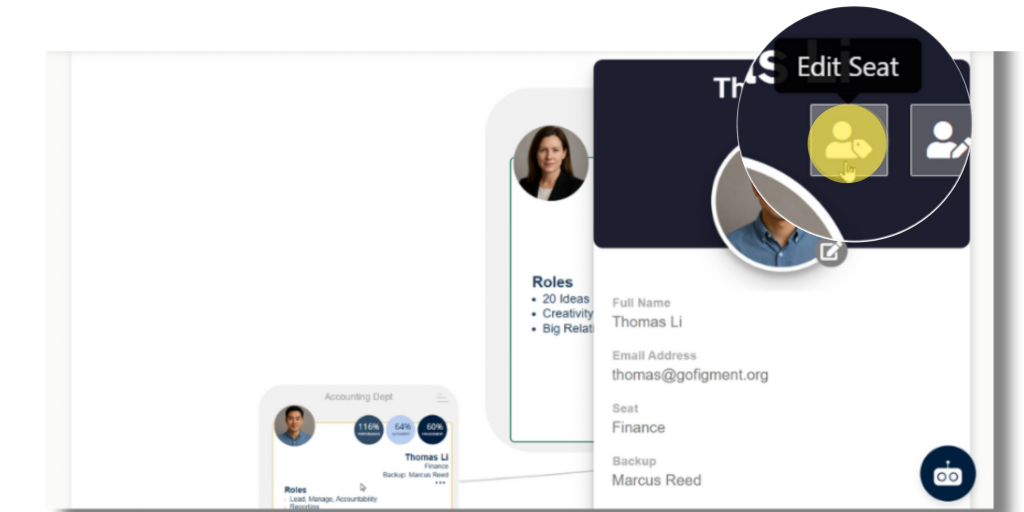
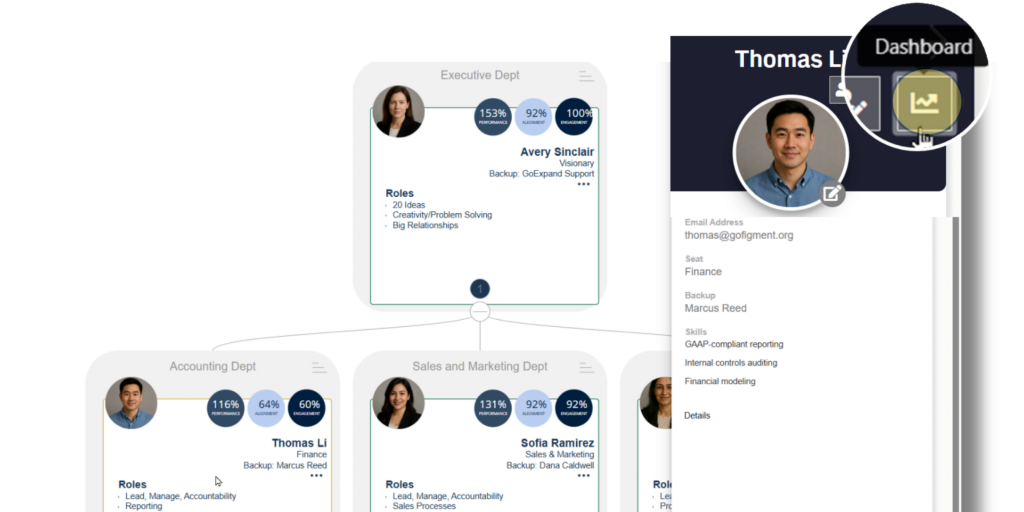
Adding/Editing Users and Seat
Clicking the three dots next to the Seat description in a tile opens an options modal allowing users to do the following:
- Details – view the user details slide-out pane.
- Edit – edit the user or their Seat.
- Add – add a new user who reports to the selected user.
- Remove – delete the selected user.
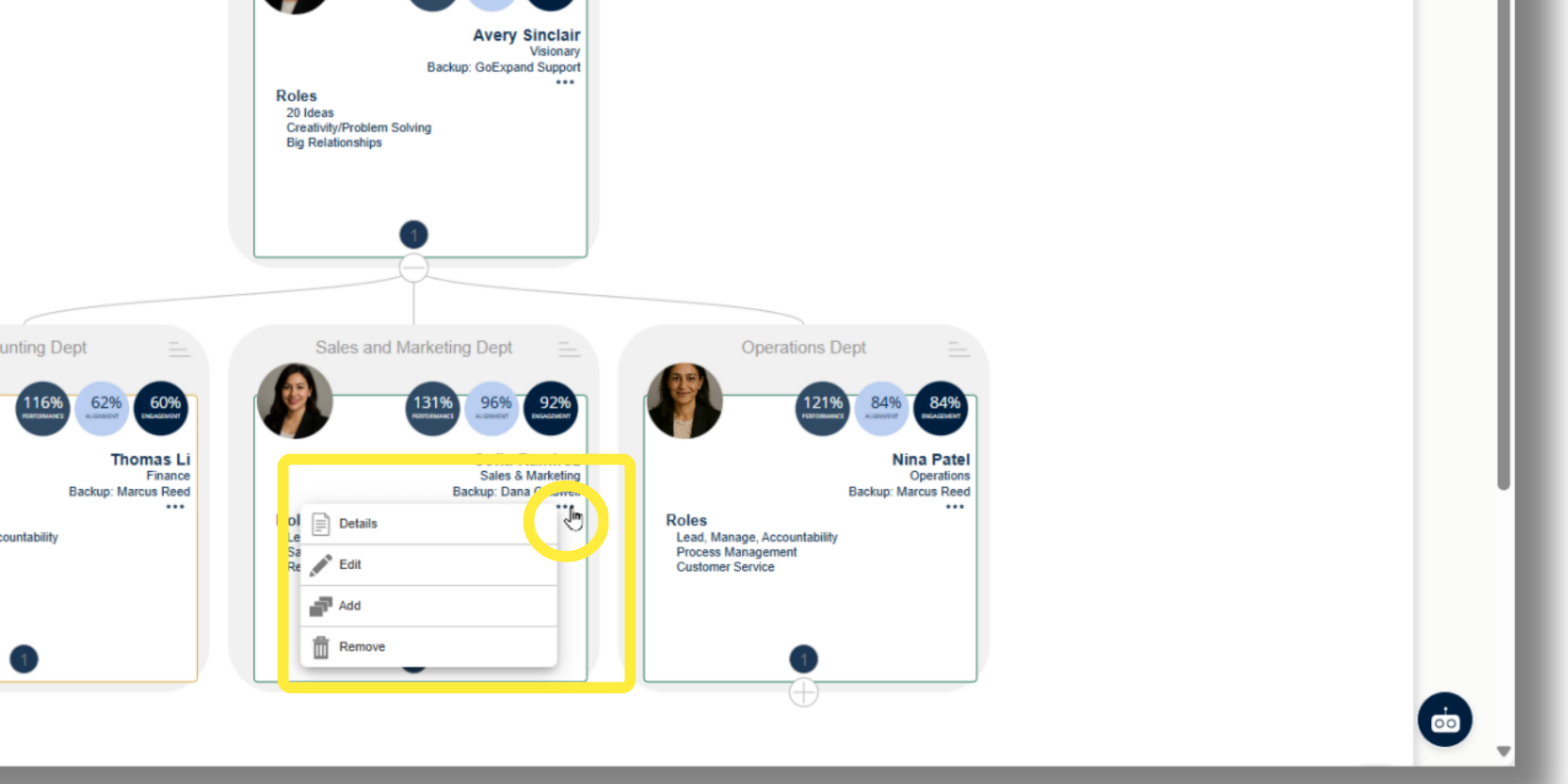
Adding a new user will create a blank tile which can then be edited by selecting the three dots and choosing Edit. This will cause a blank slide-out to appear. Upload a user picture by clicking the edit icon next to the blank avatar. Enter the new user full name and email address, then select the appropriate Seat from the drop-down menu. Once a Seat is selected, the Roles, Skills, and Metrics for that Seat will automatically populate. When you are done, select Save and Close, and the new user will have been created in your organization.
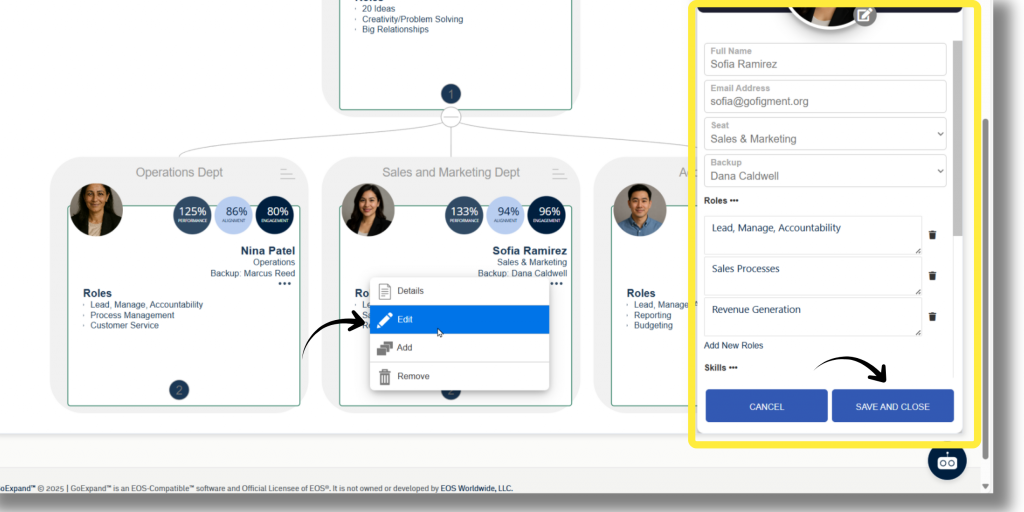
Using the Edit function allows you to update the Seat information as well as the user’s profile picture.
What about the future of the organization? That’s what the aptly named, “Future The Accountability Chart” is all about.